TABLE OF CONTENTS
1. Lightspeed Report
1.1 Sales Report
1.1.1 Sales Report by Categories
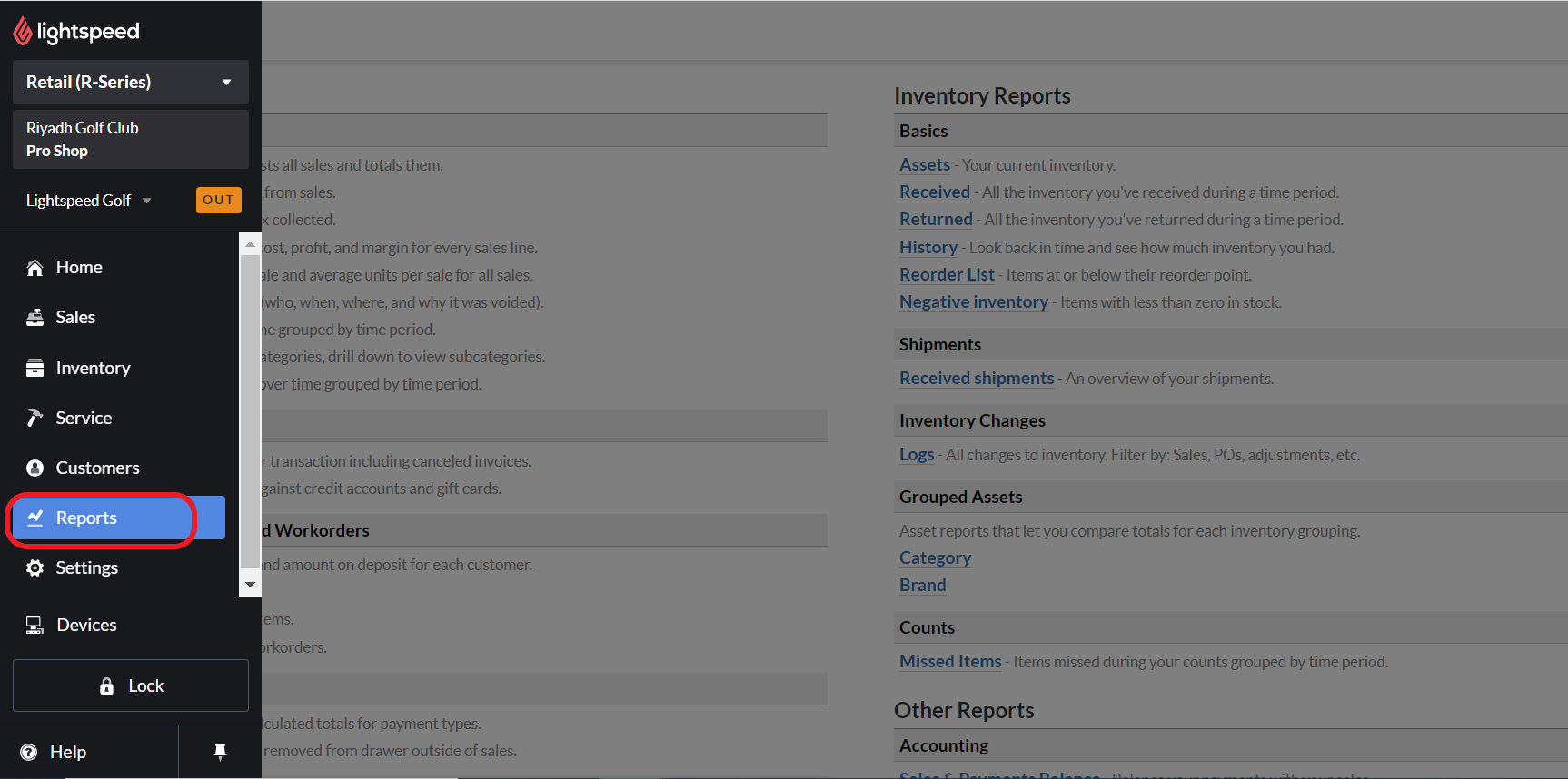
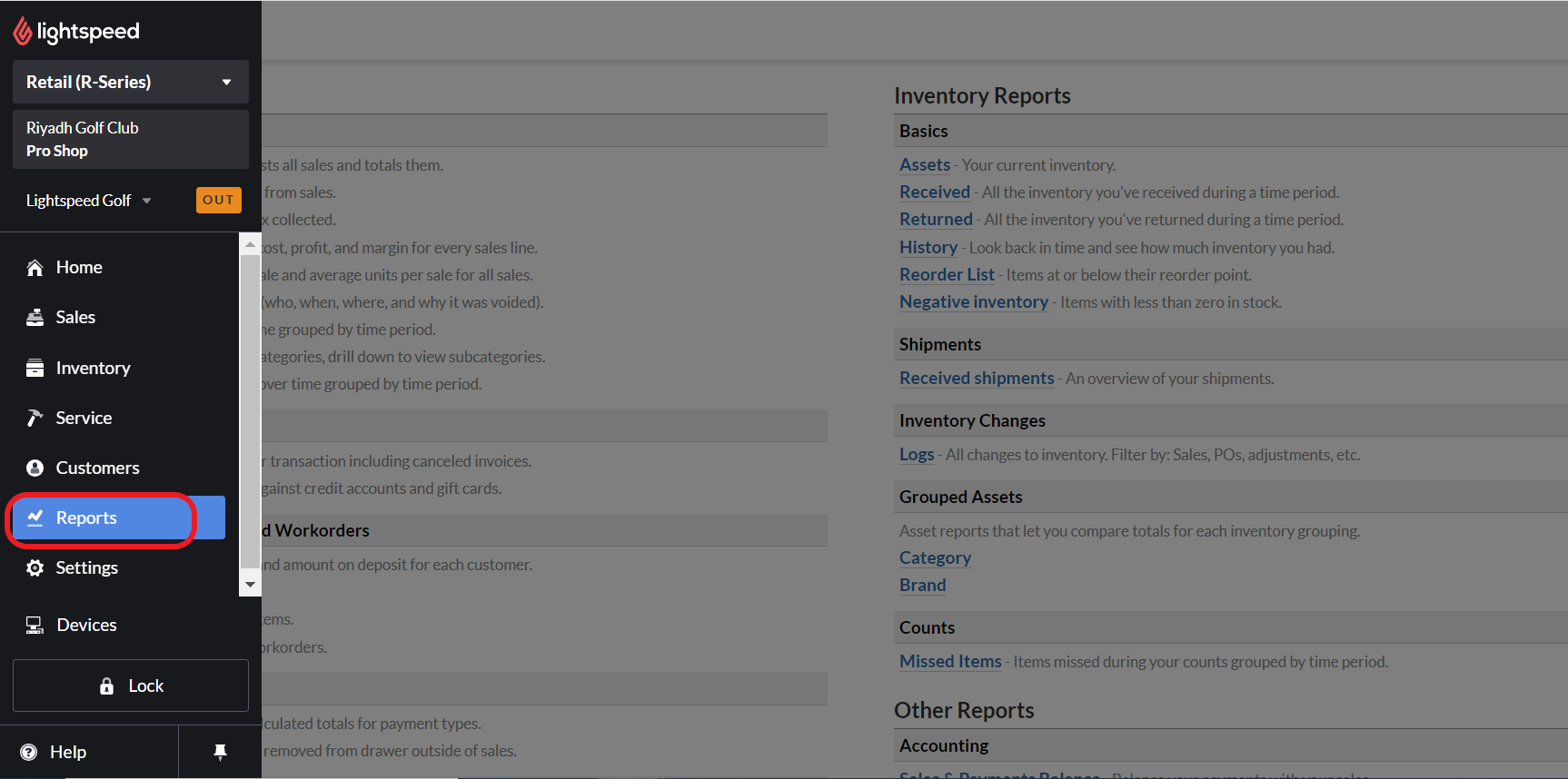
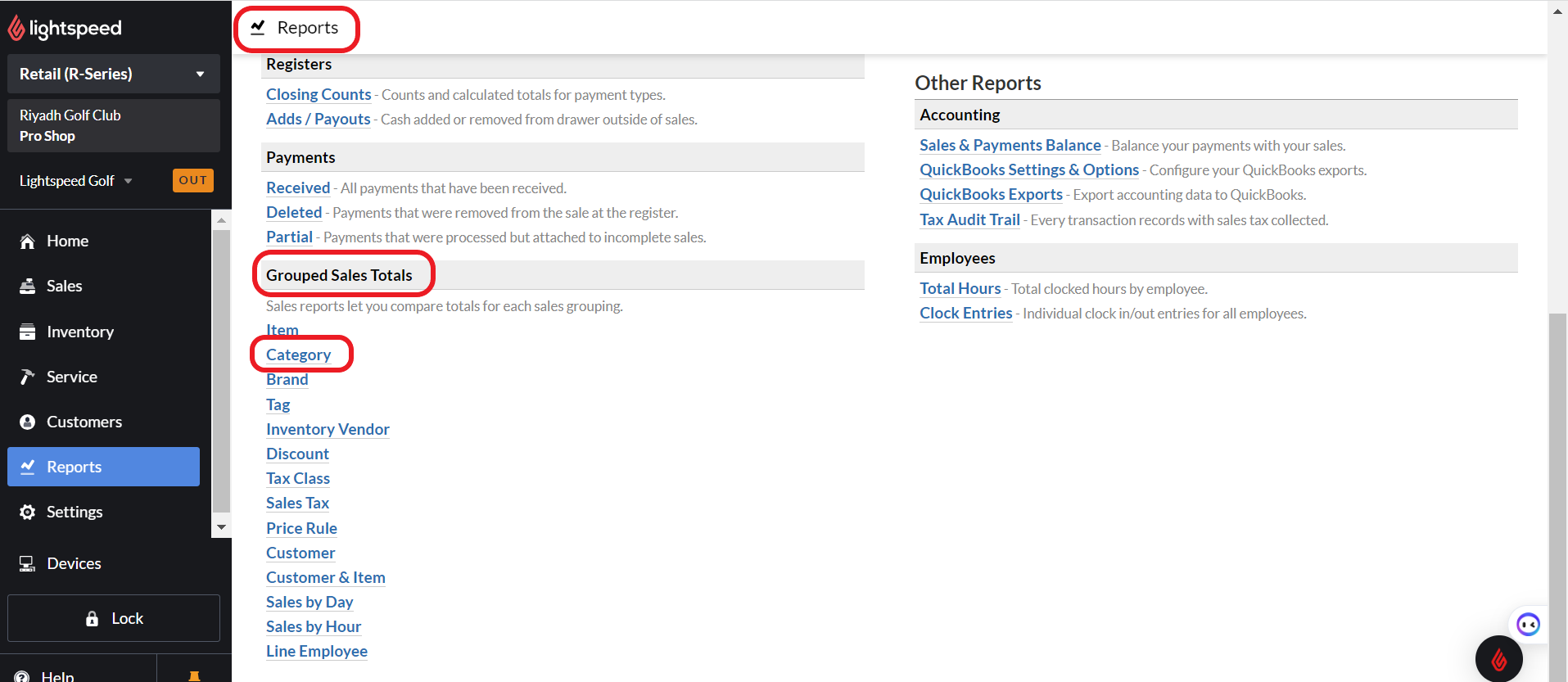
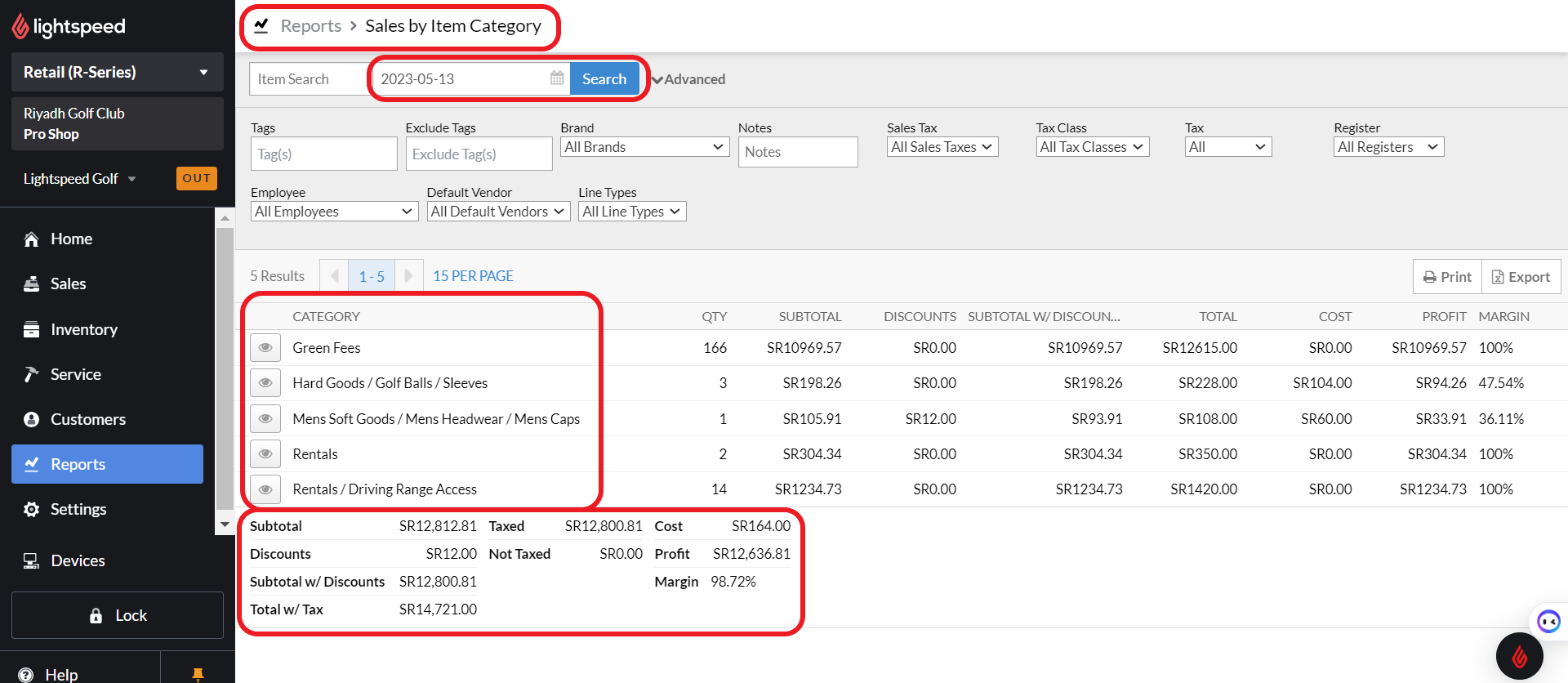
Please follow the below steps to access the sales reports by categories in Lightspeed:
Report → Grouped Sales Totals → Category
1.1.2 Total Sales Report
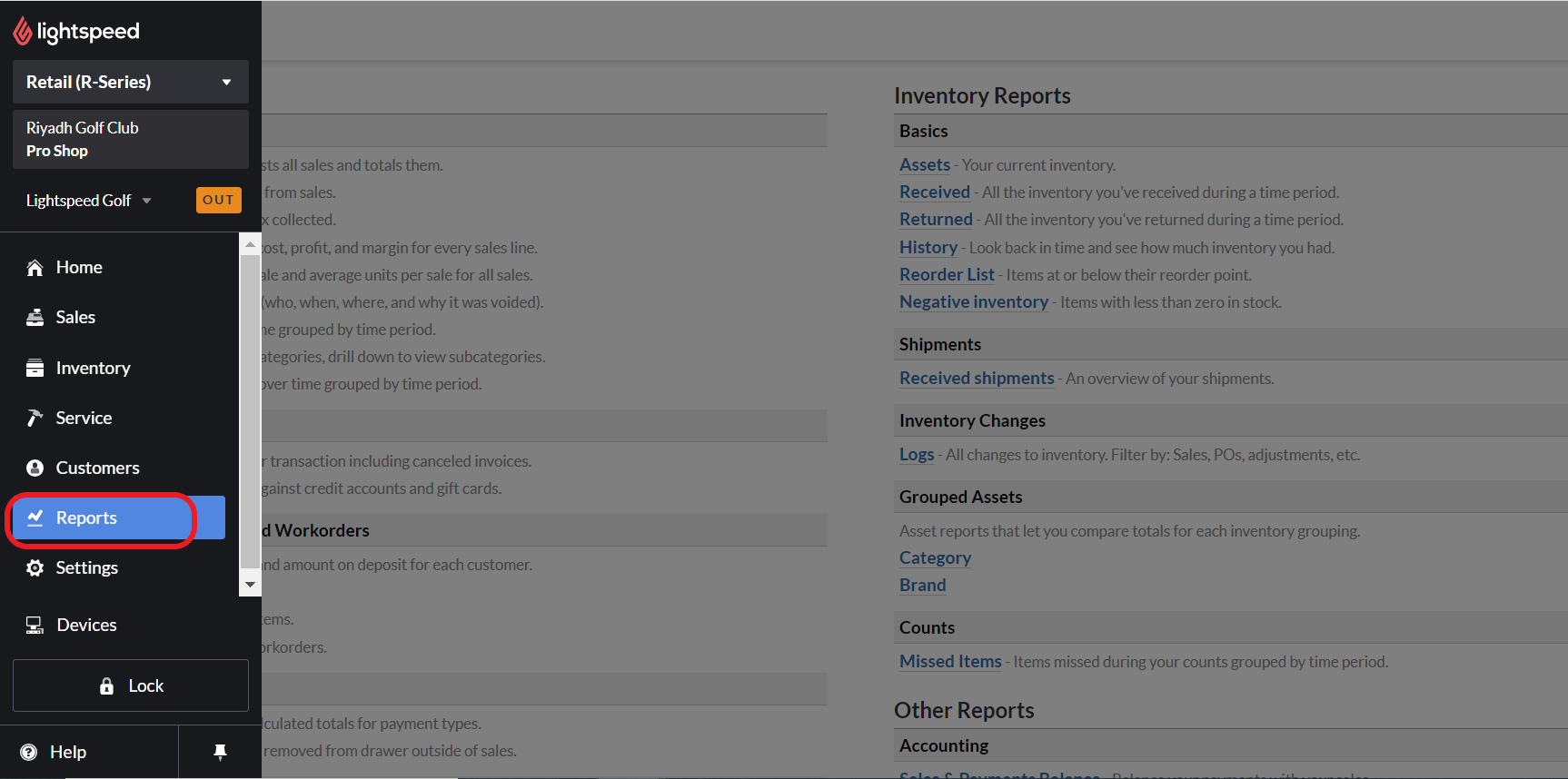
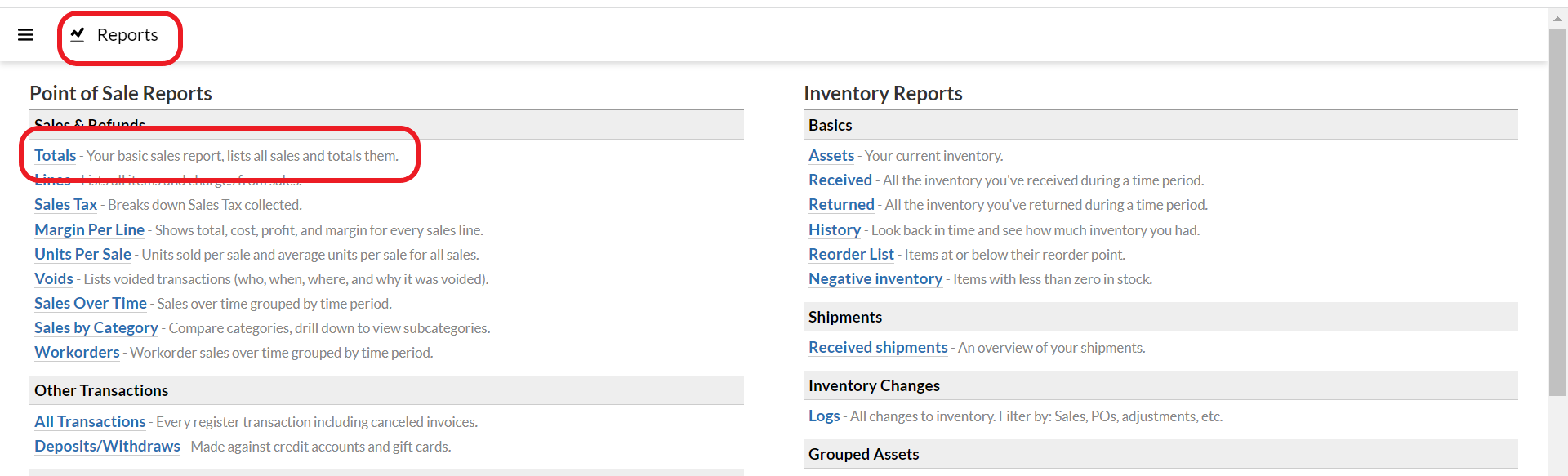
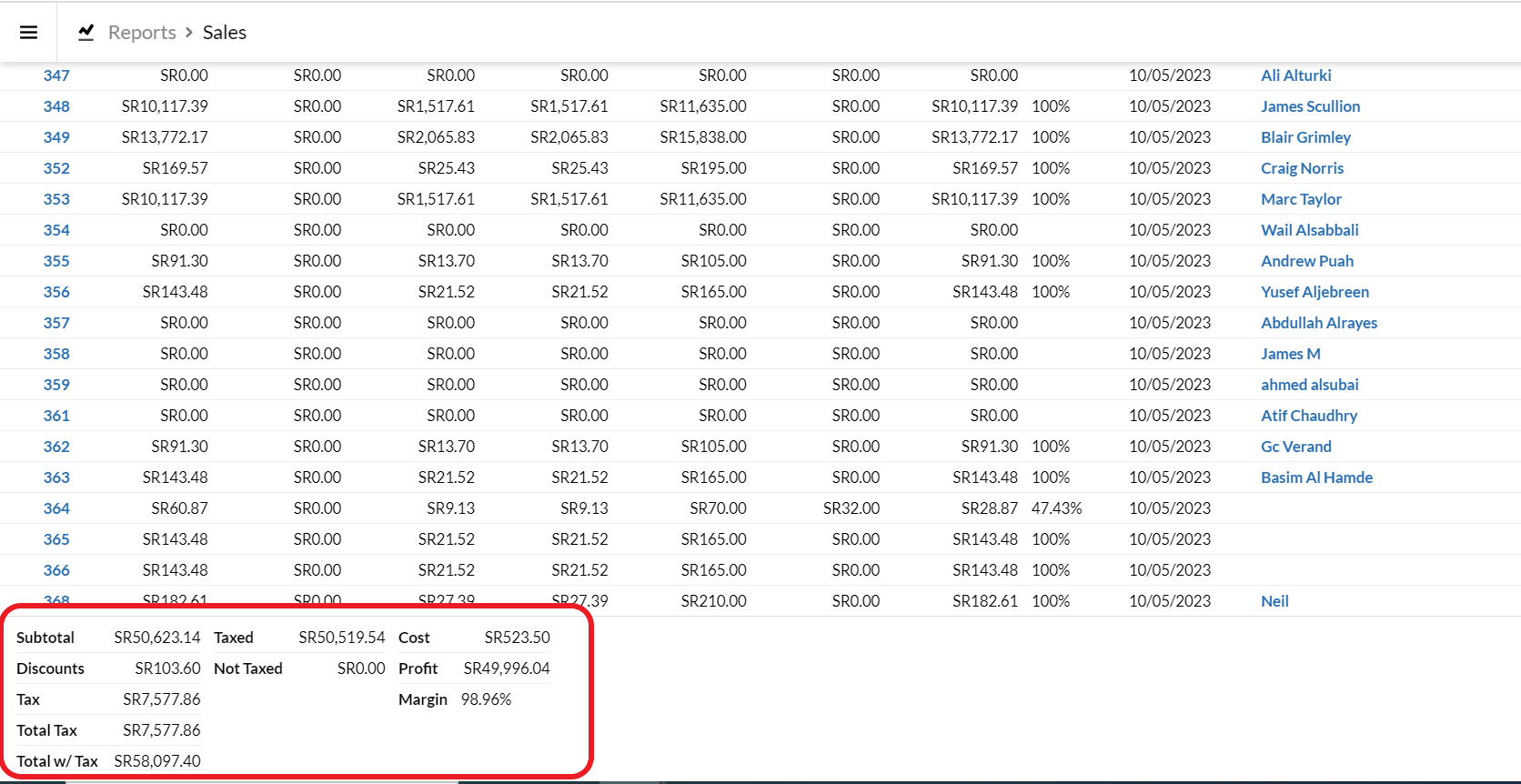
Please follow the below steps to access the sales reports in Lightspeed:
Report → Sales and Refund → Totals
Please enter the specific date/s.

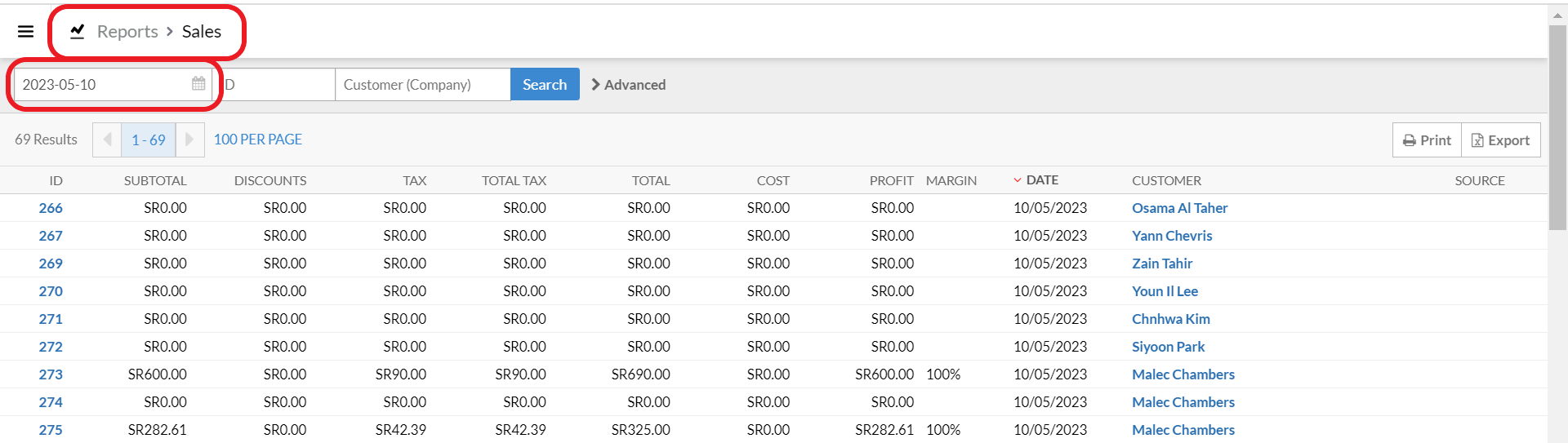
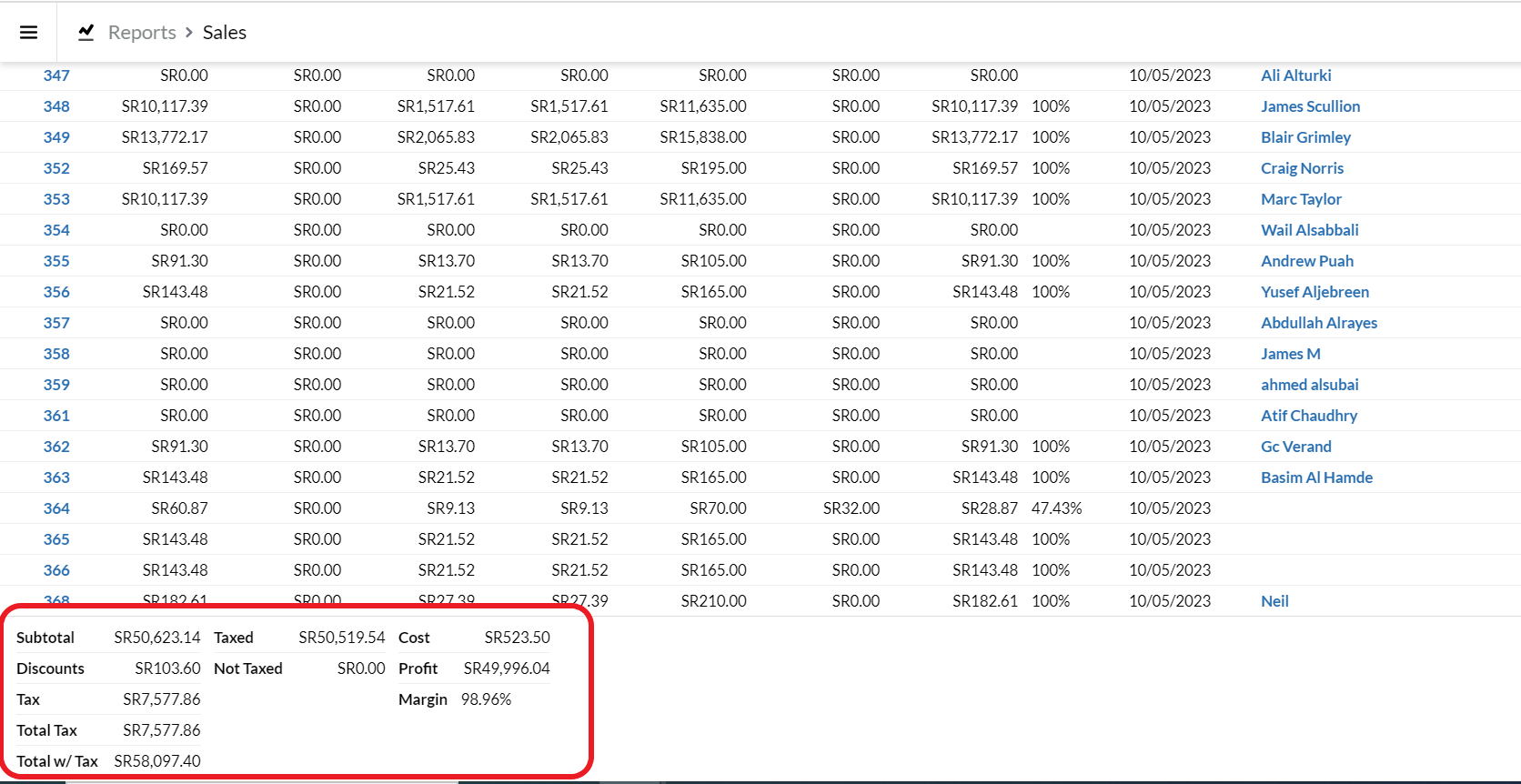
Scroll down to see the total sales value.
1.2 Payment Report
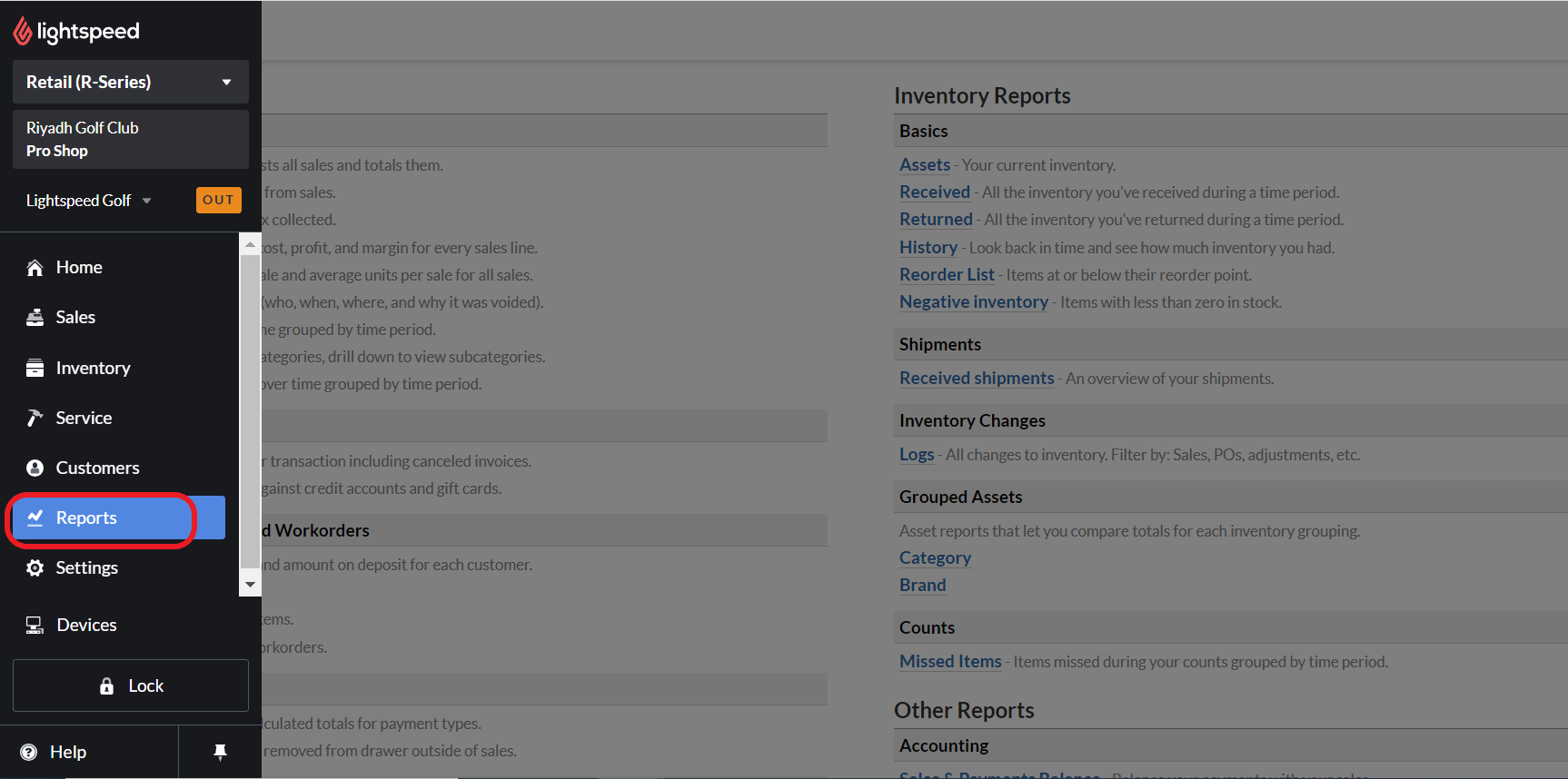
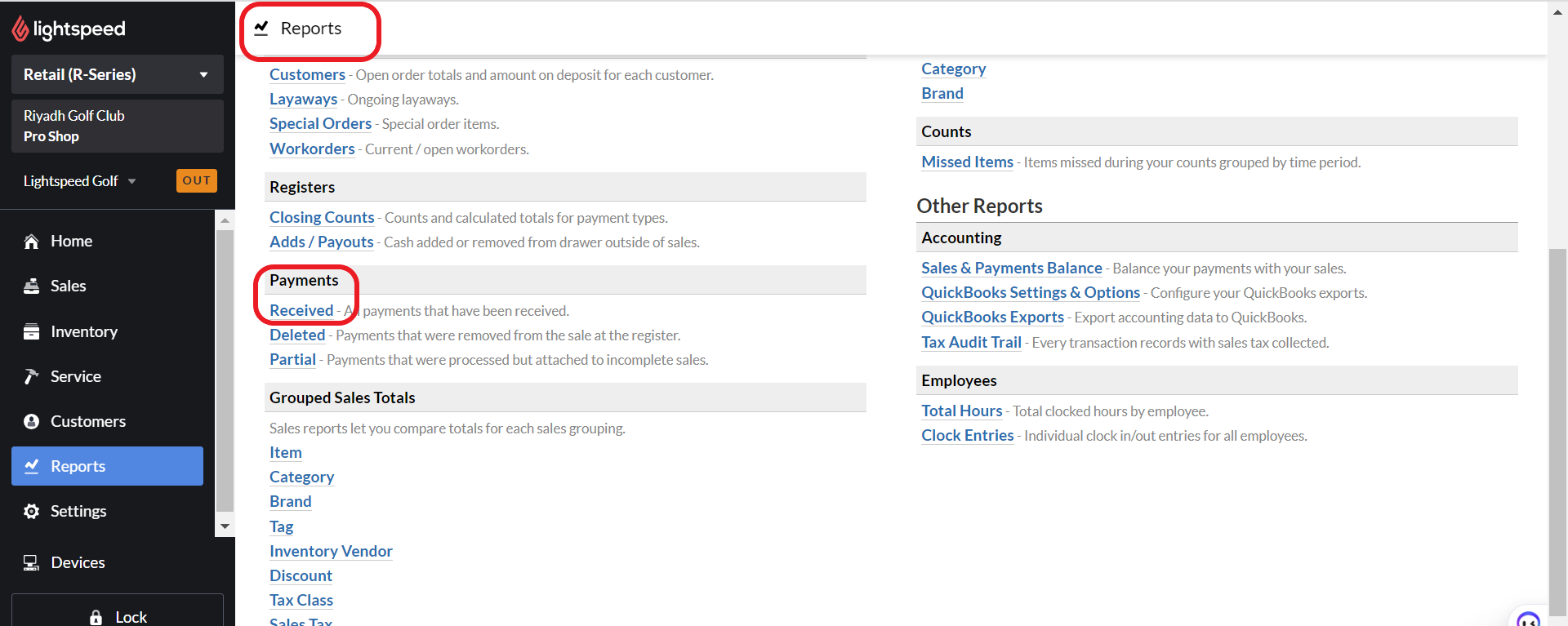
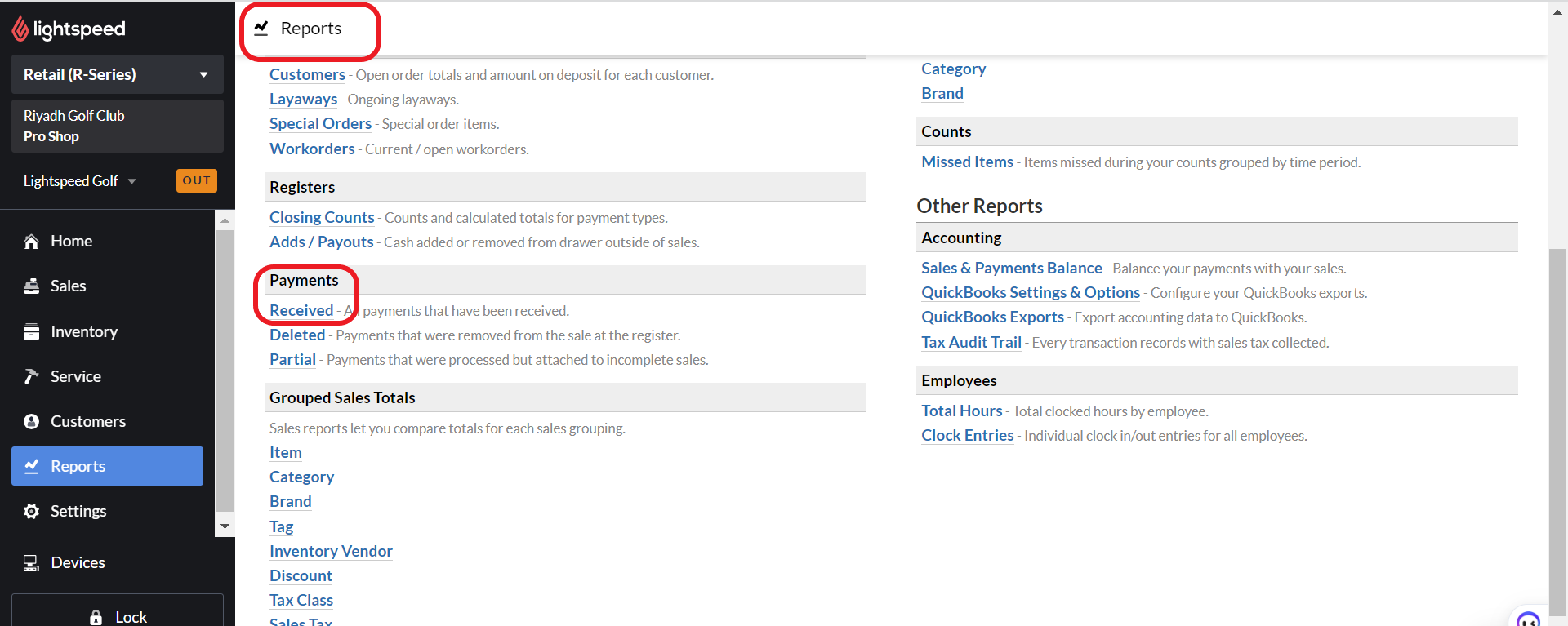
Please follow the below steps to access the payment reports in Lightspeed:
Report → Payments → Received
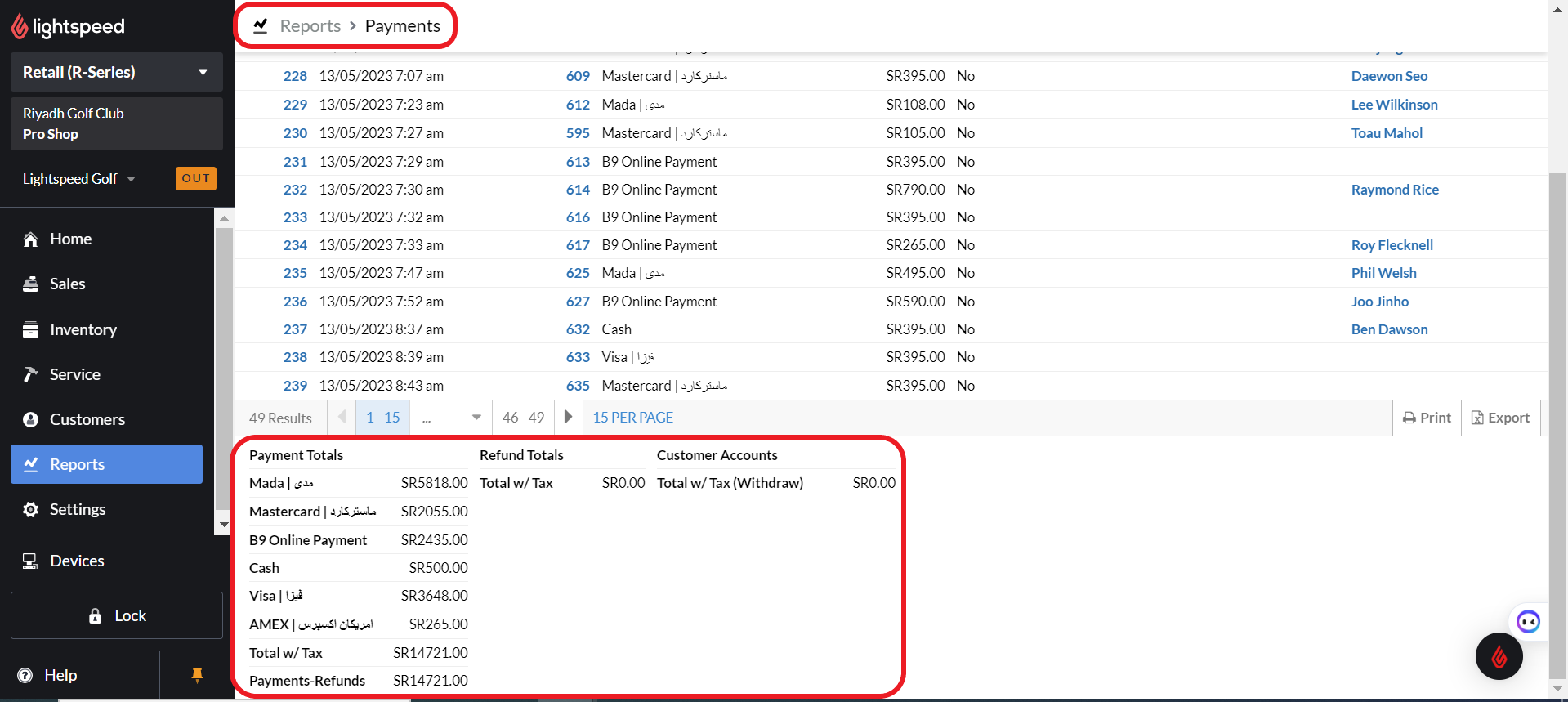
Please enter the specific date/s.
Scroll down to see the total sales value.
2. Oracle Fusion
2.1 Daily Sales Report
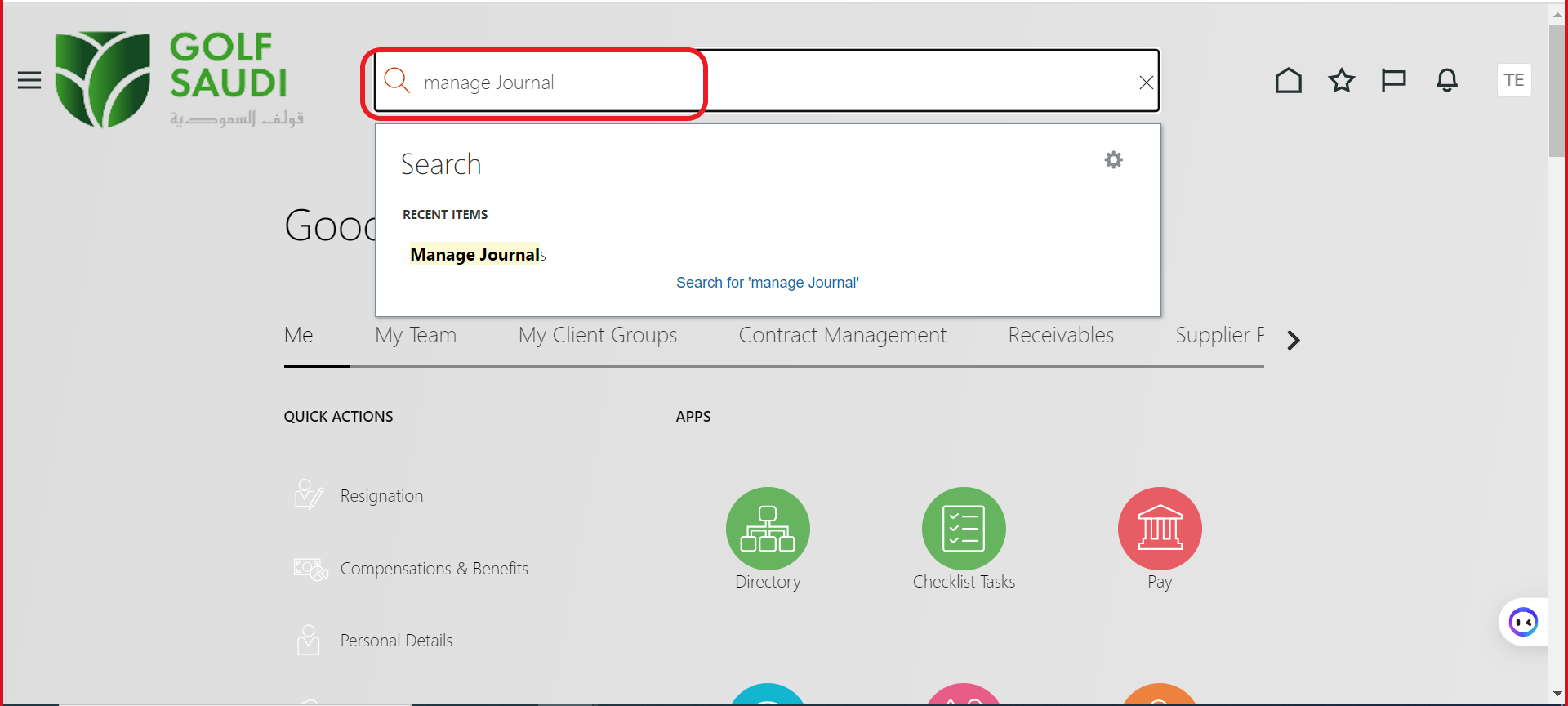
Please follow the below steps to access the sales reports in Oracle Fusion:
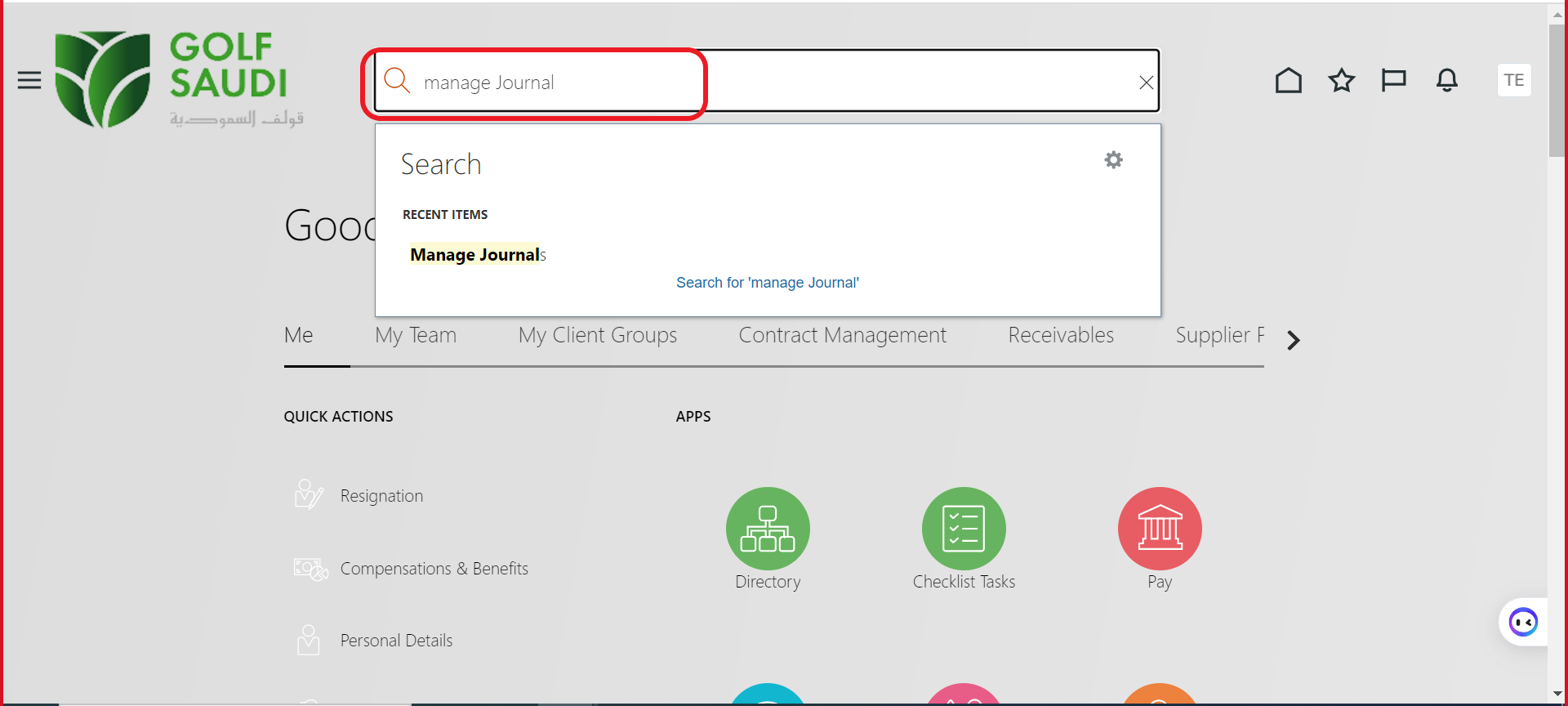
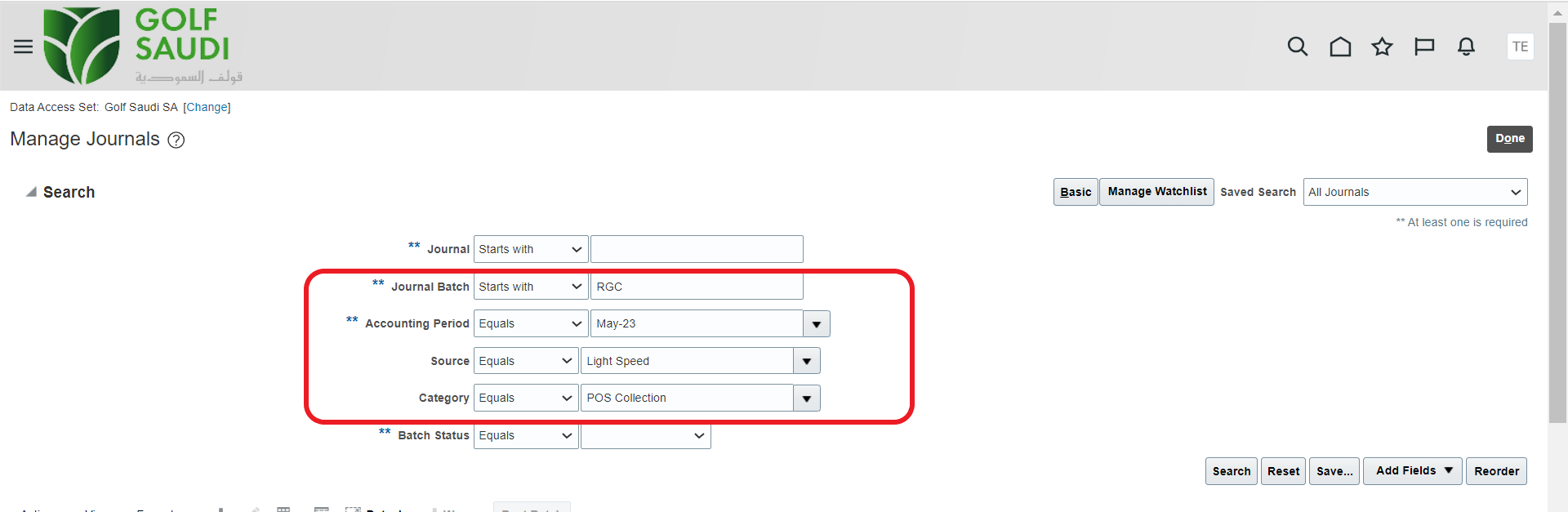
A. Home page → Search Bar → Manage Journal
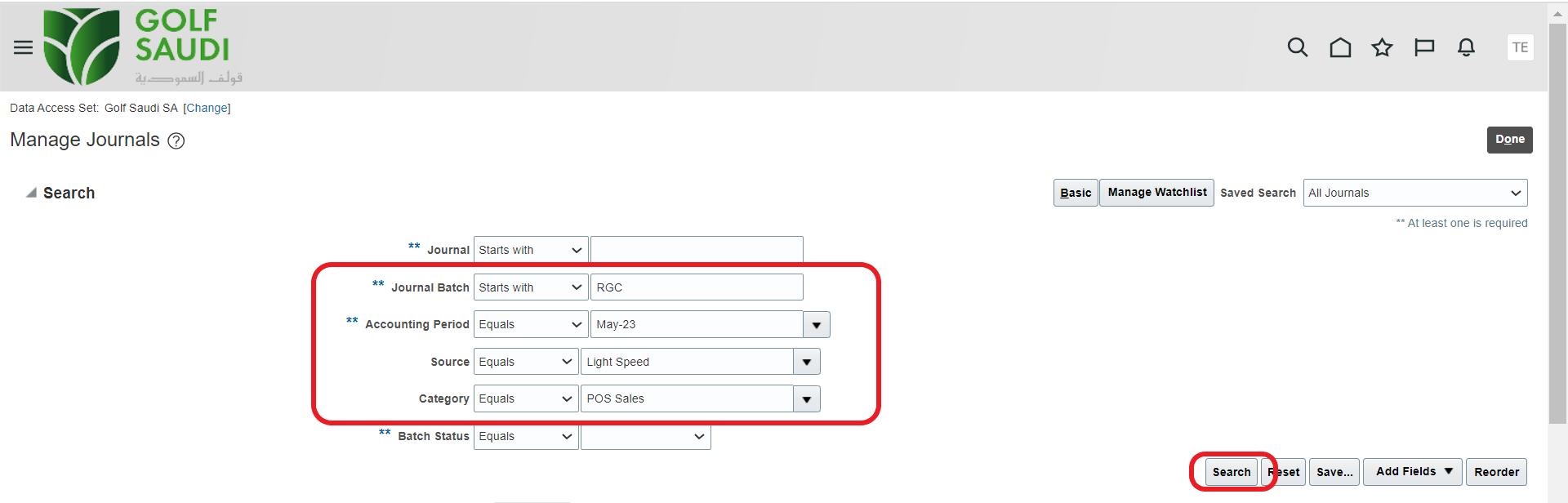
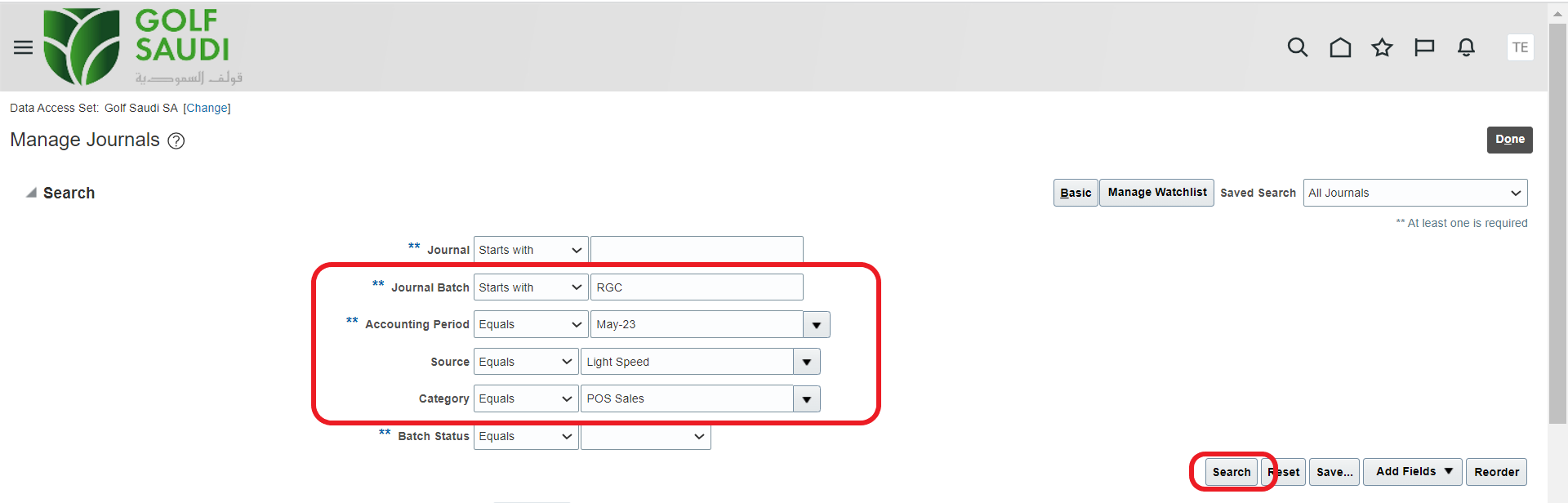
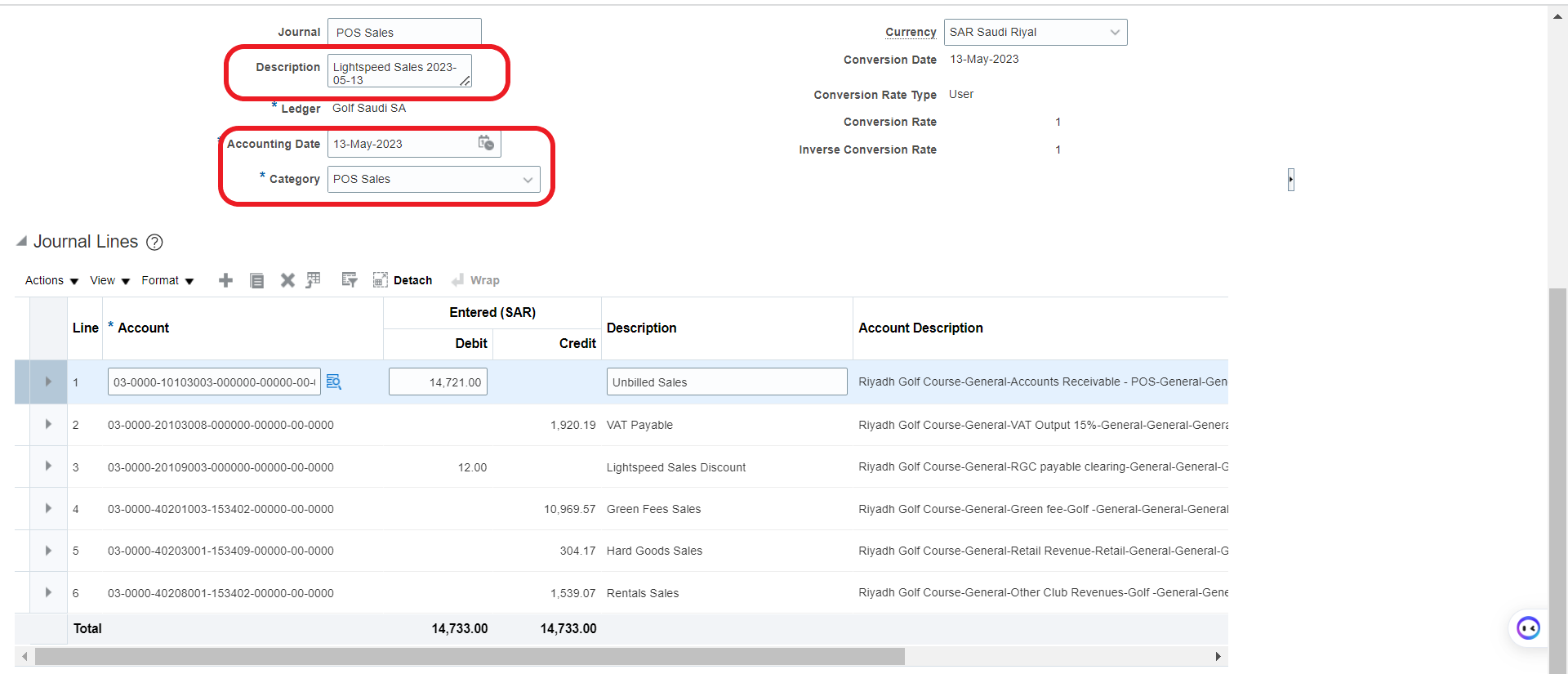
B. Please specify the:
Journal Batch: Which location
Accounting Period: Which year and month
Source: From which POS
Category: Sales or payment
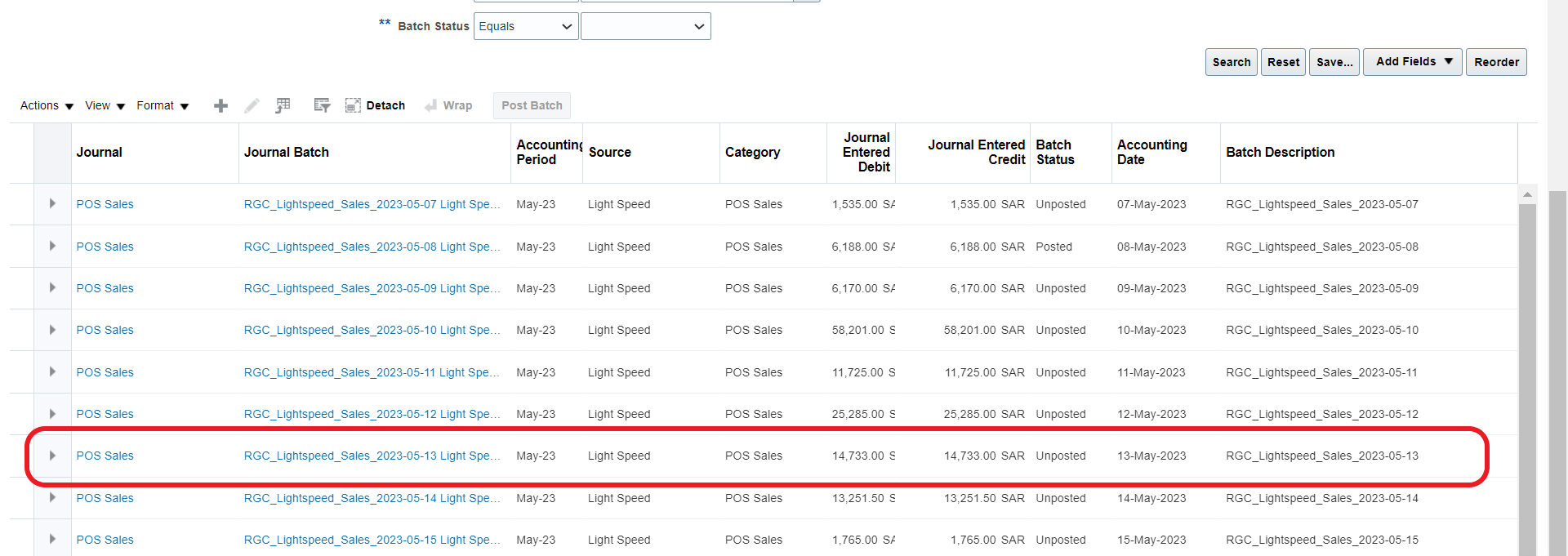
As seen below, it will show sales report for May.

2.2 Payment Report
Please follow the below steps to access the sales reports in Oracle Fusion:
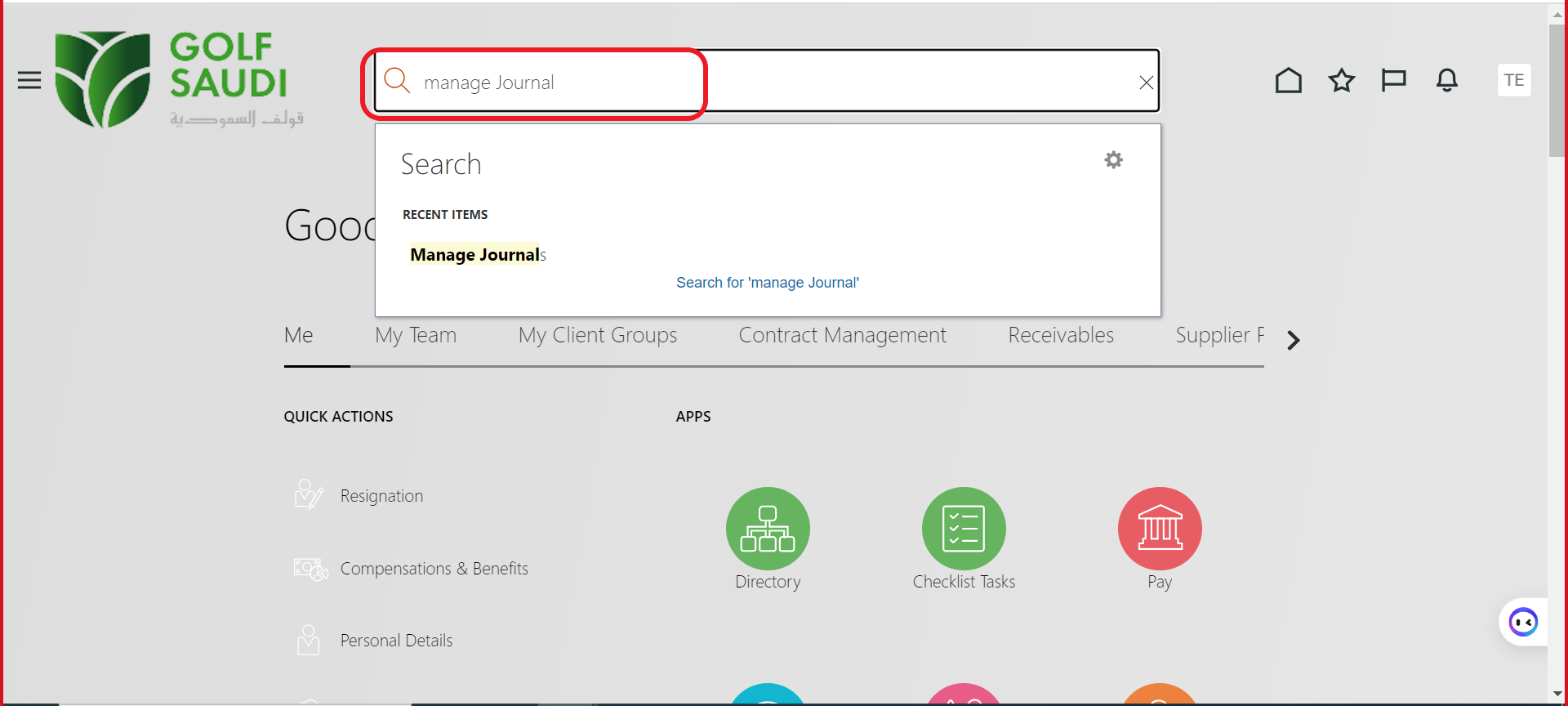
A. Home page → Search Bar → Manage Journal
B. Please specify the:
Journal Batch: Which location
Accounting Period: Which year and month
Source: From which POS
Category: Sales or payment

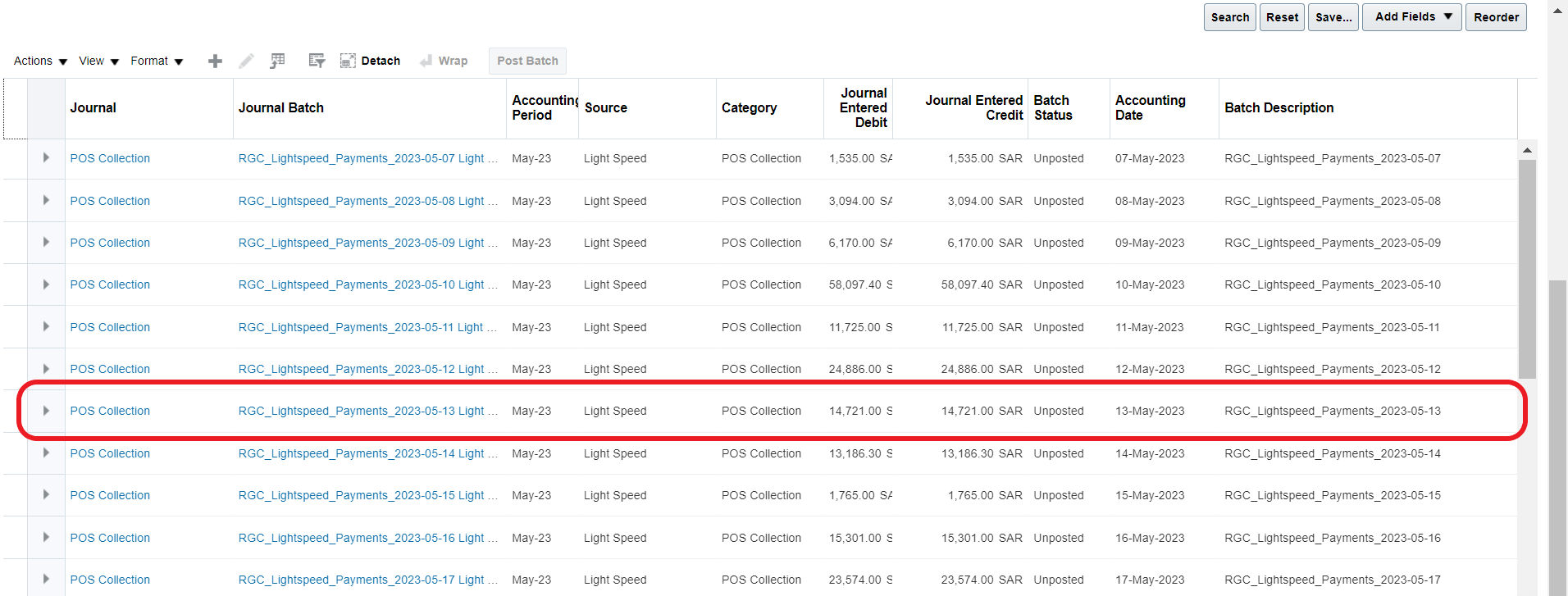
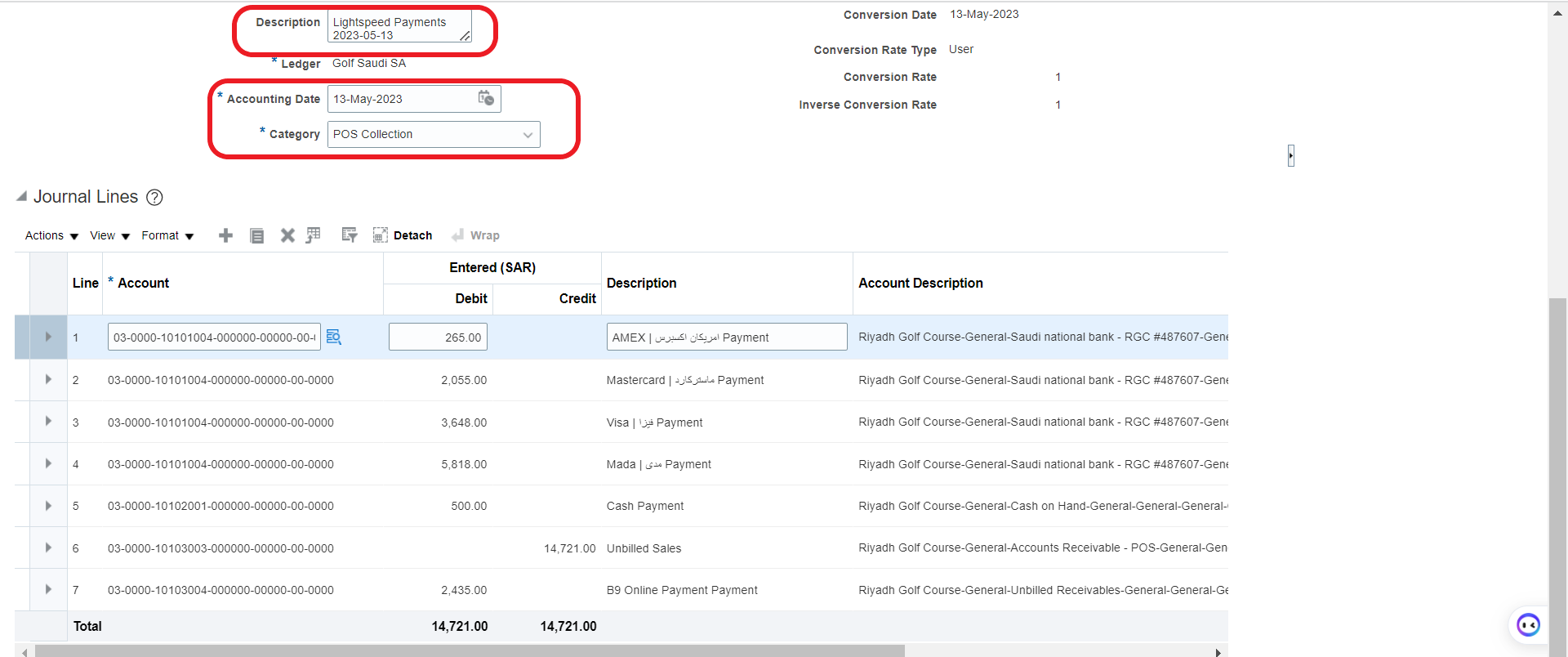
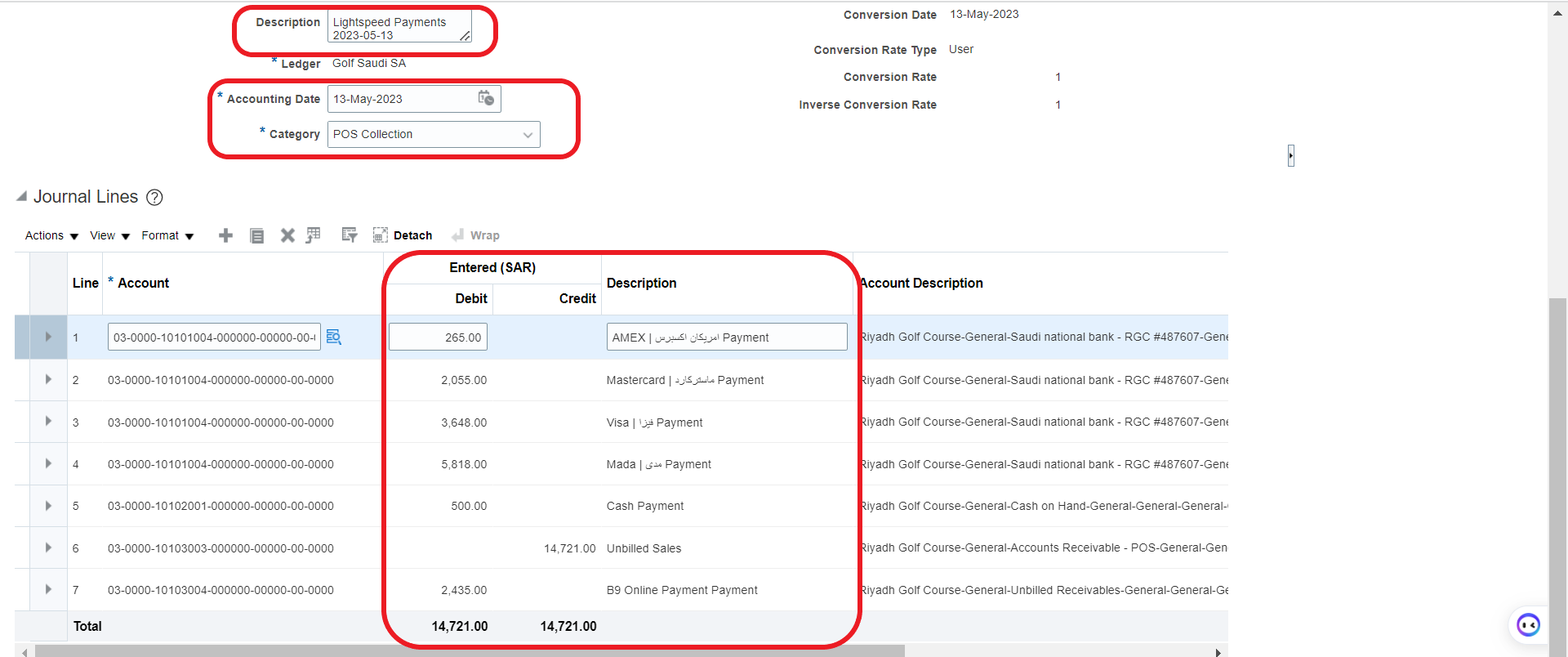
As seen below, it will show payments report for May.

3. Validation
3.1 Sales Validation
Please find the sales validation between Lightspeed and Oracle Fusion.
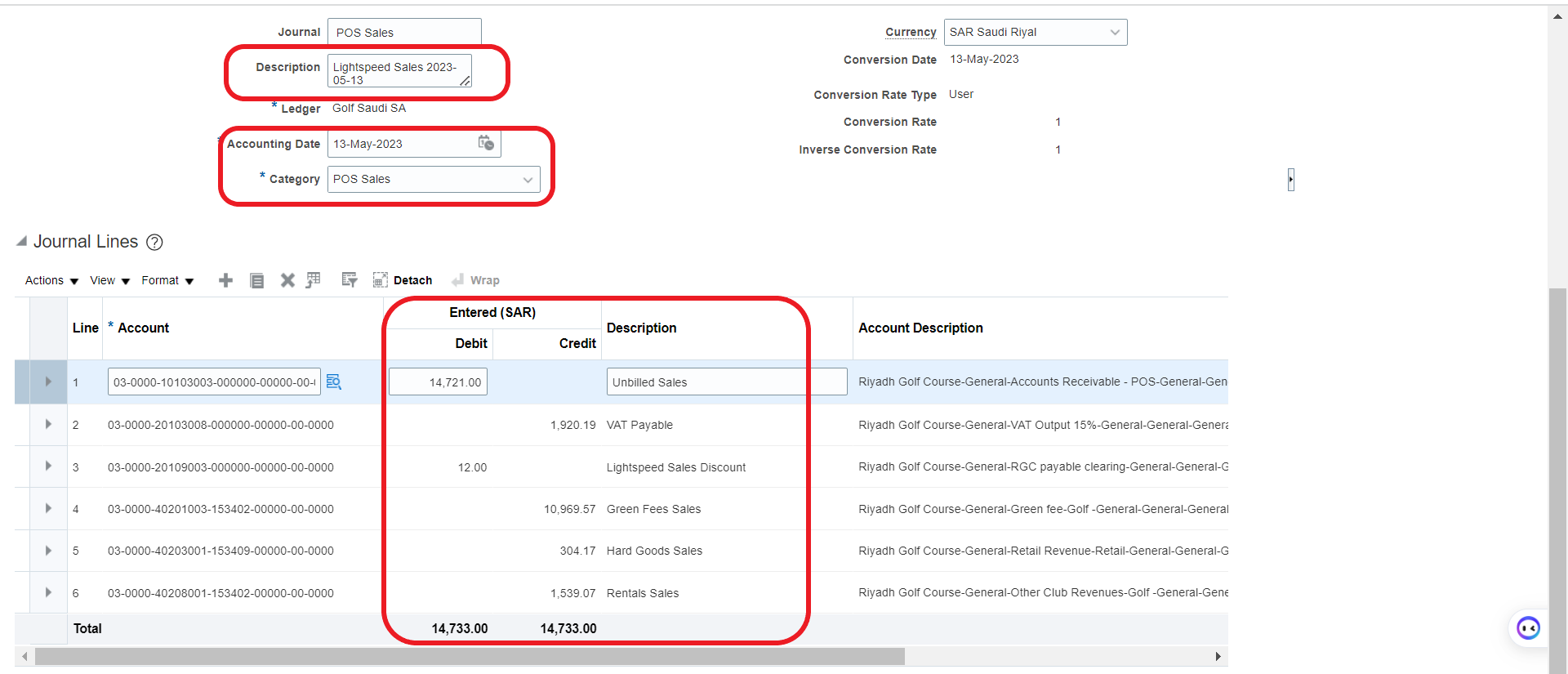
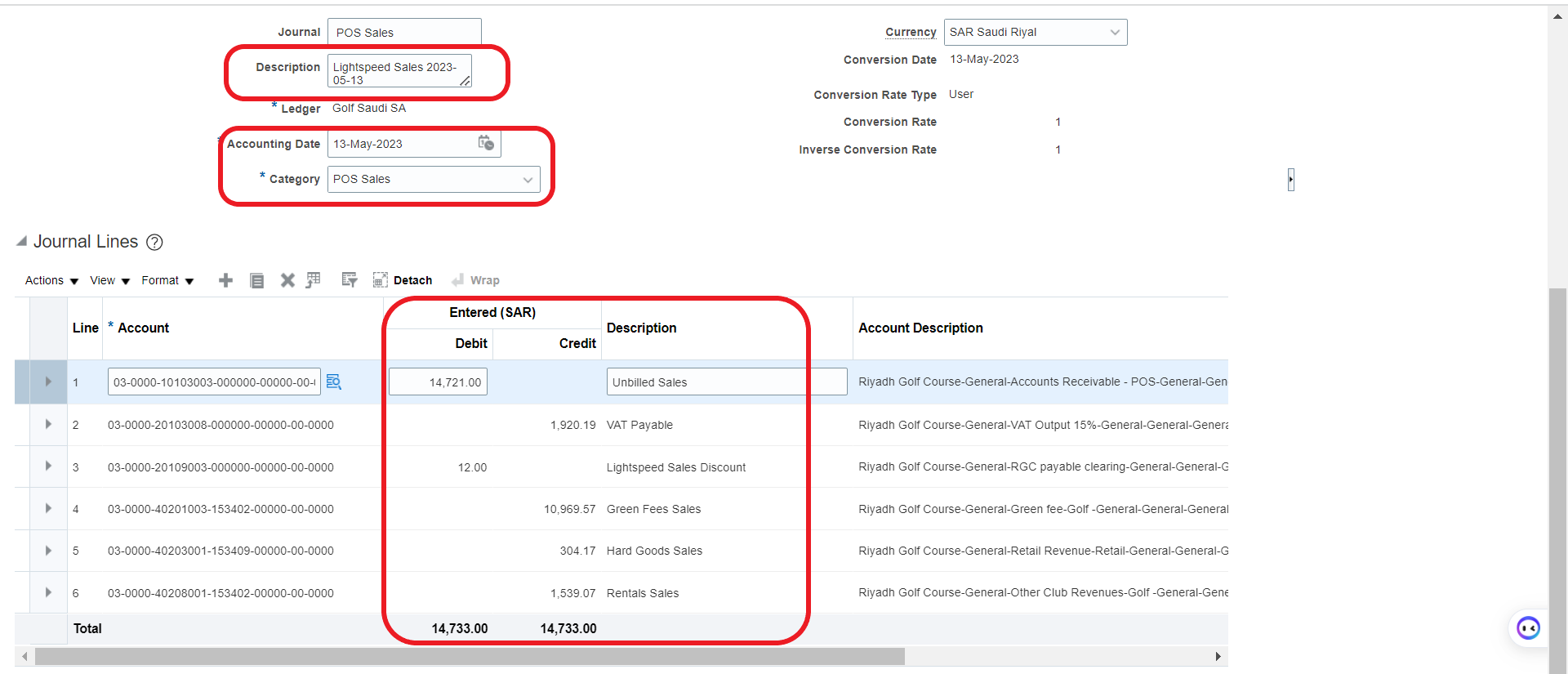
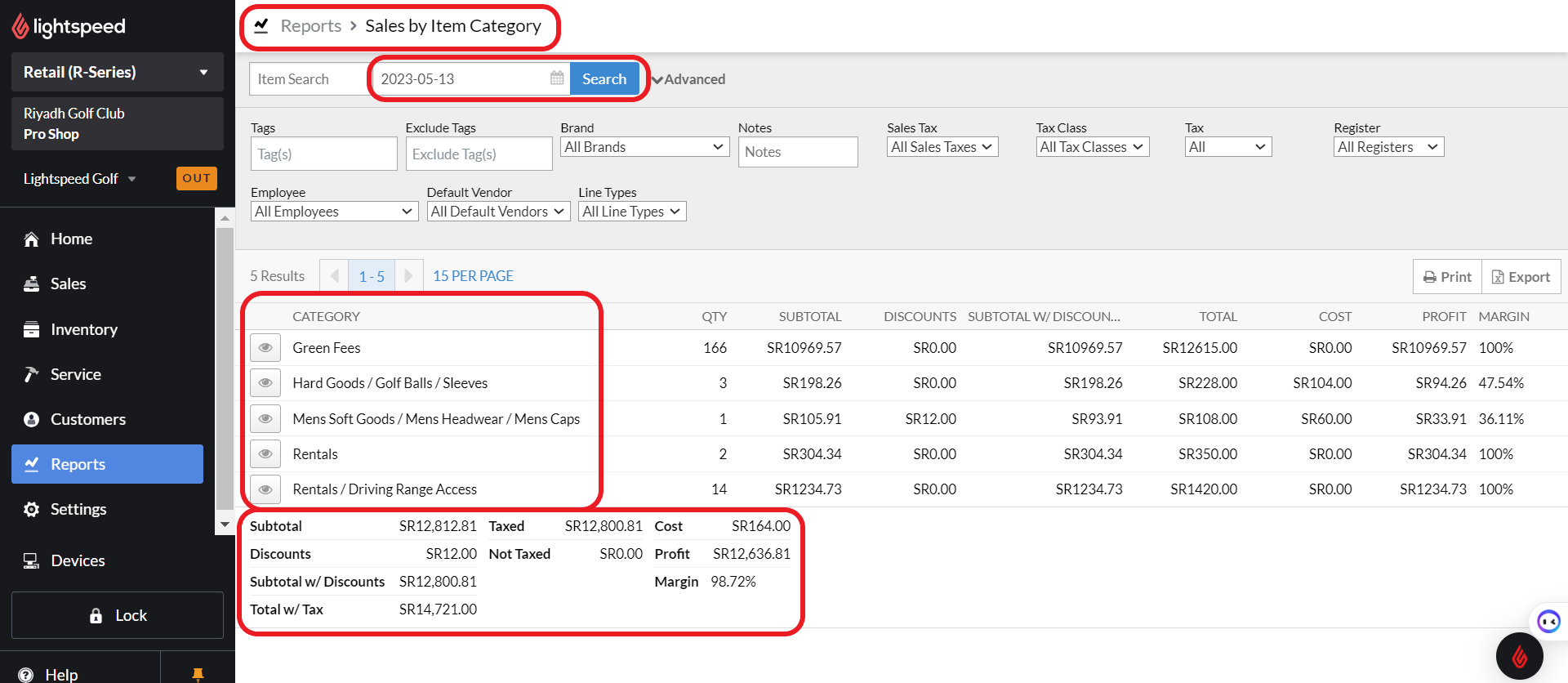
Note:
Hard Goods Sales on Oracle = Hard Goods/Golf Balls/ Sleeves + Men's Soft Goods/ Men's Headwear/ Men’s Caps
Rentals Sales on Oracle = Rentals + Rentals/Driving Range Access
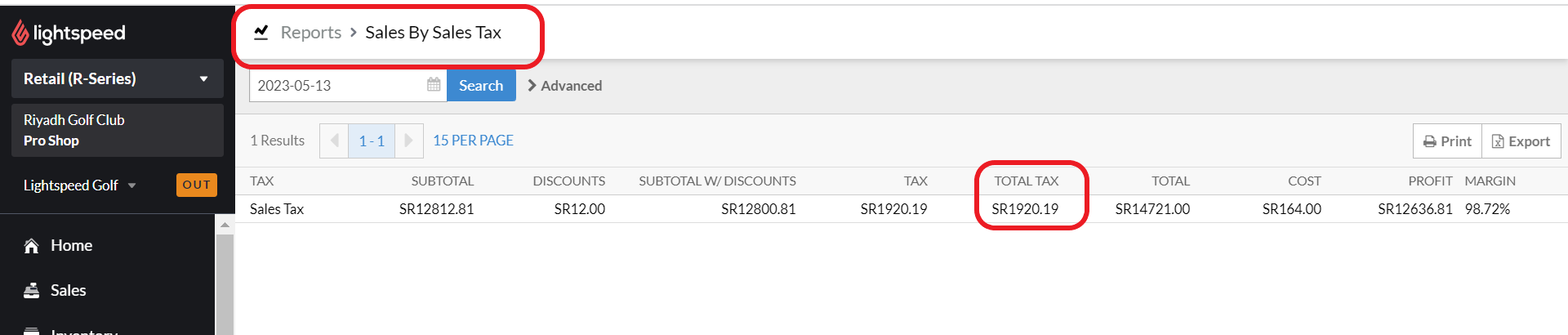
3.2 VAT Validation
Reports → Grouped Sales Totals → Sales By Sales Tax
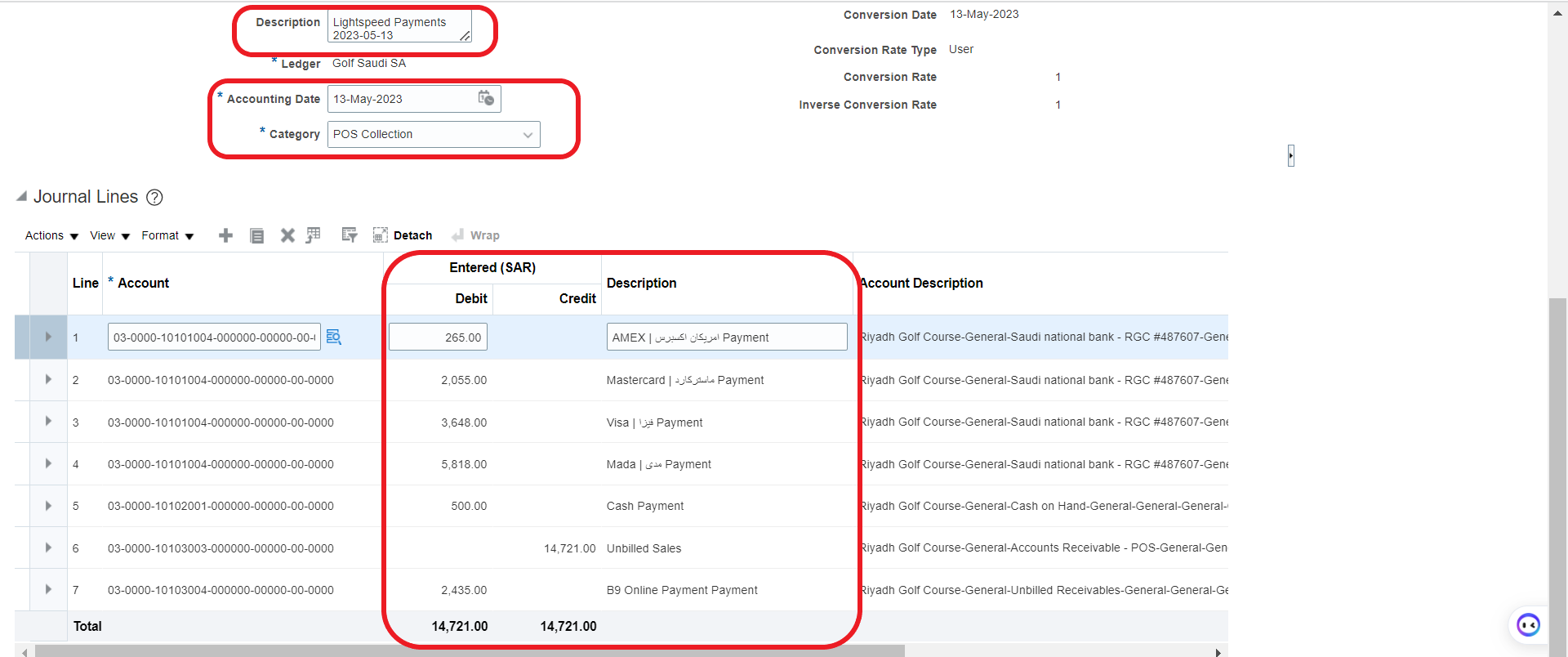
3.3 Payment Validation
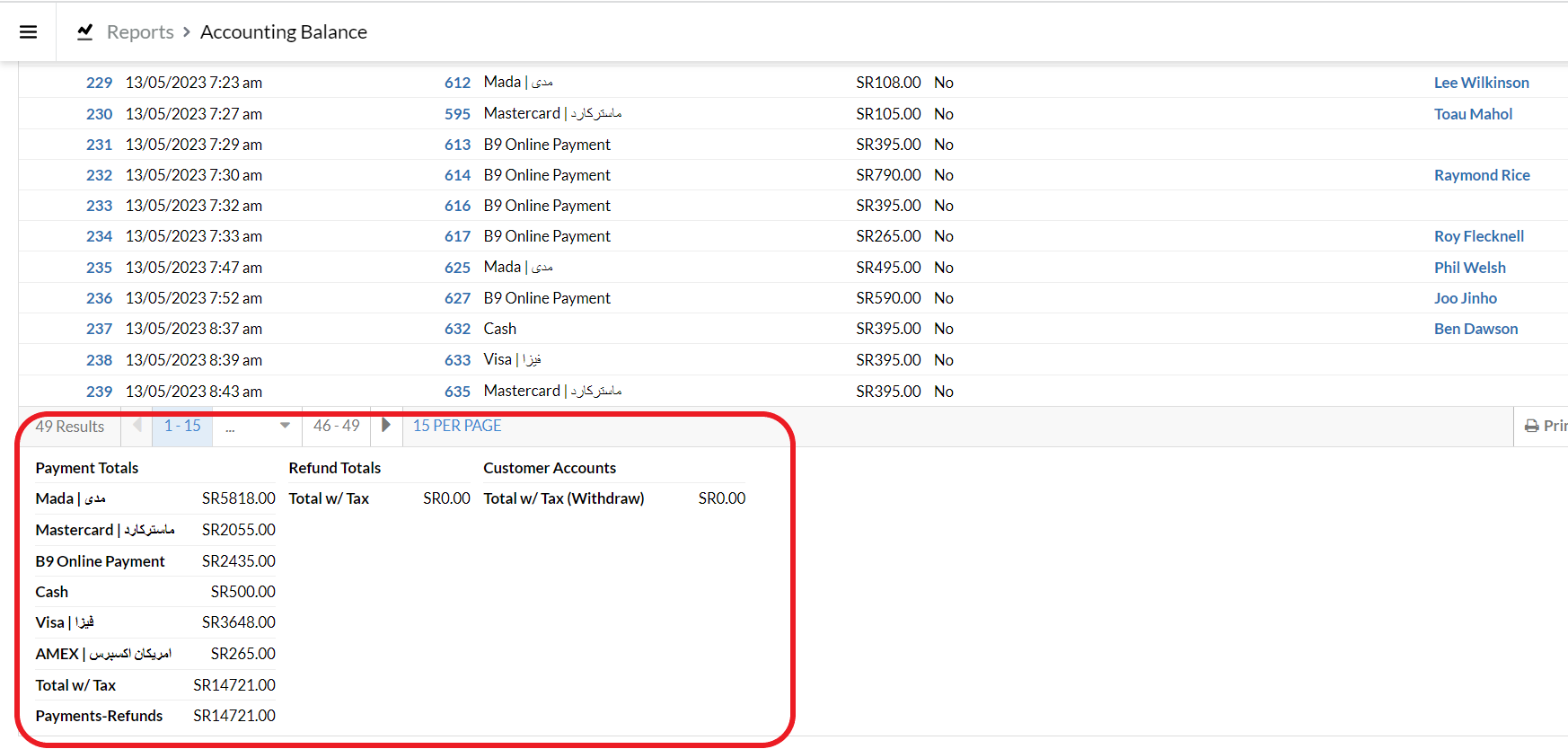
Please find the payments validation between Lightspeed and Oracle Fusion.

Was this article helpful?
That’s Great!
Thank you for your feedback
Sorry! We couldn't be helpful
Thank you for your feedback
Feedback sent
We appreciate your effort and will try to fix the article