TABLE OF CONTENTS
- Integration Scope
- 1. Configure NetSuite Revel Mapping Page on NetSuite.
- 2. Report Page on NetSuite.
- 3. Inventory Transaction
Integration Scope
Invoices - Aggregators
Cash Sales - B2C Sales
Tips
Discount
Payment
Customer Deposit
House Account
Customer
Purchase order
Vendor Return
COGS
Transfer
Adjustment
Wastage
Vendors
1. Configure NetSuite Revel Mapping Page on NetSuite.
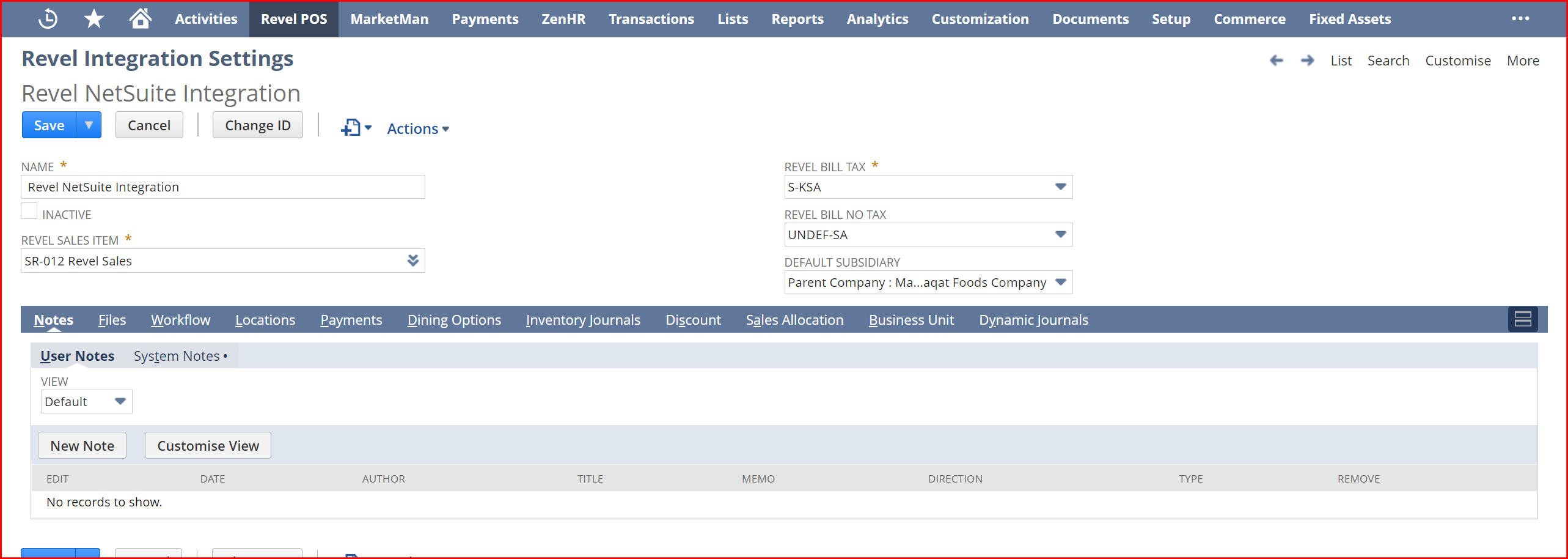
Start filling the general settings page from NetSuite using the following path: From the Revel POS > Integration Mapping > Revel Integration Settings:
Main Setting:
Revel Sales Item: The POS sales will be reflected in the Revel Sales Item.
Revel Bill Tax: Map the Tax on NetSuite.
Revel Bill no tax: Map the No Tax on NetSuite.
Default subsidiary: The Subsidiary related to this integration.
Revel Integration Settings Page
1.1. Locations Mapping.

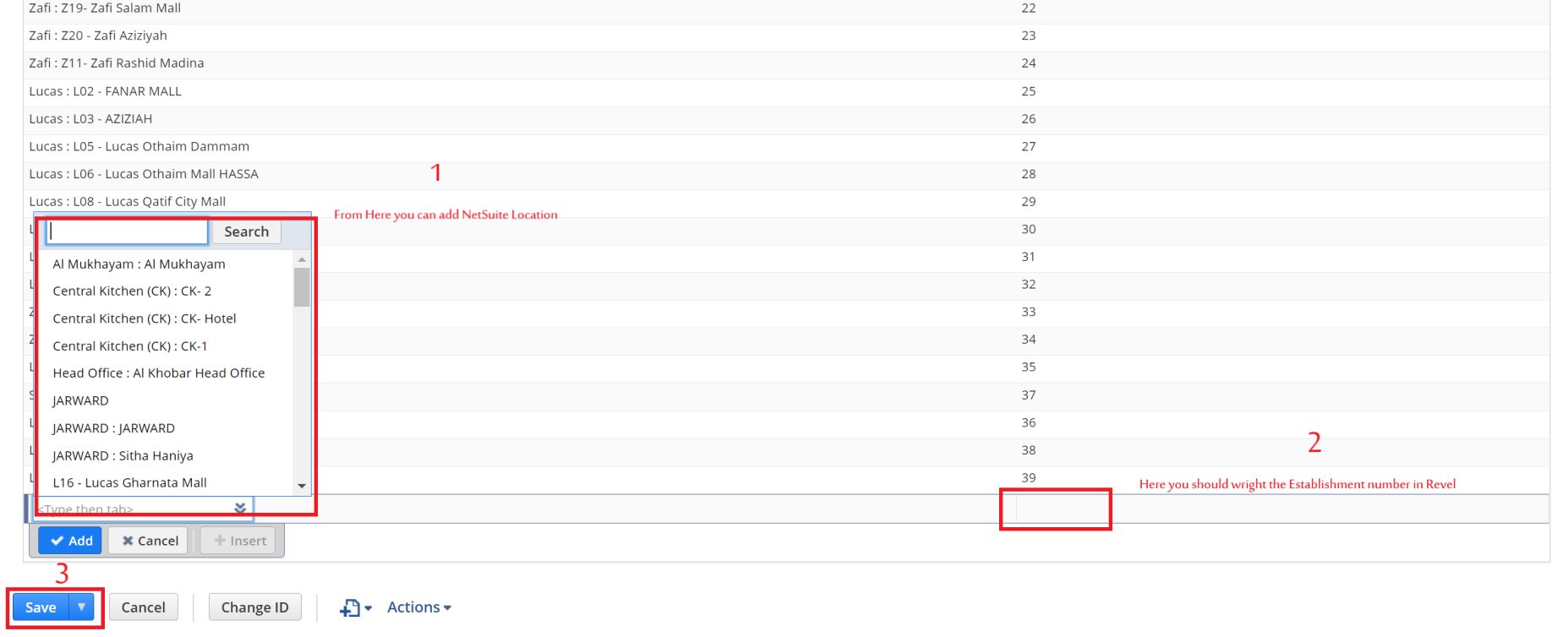
Please fill in the location mapping from the following path:

Revel POS > Integration Mapping > Revel Integration Settings:
You’ll have all Revel Branches listed on this page; if not, please get in touch with Reachware support team at Reachware@integration.com.
Once you get Revel Bransh, please start mapping NetSuite locations on the “NetSuite Location” column.
This is possible by clicking on the Edit Toggle, or by clicking on Edit on the location line to be filled from the record itself.
1.2. Payments Types Mapping.
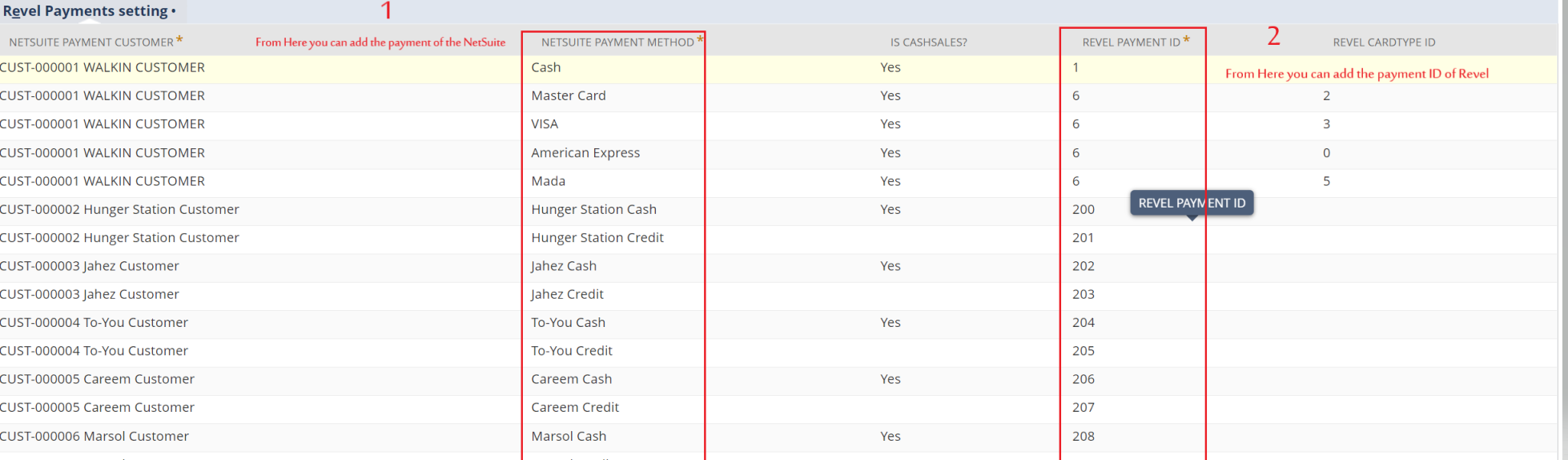
Please fill in the payments types mapping from the following path:

Revel POS > Integration Mapping > Revel Integration Settings:

You’ll have all Revel Payment listed on this page; if not, please get in touch with Reachware support team at Reachware@integration.com.
Once you get the Revel payment, please start mapping NetSuite Payment on the “NetSuite Payment Method” column.
This is possible by clicking on the Edit Toggle, or by clicking on Edit on the Payment line to be filled from the record itself.
1.3. Dining Option Mapping.
Please fill in the Dining Option mapping from the following path:
Revel POS > Integration Mapping > Revel Integration Settings:
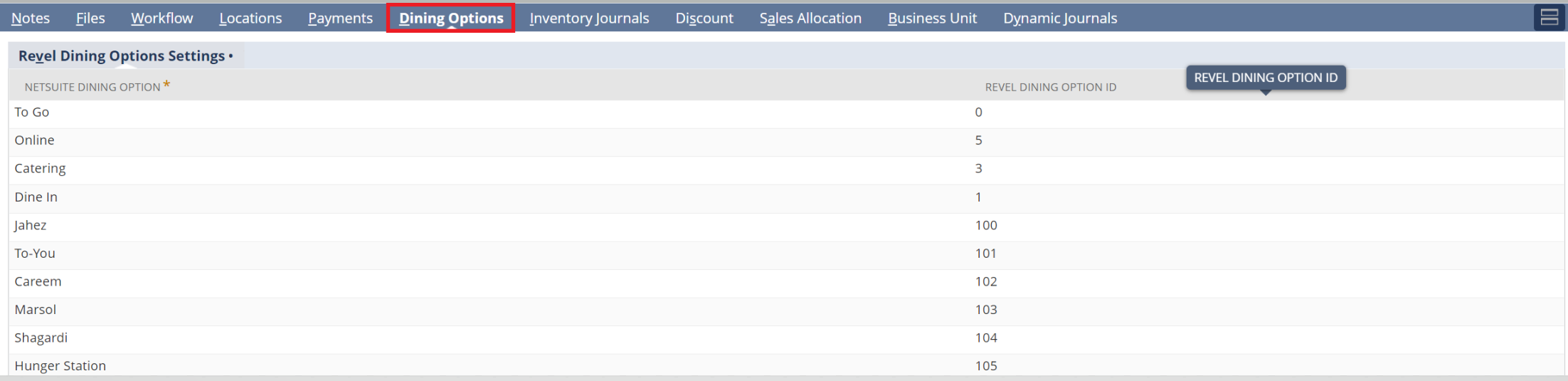
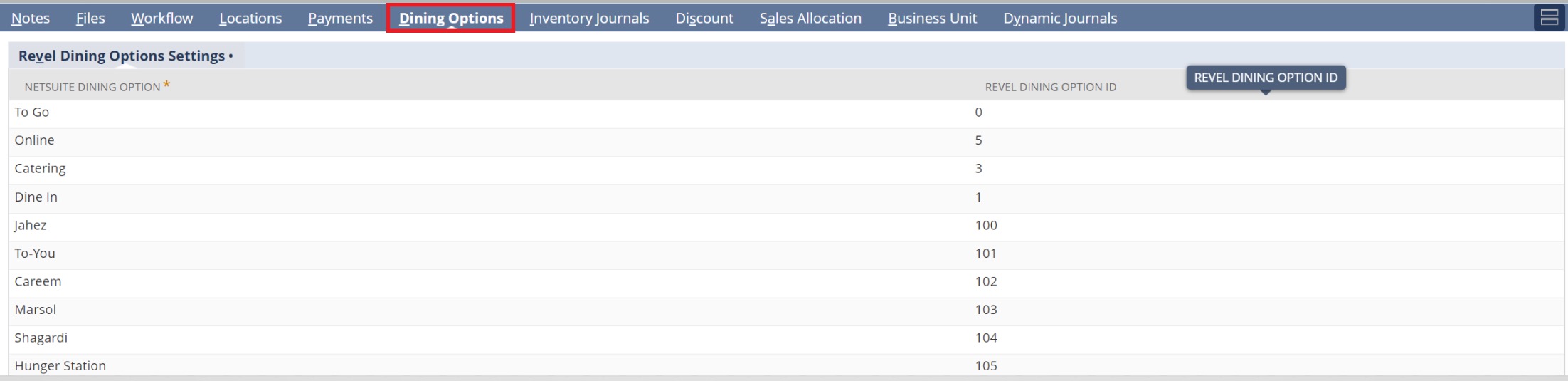
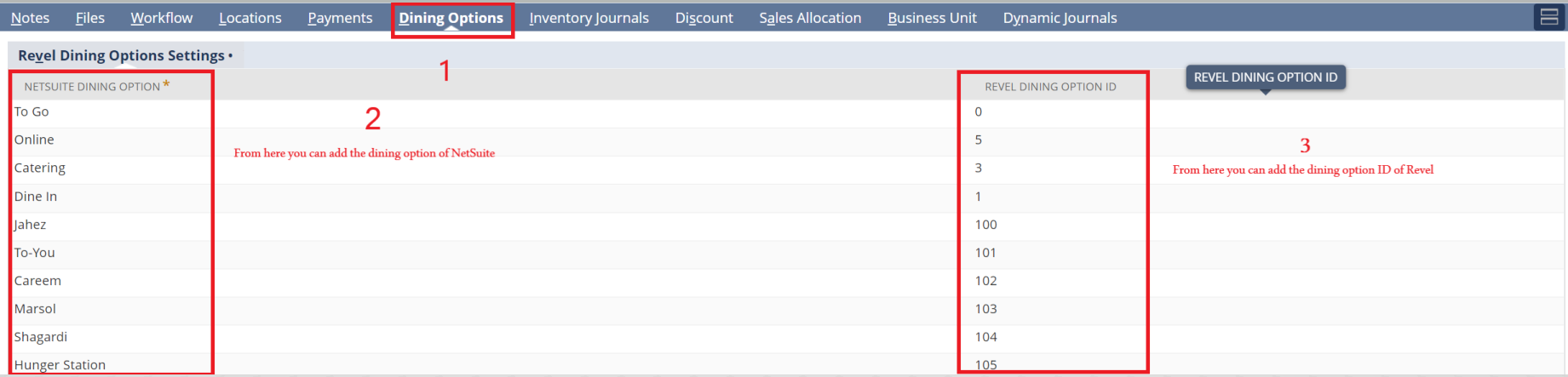
You’ll have all Revel Dining Options listed on this page; if not, please get in touch with the Reachware support team at Reachware@integration.com.
Once you get Revel Dining Option, please start mapping the NetSuite Dining Option on the “NetSuite Dining Option” column.
This is possible by clicking on the Edit Toggle, or by clicking on Edit on the dining option line to be filled from the record itself.
1.4. Discount Mapping.
You can see the mapping account for the discount journal from the following path:
Revel POS > Integration Mapping > Revel Integration Settings:
On discount credit will fell with the account sales, and on the discount dept will fell with the discount account

1.5. Business Unit Mapping.
Please fill in the Business unit mapping from the following path:
Revel POS > Integration Mapping > Revel Integration Settings:
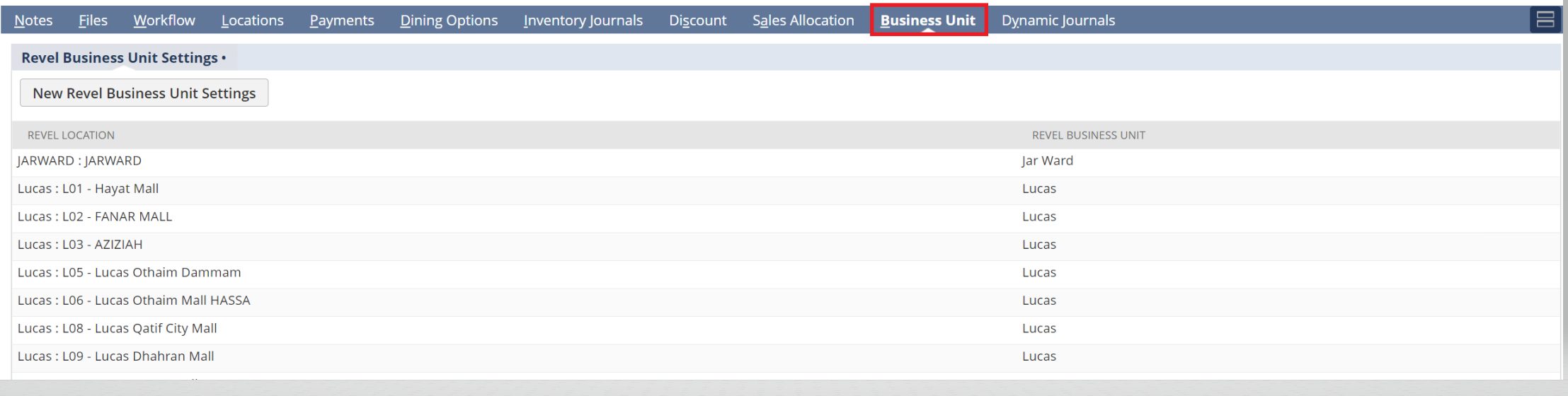
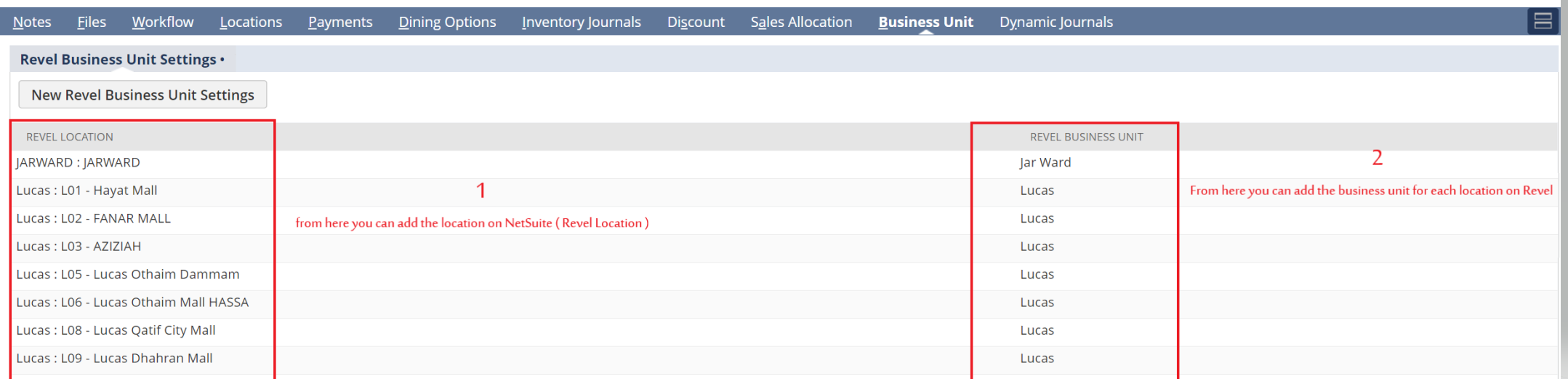
You’ll have all Revel locations listed on this page and mapped with the Revel Business unit; if not, please get in touch with the Reachware support team at Reachware@integration.com.
Once you get Revel Location, please start mapping the it with “Revel Business unit” column.
Note that you should add the business unit every time you will add a new location.
This is possible by clicking on the Edit Toggle, or by clicking on Edit on the Revel Location line to be filled from the record itself.
2. Report Page on NetSuite.
For validating sales and payment for each location, There are a Sales Report and Payment Report on NetSuite.The path: Revel POS > Reports
Contain the following report :
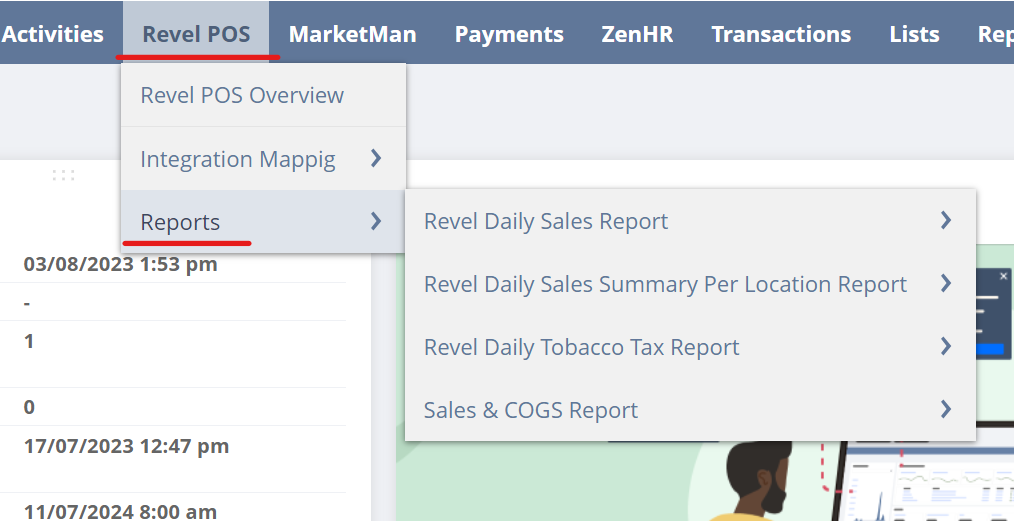
Revel Daily Sales Report: This report shows all the cash sales and the invoice comes from the integration
Revel Daily Sales Summary Per Location Report: This report shows all the total net sales per location
Revel Daily Tobacco Tax Report: This report for the Tobacco Tax
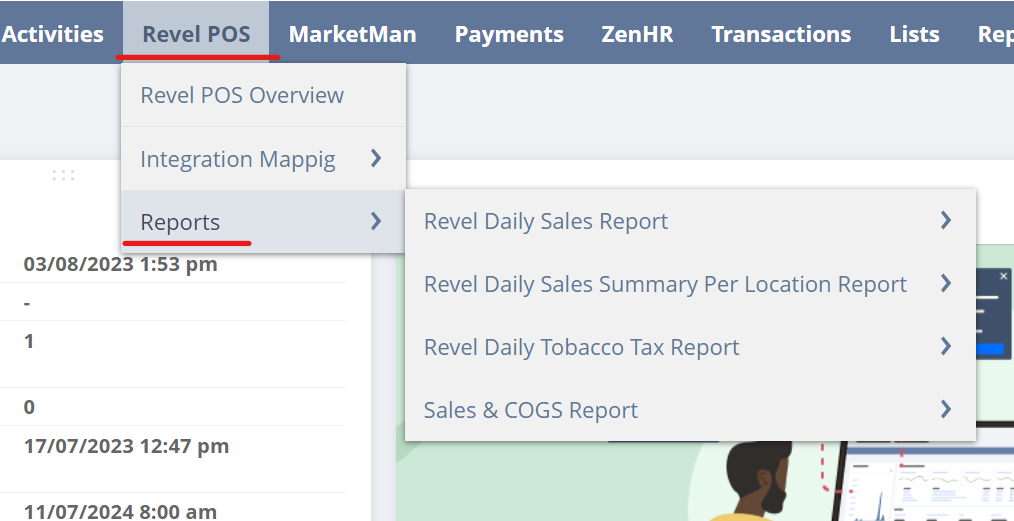
2.1. Revel Daily Sales Report.
Form the following steps we can do the sales validation from Revel to NetSuite :
A- First Step: Go to Revel POS > Reports > Revel Daily Sales Report.
B- Second Step: Use the following Filtration you need.
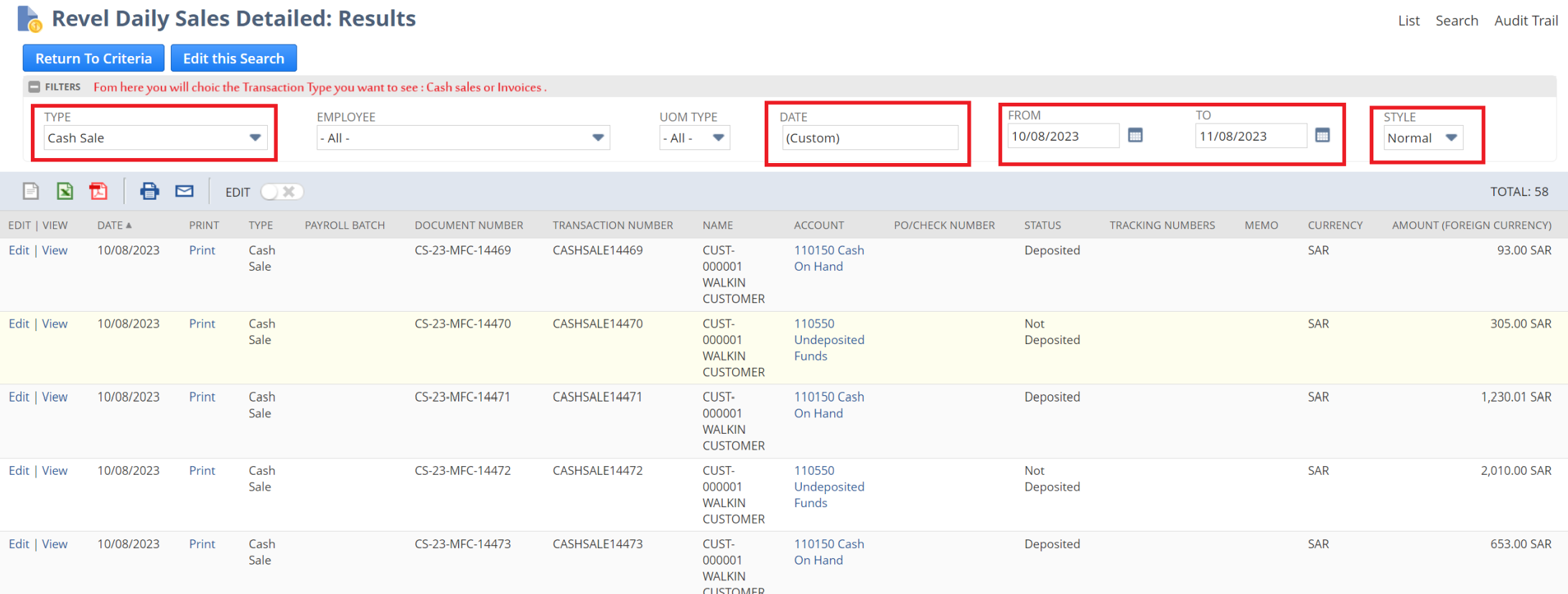
From this page, you will see all the sales comes from Revel; As appear in the picture you will be able to choose which transaction you want to see and what’s the period.
2.2. Revel Daily Sales Summary Per Location Report.
Form the following steps we can do the sales validation per Location from Revel to NetSuite :
A- First Step: Go to Revel POS > Reports > Revel Daily Sales Summary per Location Report.
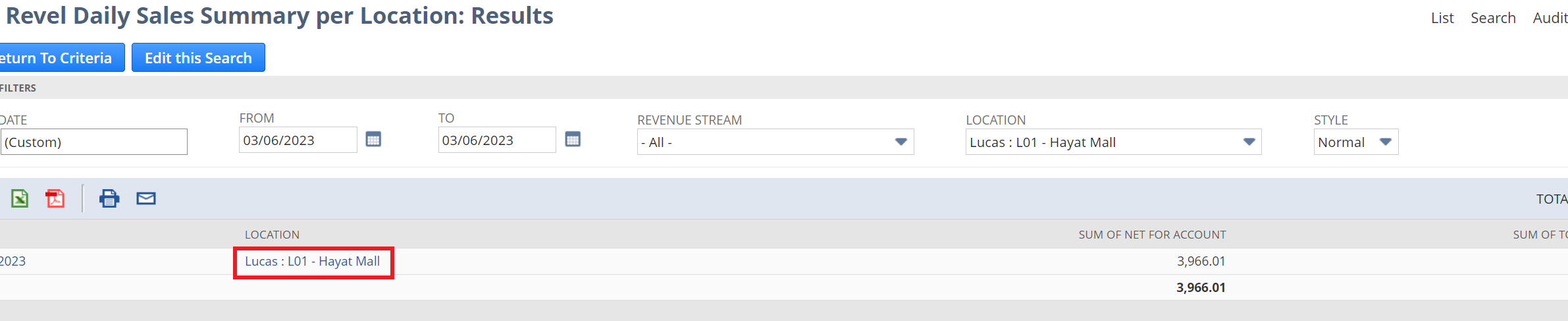
B- Second Step: Use the following Filtration you need.
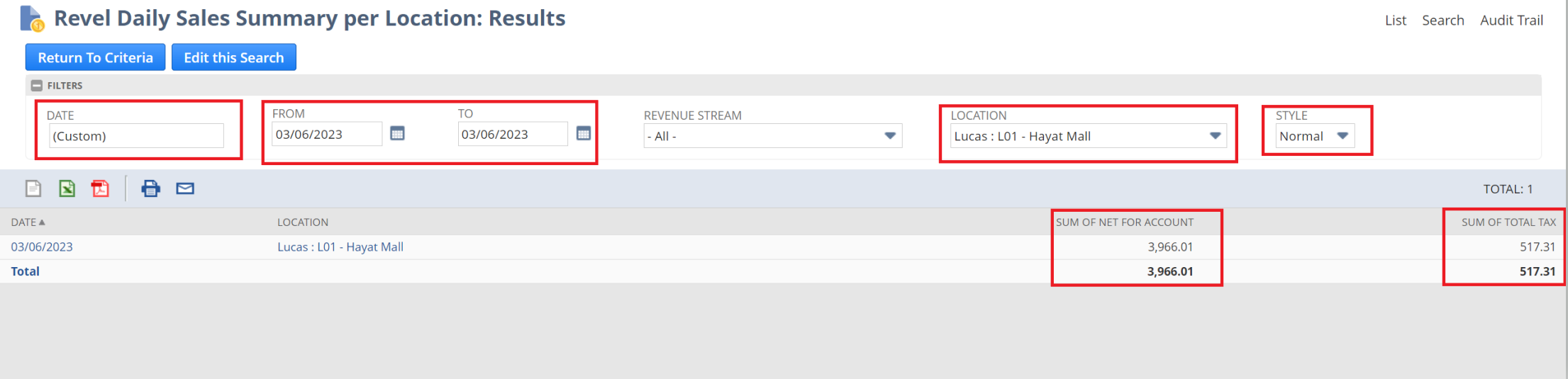
From this page, you will see all the sales comes from Revel Per Location; As appear in the picture you will be able to choose the location you want to see and what’s the period.
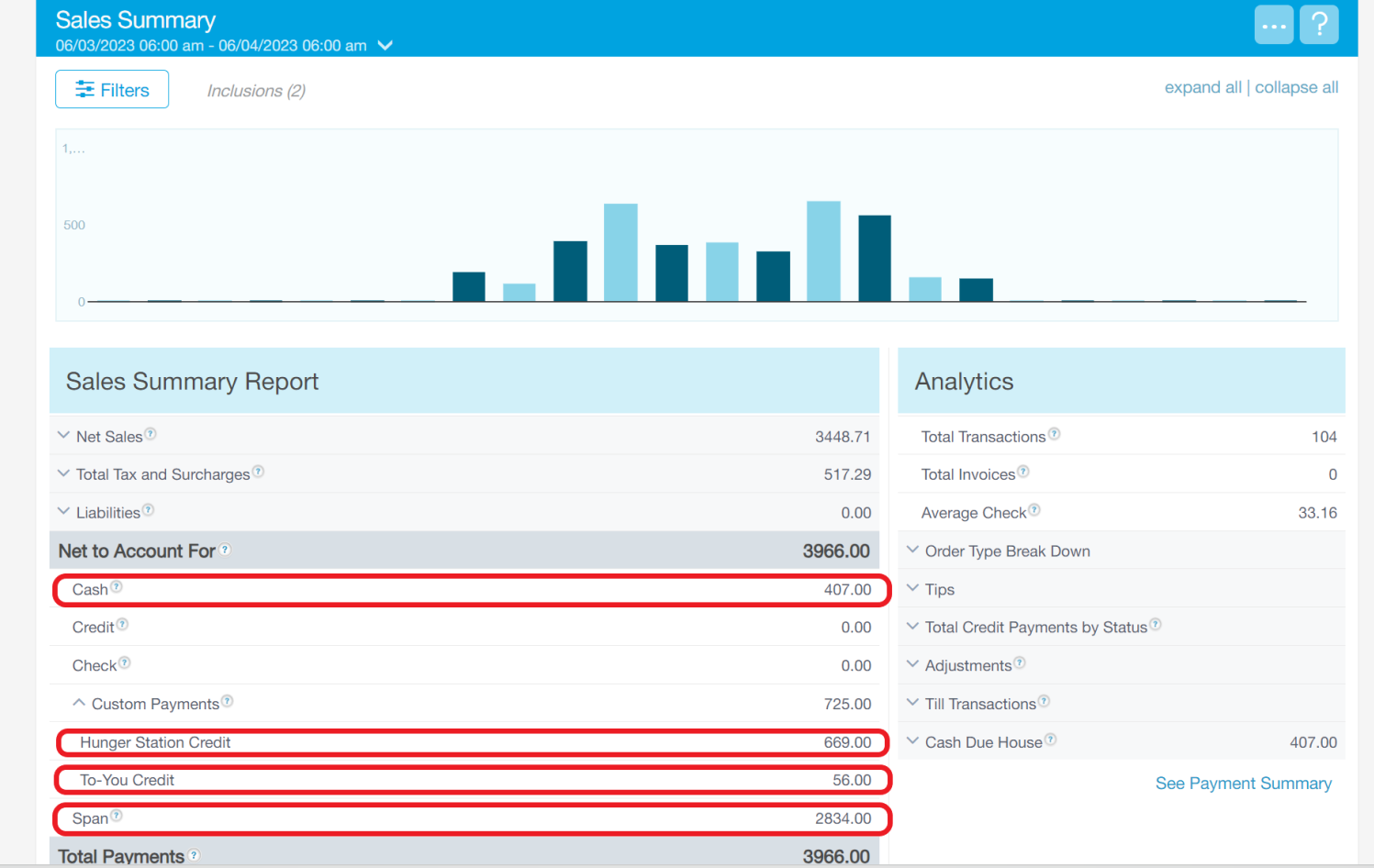
C- Third Step: Go to Revel and choose the same location and move to the sales summary report page.
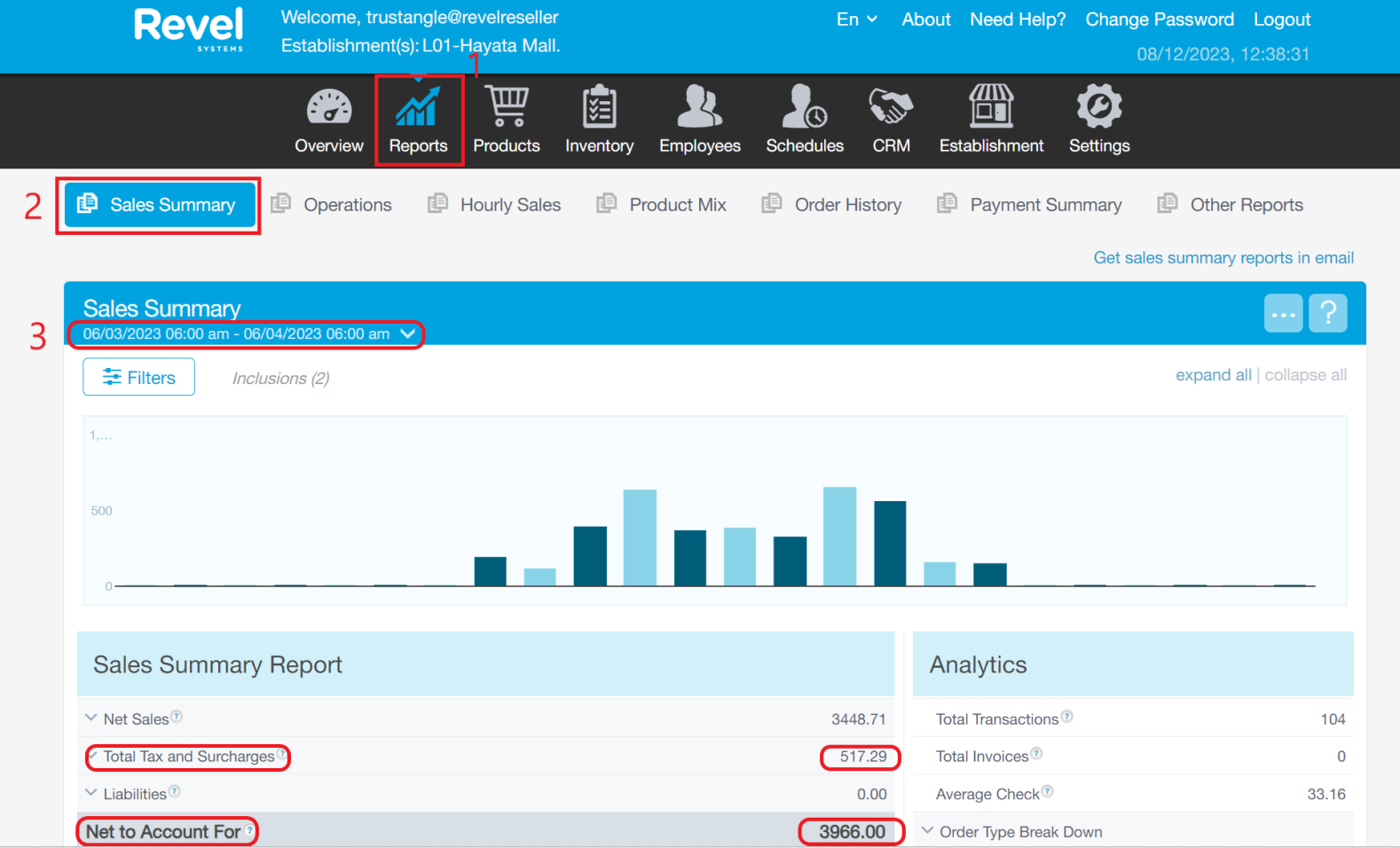
From this page, in Revel will validate the “Net to Account For” value to the “ Sum of Net for Account” in NetSuite. And “ Total Tax and Surcharges “ in Revel with “Sum of Total Tax“ in NetSuite.
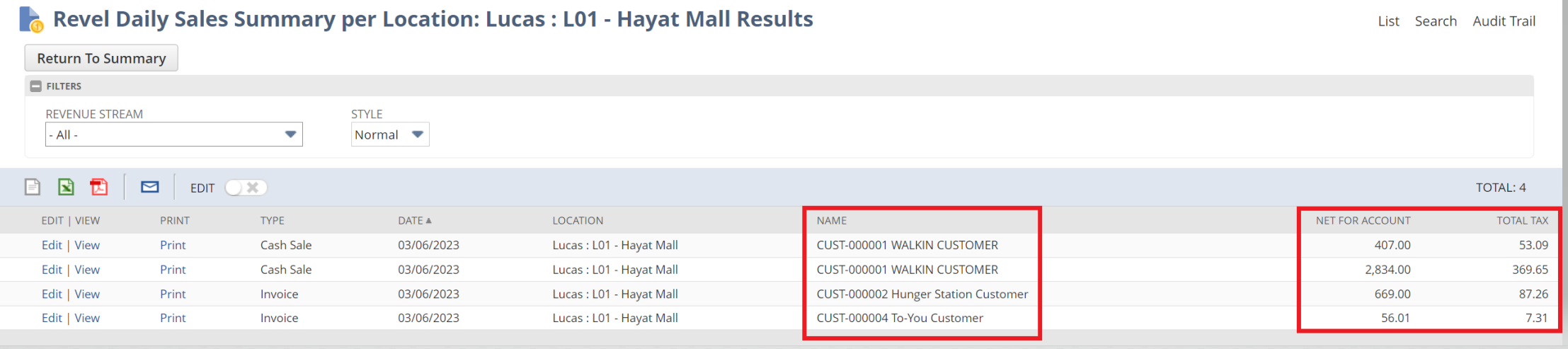
D- Validate Step: If you want to validate the payment go to the same report and press into the name of the location.
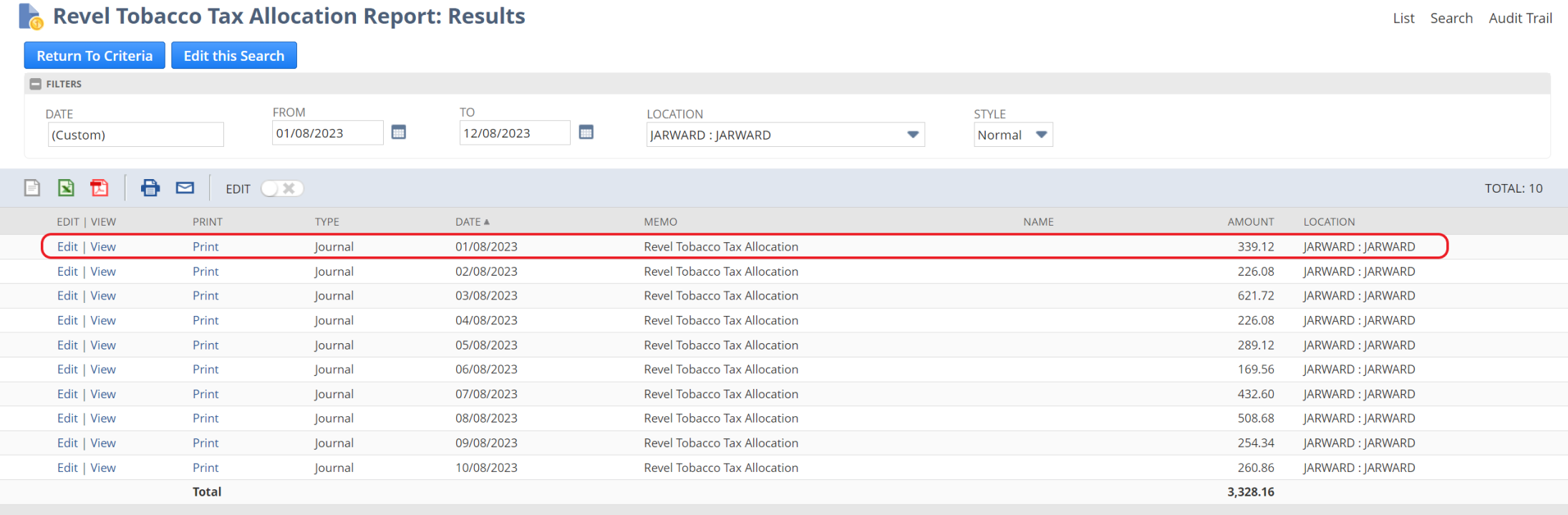
2.3. Revel Daily Tobacco Tax Report.
Form the following steps we can do the Tobacco Tax validation from Revel to NetSuite :
A- First Step: Go to Revel POS > Reports > Revel Daily Tobacco Tax Report.
B- Second Step: Use the following Filtration you need.
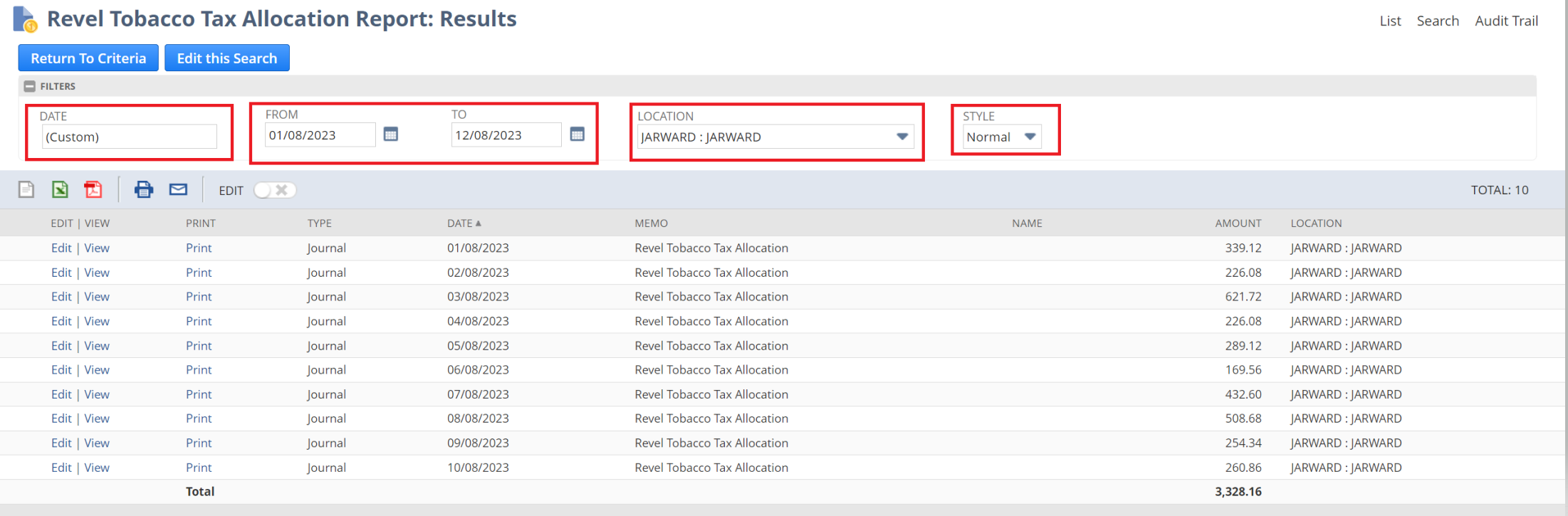
From this page, you will see all the Tobacco Tax comes from Revel Per Location; As appear in the picture you will be able to choose the location you want to see and what’s the period.
C- Third Step: Go to Revel and choose the same location and move to the sales summary report page.
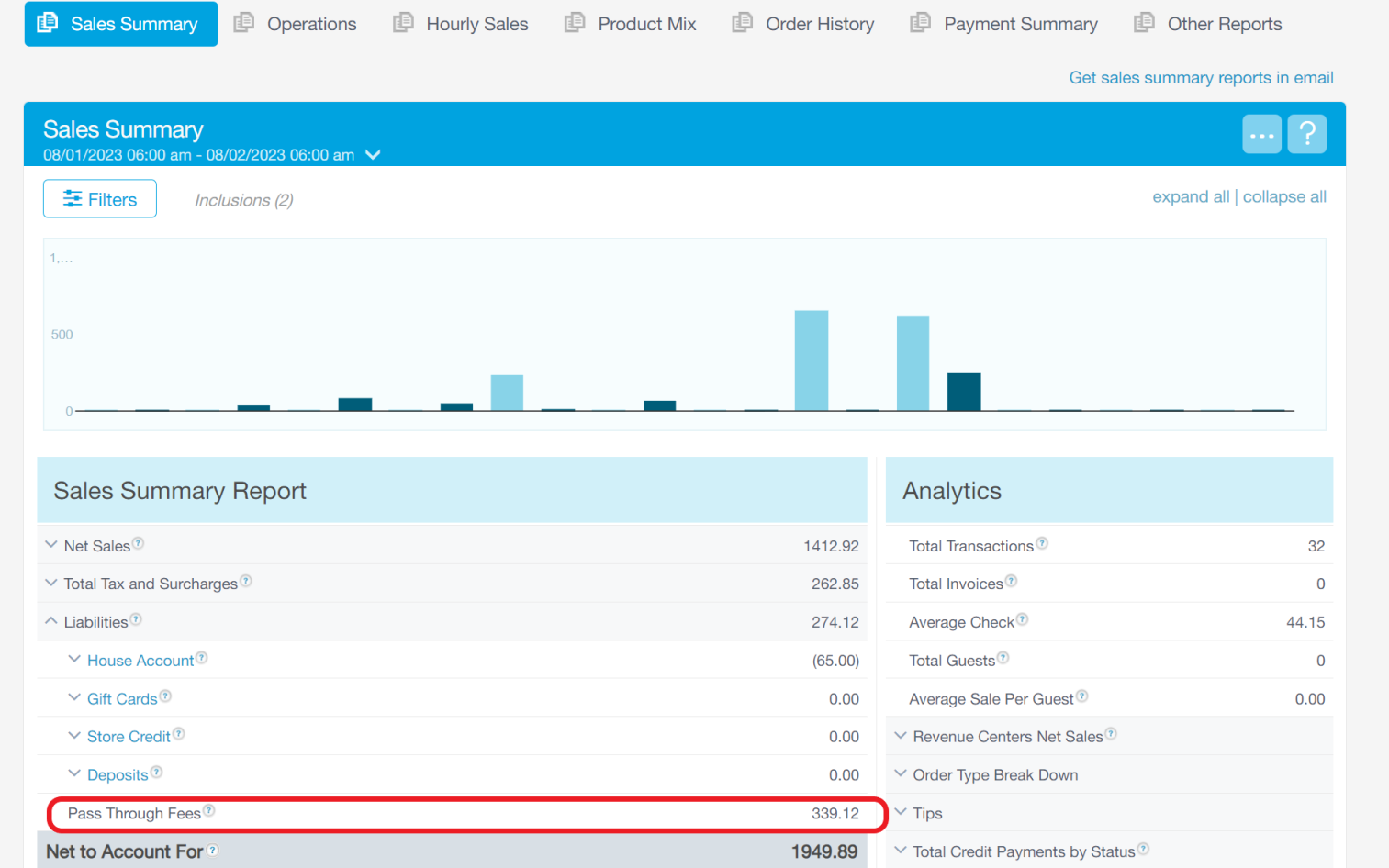
D- Validate Step: From this page, in Revel will validate the “Pass Through Fees” value to the “ Amount” column in NetSuite.
3. Inventory Transaction
Inventory Integration will include the following transaction:
COGS
Transfer
Wastage
Adjustment
Purchase order
3.1. COGS Integration
Form the following steps we can do the COGS validation from Revel to NetSuite :
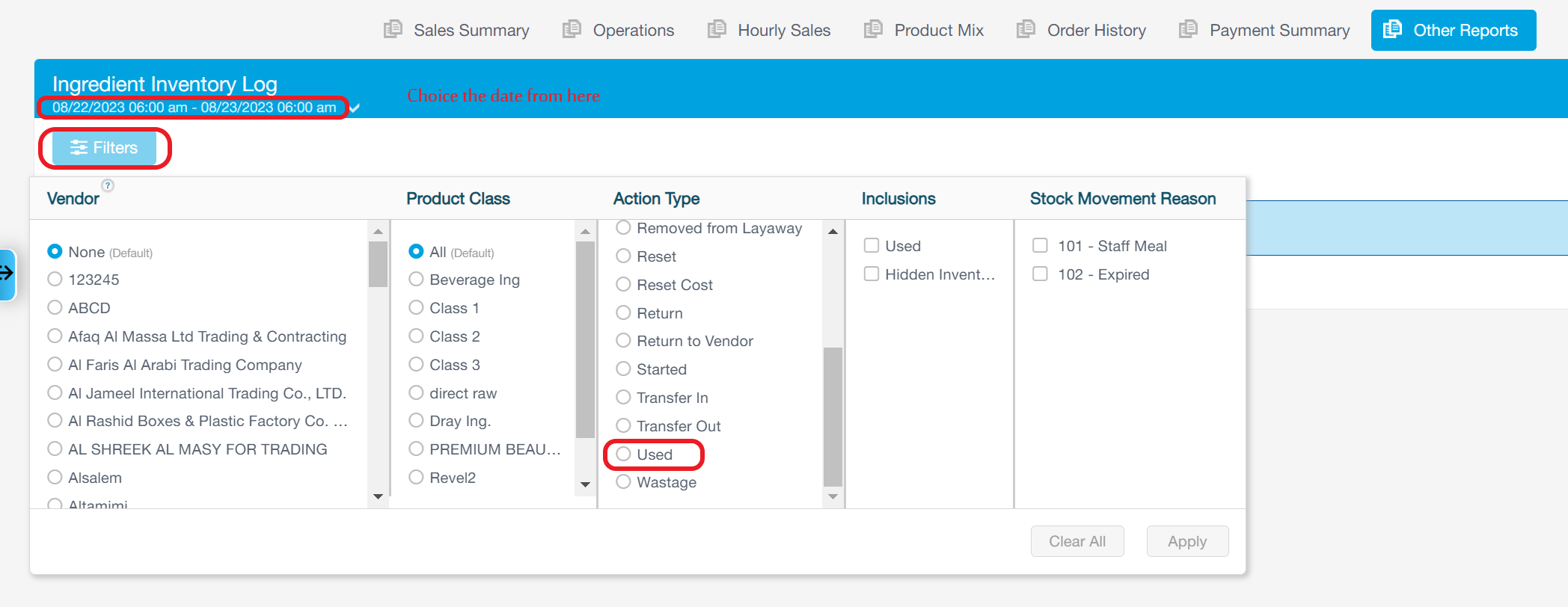
A- First Step in Revel: Go to Report > Other Report >Ingredient Inventory Log
B- Second Step: Use the following Filtration you need.
c- From NetSuite :
3.2. Transfer Integration
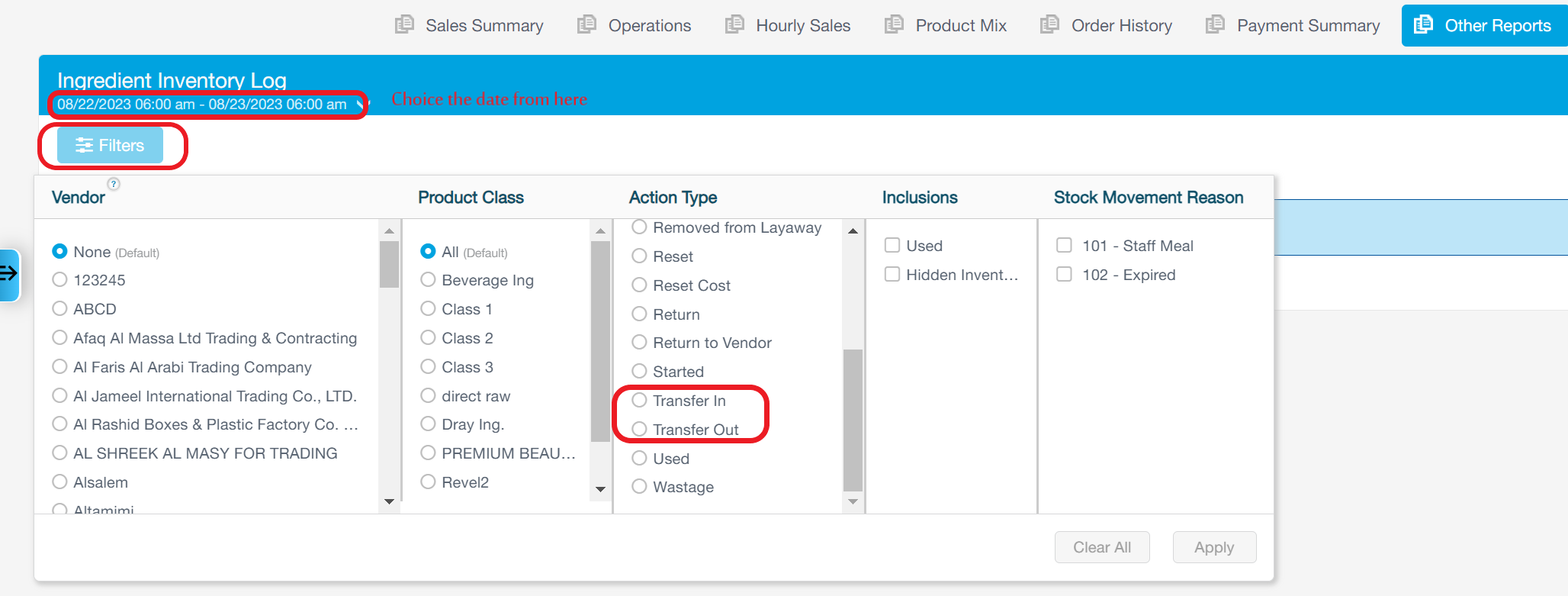
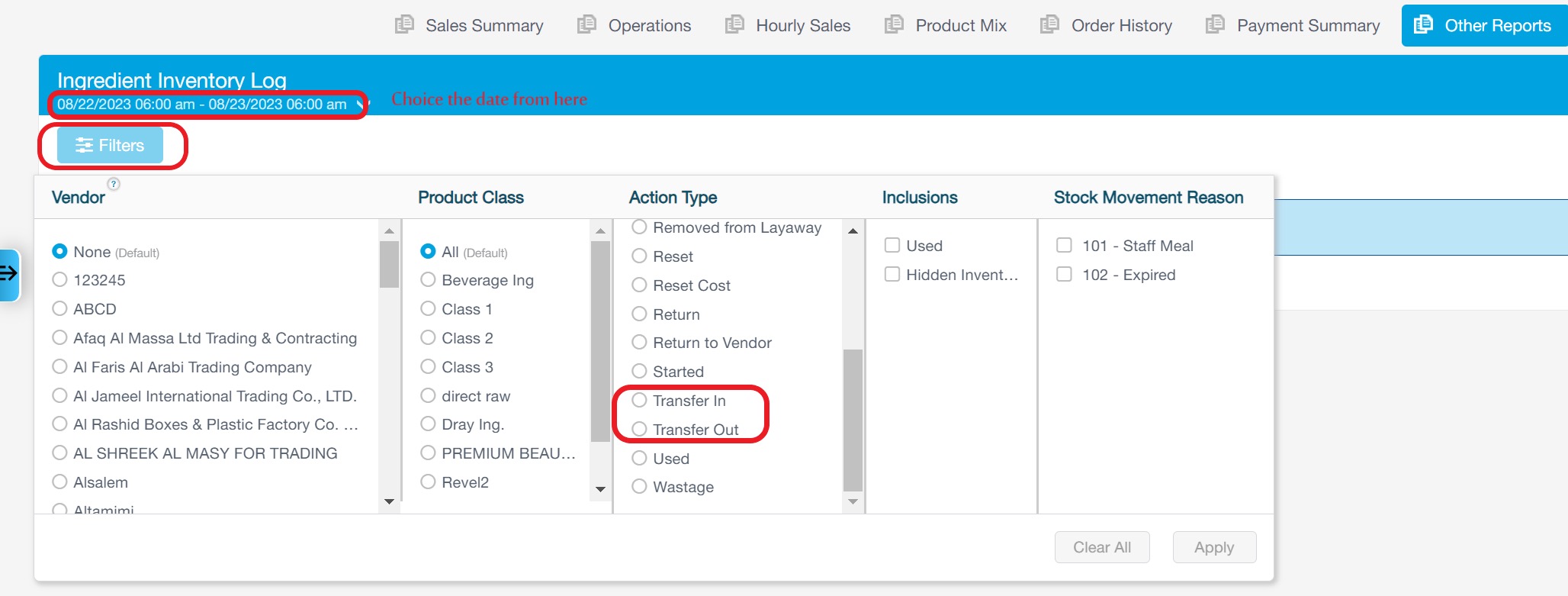
Form the following steps we can do the Transfer validation from Revel to NetSuite :
A- First Step in Revel: Go to Report > Other Report >Ingredient Inventory Log
B- Second Step: Use the following Filtration you need.
3.3. Wastage Integration
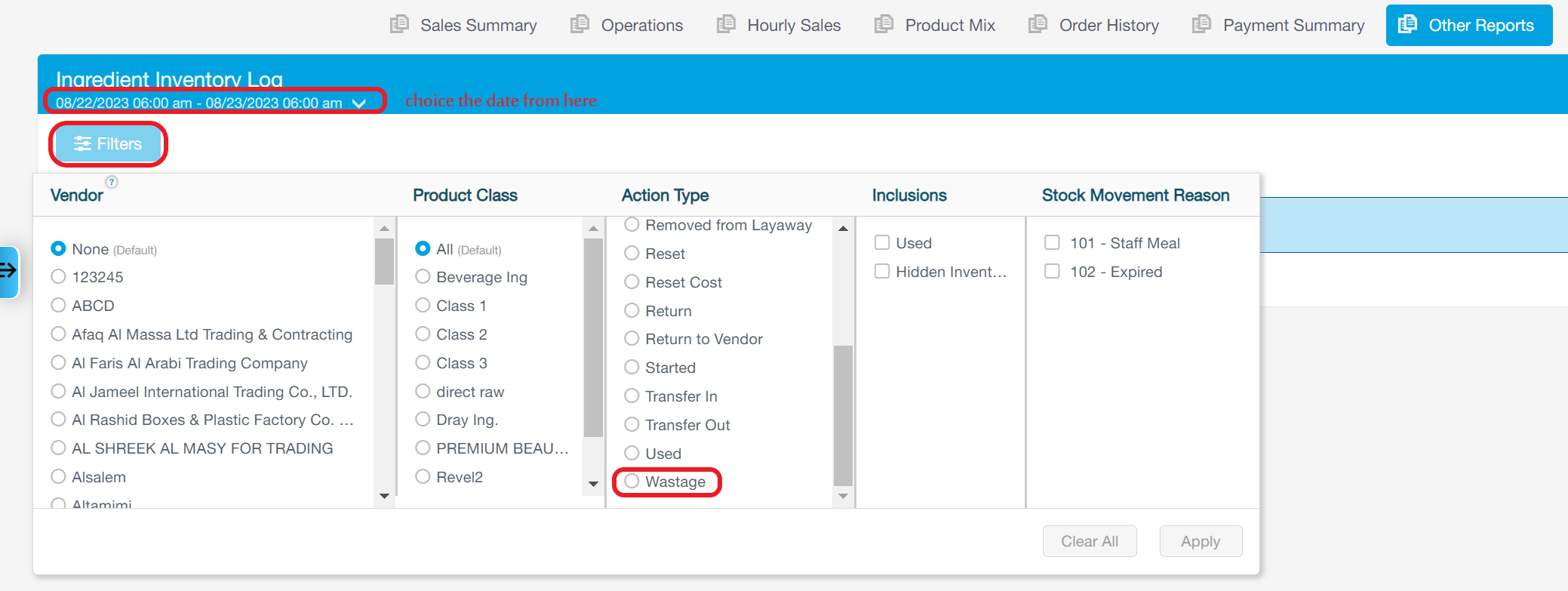
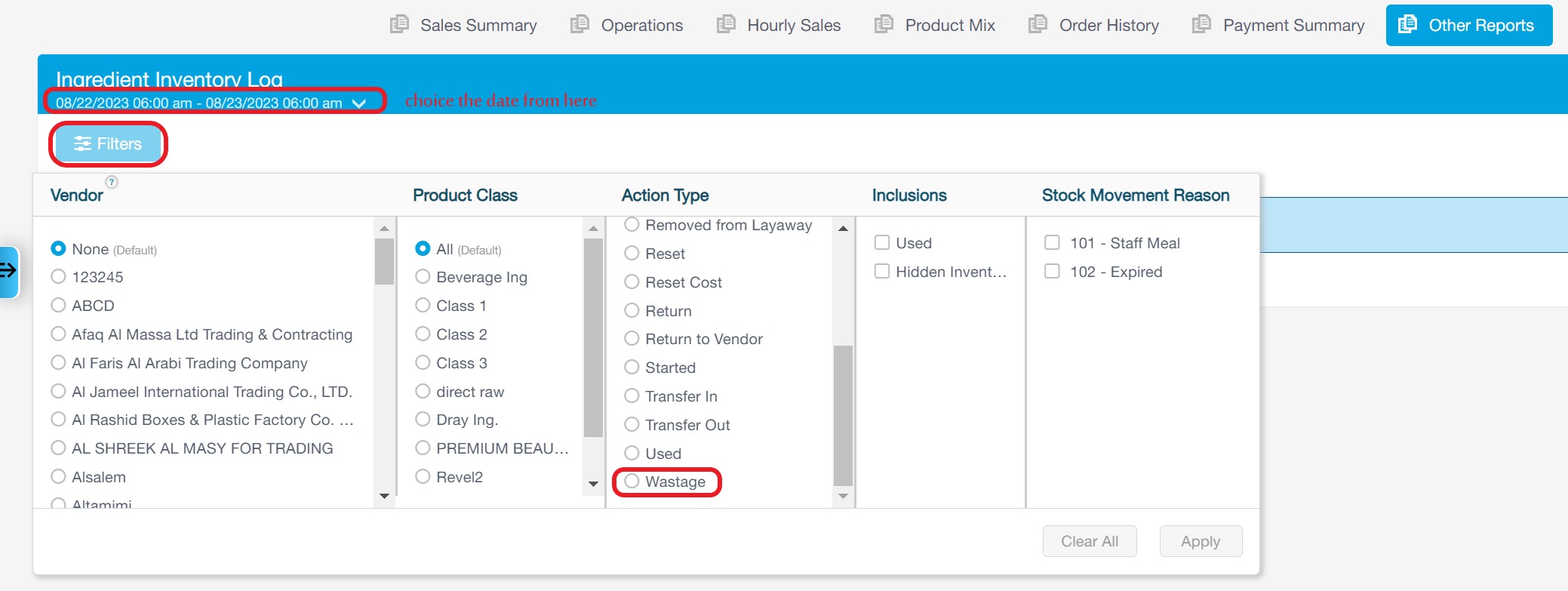
Form the following steps we can do the Wastage validation from Revel to NetSuite :
A- First Step in Revel: Go to Report > Other Report >Ingredient Inventory Log
B- Second Step: Use the following Filtration you need.
c- From NetSuite :
3.4. Adjustment Integration
Form the following steps we can do the Adjustment validation from Revel to NetSuite :
A- First Step in Revel: Go to Report > Other Report >Ingredient Inventory Log
B- Second Step: Use the following Filtration you need.
c- From NetSuite :
3.4. Purchase Order Integration
Form the following steps we can do the Adjustment validation from Revel to NetSuite :
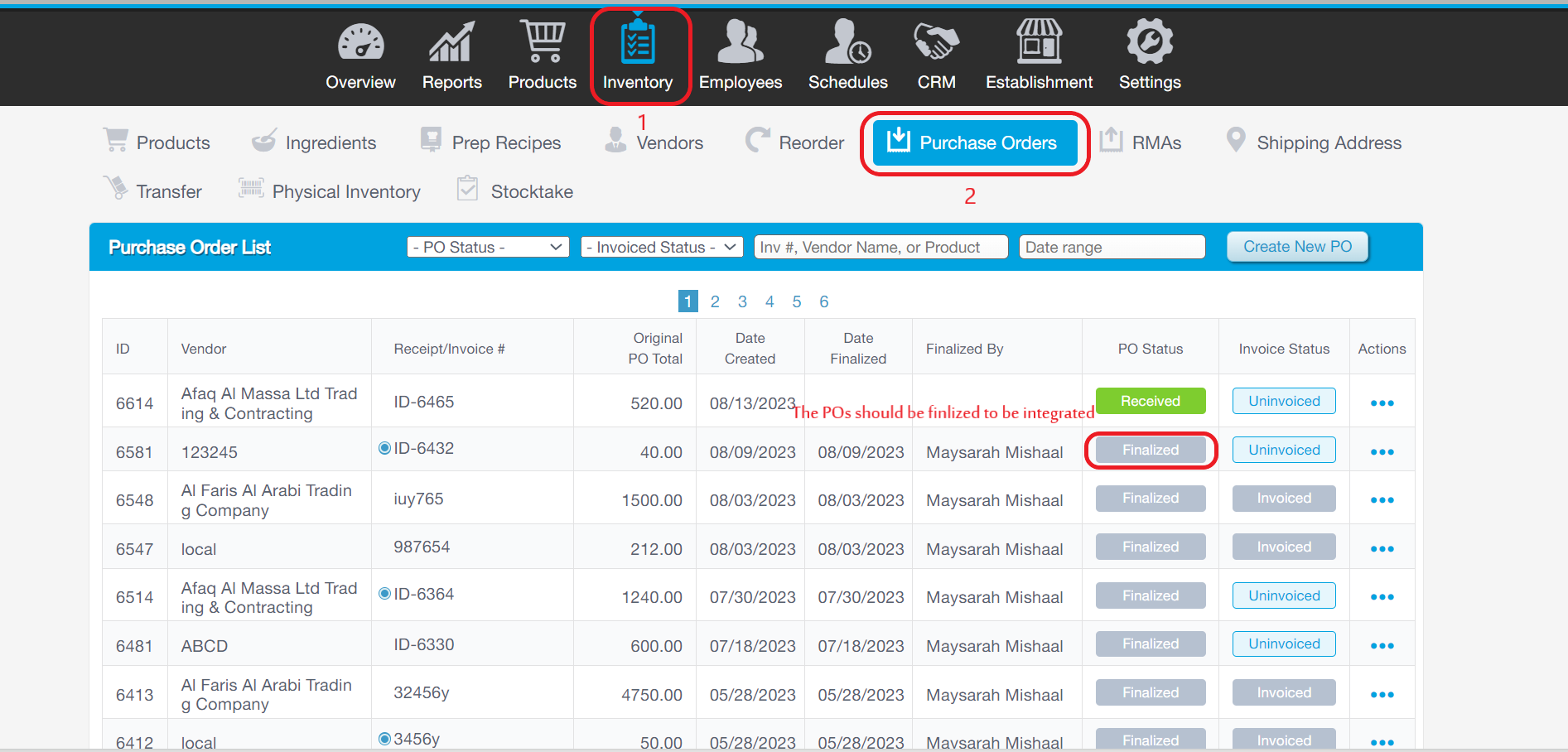
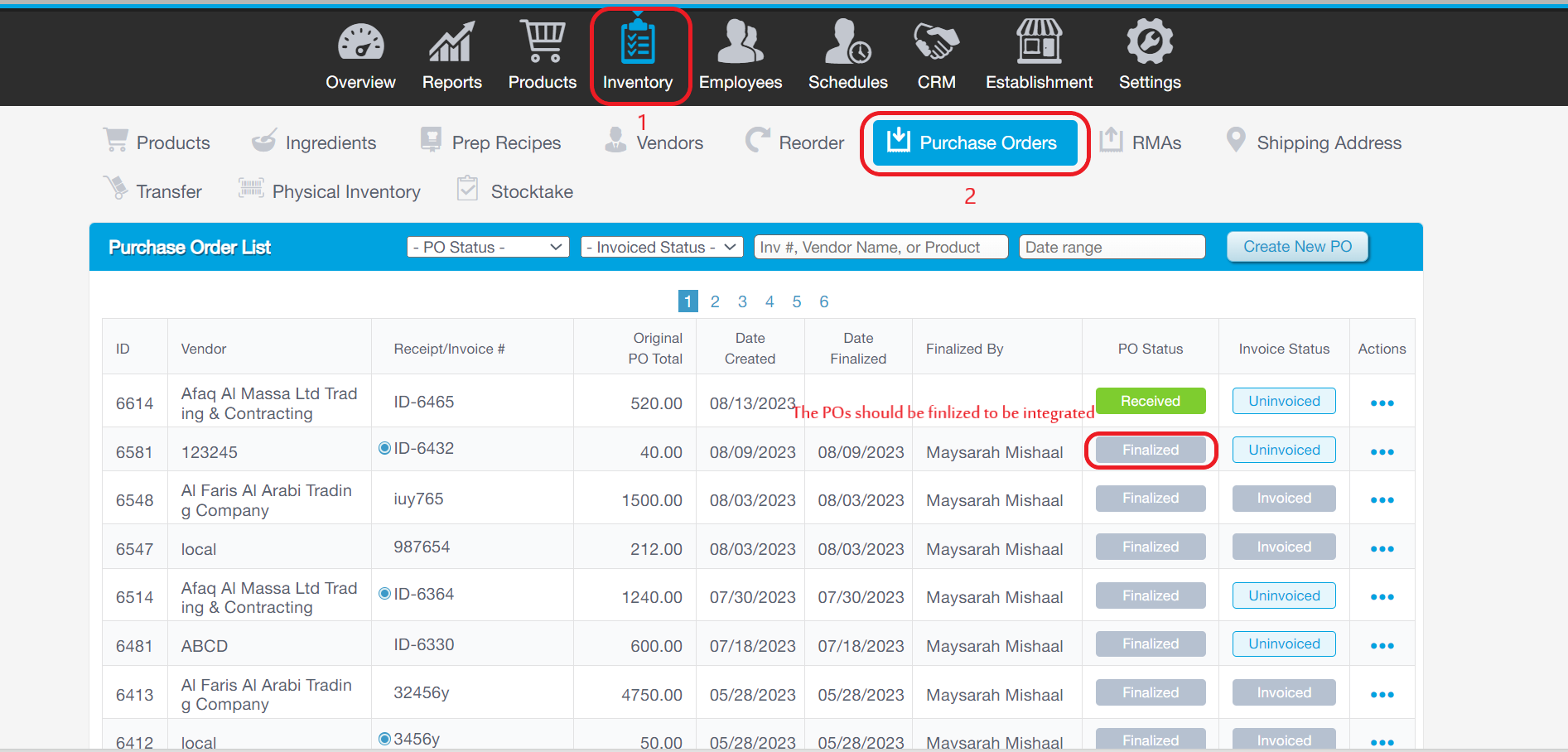
A- First Step in Revel: Go to Inventory > Purchase Orders
B- Second Step: Use the following Filtration you need.
c- From NetSuite :
Was this article helpful?
That’s Great!
Thank you for your feedback
Sorry! We couldn't be helpful
Thank you for your feedback
Feedback sent
We appreciate your effort and will try to fix the article