Flow Execution in Reachware
In Reachware, Flows can be executed in two main ways:
Manually by the user
Scheduled using the Flow Timetable feature:
Flow Timetable - Preset Options
Flow Timetable - Custom Expressions
Flow Timetable - Preset Options
This feature allows you to schedule flow execution using predefined time intervals:
Once: Run the flow one time only.
Daily: Execute the flow every day at a specific time.
Weekly: Run the flow on selected days of the week (e.g., every Monday).
Monthly: Schedule execution on specific dates each month (e.g., the 1st or 15th).
How to Use Flow TimeTable - Preset :
1
Select Flow:
- Go to Flow Templet.
- Select Your Flow, Click on View Flow.
- Go to Flow Templet.
- Select Your Flow, Click on View Flow.
2
Select Your Timetable Option:
- Click on Calendar Icon.
- will appear Prompt window to you.
- Select your options that you want build your flow based on it. on daily base or weekly etc.
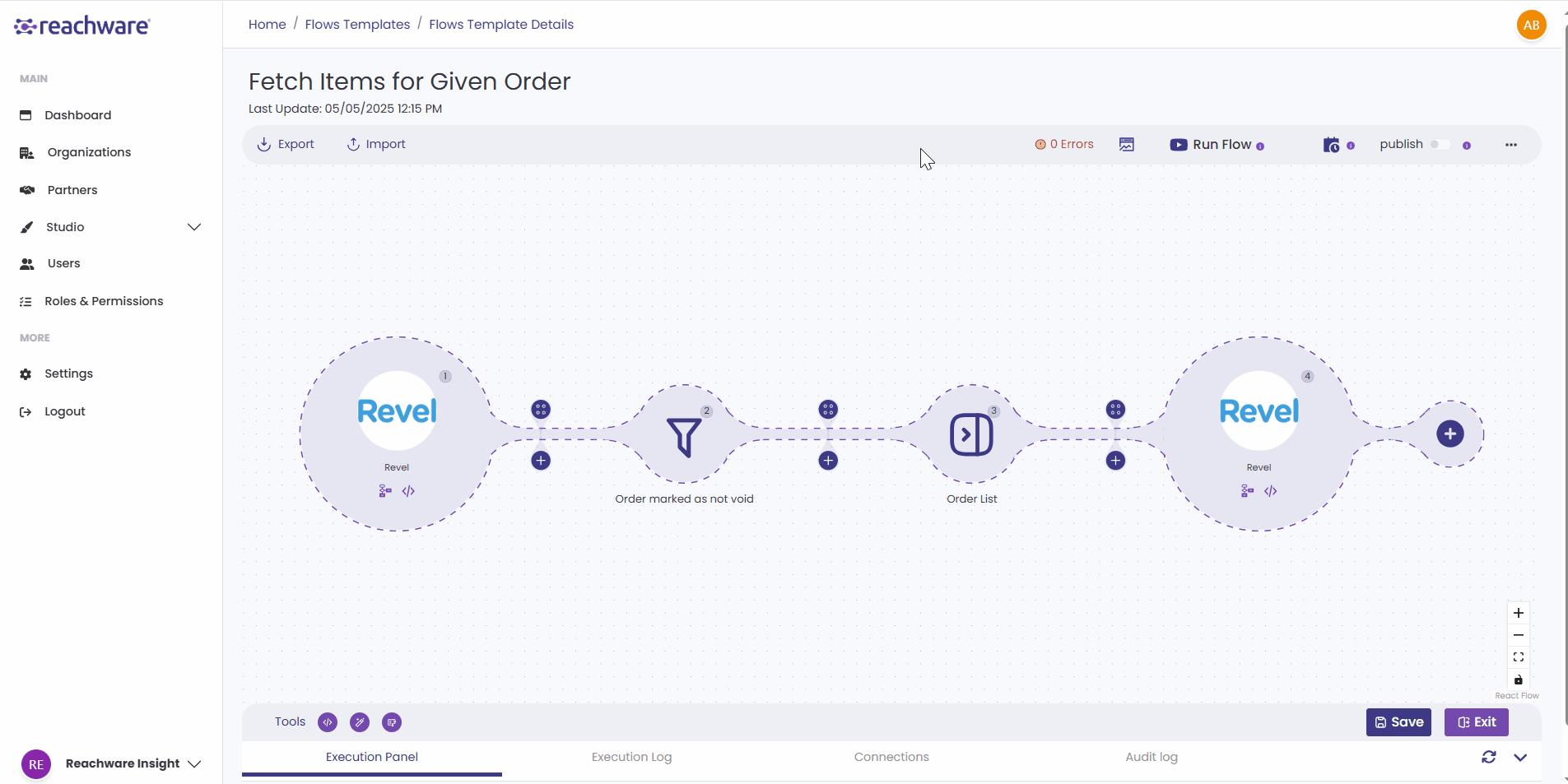
- Click on Calendar Icon.
- will appear Prompt window to you.
- Select your options that you want build your flow based on it. on daily base or weekly etc.
3
Save
Make sure to Save your change by clicking on save buttons.
Make sure to Save your change by clicking on save buttons.
Important Notes:
One-Time: Choose a specific date and time when the flow should run only once.
Daily: Select the days of the week (e.g., Sunday, Monday) on which the flow should run.
You can also define a start date and an optional end date for the schedule.
Weekly: Choose specific days of the week on which the flow should run every week.
Monthly: Select one or more months and corresponding days on which the flow should execute.
The Using of the Predefine Time based on your Flow Requirements.
You Can Select The Start Date with Start Time and the End date & Time will be Optional.
One-Time: Choose a specific date and time when the flow should run only once.
Daily: Select the days of the week (e.g., Sunday, Monday) on which the flow should run.
You can also define a start date and an optional end date for the schedule.
Weekly: Choose specific days of the week on which the flow should run every week.
Monthly: Select one or more months and corresponding days on which the flow should execute.
The Using of the Predefine Time based on your Flow Requirements.
You Can Select The Start Date with Start Time and the End date & Time will be Optional.
Related Topics
Was this article helpful?
That’s Great!
Thank you for your feedback
Sorry! We couldn't be helpful
Thank you for your feedback
Feedback sent
We appreciate your effort and will try to fix the article