
Create an Operation
In Studio, Operations define the communication between systems and Reachware via API endpoints. These operations can either export (retrieve data from a system) or import (send data to a system).
This guide outlines how to create a new operation, set it up, and test its functionality.
How to Create a New Operation?
Click "Add Operation" on the dashboard.
A list of available systems appears. Each entry shows the system logo, name, and description. Use the search bar to quickly find your target system, then click on it to proceed.
Complete the general information for the operation.
General Information
| Field | Description |
|---|---|
| Operation Name | A user-defined name to identify the operation. |
| Operation Type | Export (GET/POST) or Import (POST/PUT/PATCH/DELETE) |
| System | Choose from a predefined list of systems. |
| Operation Group | Classify the operation (e.g., Customer, Invoice). |
| Retrieve URI | The endpoint URL used to retrieve or send data (e.g., /api/customer/{{customer_id}}). |
You can create a new Operation Group by navigating to the System window, then from the System List select Actions → View, opening the Operation Group tab, and clicking "Add New Group".
Query Parameters
| Field | Description |
|---|---|
| Key | Parameter name (e.g., status) |
| Value | Can be set in two ways: 1. Dynamic: Use {{double curly braces}} to define a variable. The value gets filled in the Flow Template at runtime.2. Fixed: Enter a plain value. Use this only if the value will never change. |
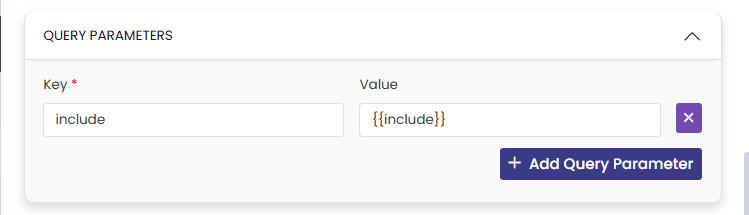
Always try to use the Dynamic way — it gives you more flexibility to reuse the same operation across different flows.
Request Body
HTTP Method
| Method | Use |
|---|---|
| GET | Retrieve data |
| POST | Create records |
| PUT | Update entire record |
| PATCH | Update specific fields |
| DELETE | Remove records |
Body Type
| Type | Use When |
|---|---|
| none | GET or DELETE requests |
| raw | Most API calls (JSON/XML) |
| form-data | File uploads |
| x-www-form-urlencoded | HTML forms |
Format (for raw type)
- JSON — Most common
- XML — For XML APIs
- Text — Plain text
- JavaScript — JavaScript data format
- HTML — HTML content format
Request Body Structure
Use JSON format with placeholders:
"SiteID": "{{site_id}}",
"ExpiryDate": "{{expiry_date}}"
}
Operation Variables
| Field | Description |
|---|---|
| Name | Variable name used in the operation. |
| Value | Optional default value. Leave empty and fill it in the Flow Template to keep the operation flexible and reusable across multiple flows. |
| Description | A short note explaining what this variable is for — helps others understand the operation. |
| Variable Type | The data type of the variable's value (String, Boolean, Integer, etc.). |
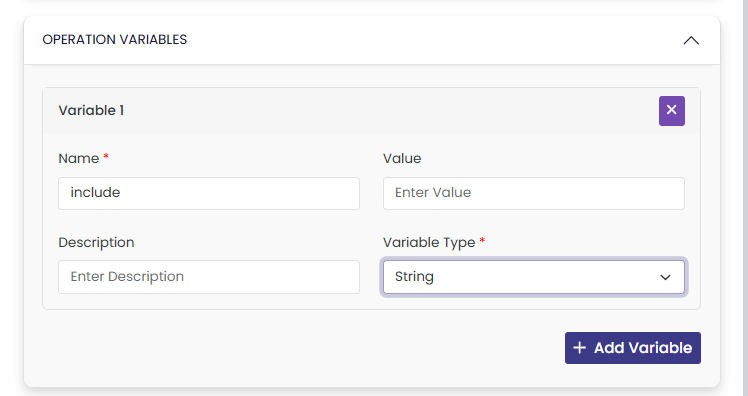
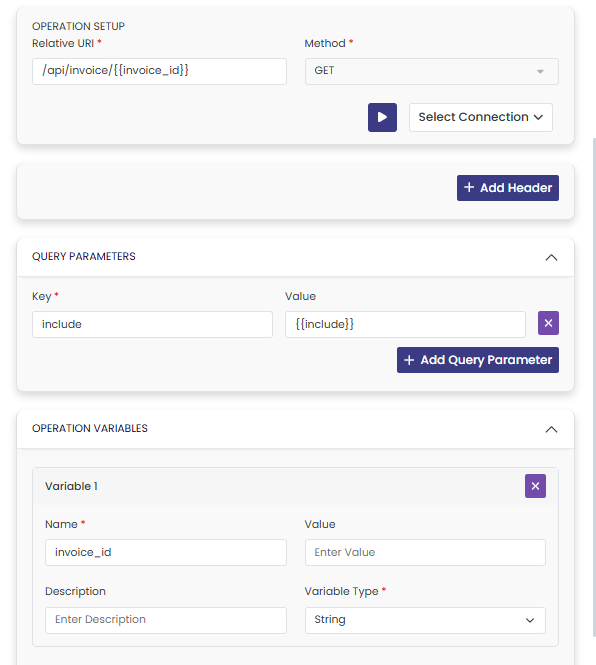
You can define a path parameter in the relative URI as a variable, and find the variable in the operation variables section as well.
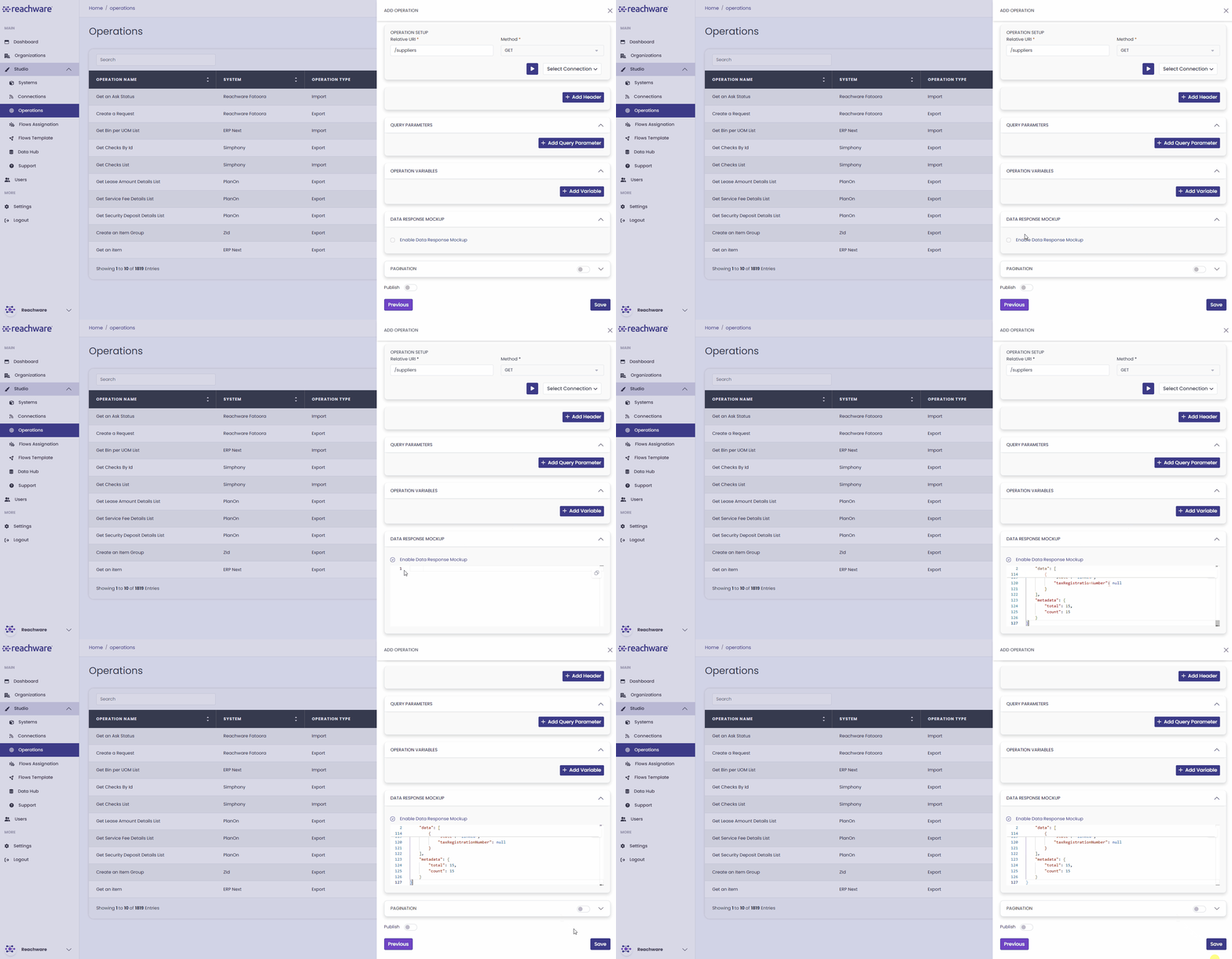
Allows you to provide a sample of the expected data so you can start mapping your fields immediately in the Flow Template, without needing to run the flow first to fetch live data.
How to Add a Mockup:
- While creating or editing an operation, scroll down to the Data Response Mockup section.
- Check the Enable Data Response Mockup box.
- Paste or type your sample data into the text box.
- The system will automatically organize it into a neat, clickable tree structure.
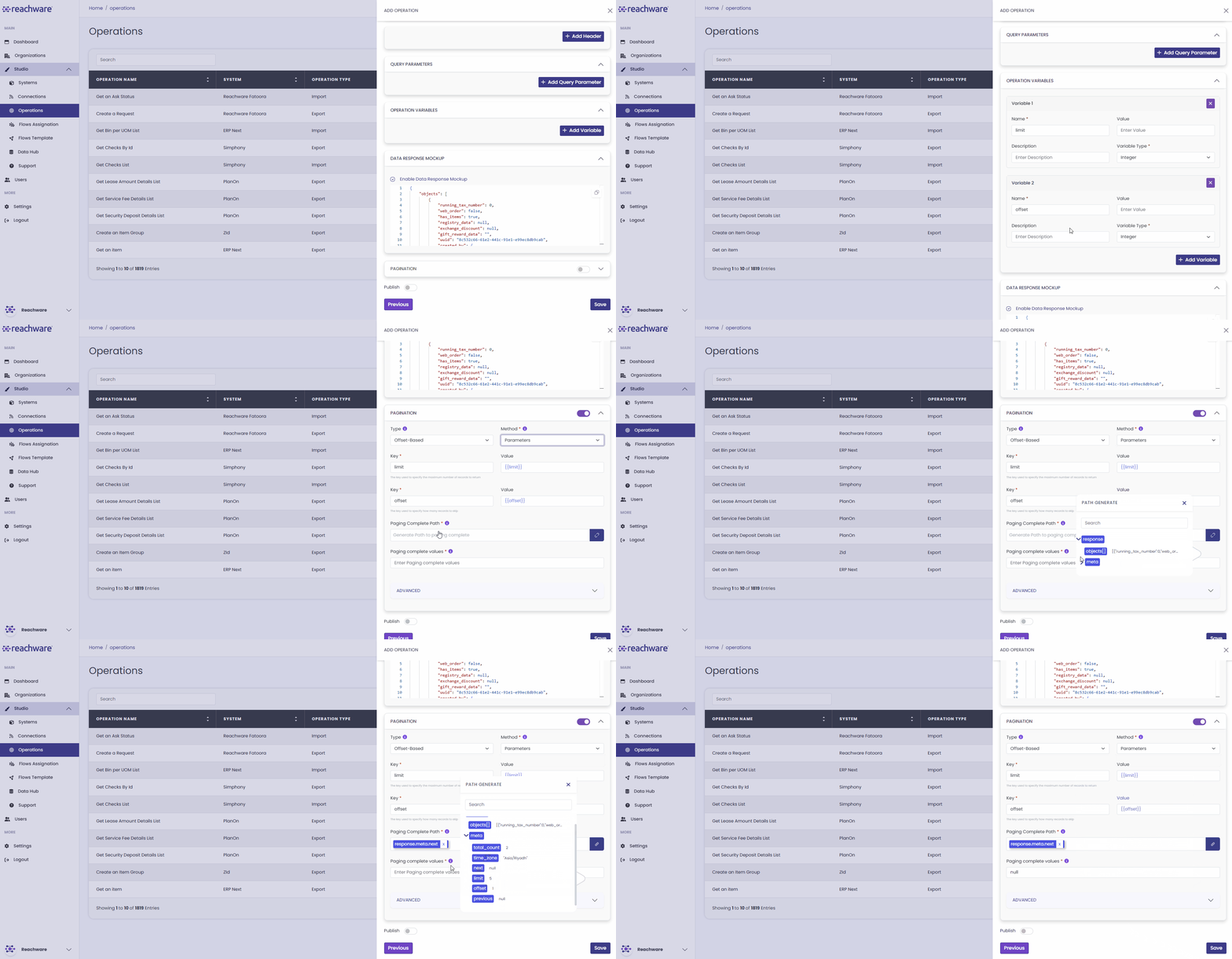
If your endpoint returns large amounts of data, enable the Pagination toggle to ensure Studio fetches all records across multiple pages.
Studio supports multiple pagination structures. Under the Type dropdown, select:
- Offset-Based
- Page-Based
- Cursor-Based
- Token-Based
- Time-Based
Method
Choose where Studio should place the pagination keys in each request. This depends on what your target API expects; check its documentation if you're unsure.
| Method | Use When |
|---|---|
| Params | The API reads pagination from query parameters (e.g., ?page=2&limit=50). Most common for REST APIs. |
| Body JSON | The API expects pagination keys inside a JSON request body. |
| Body x-www-form-urlencoded | The API expects form-urlencoded fields in the body. |
| Body Form-Data | The API expects multipart form-data fields in the body. |
After selecting the type, define the Method (e.g., Parameters) and configure the specific Keys and Values (like limit and offset) required by that endpoint.
Empty Pagination Keys Handling
Studio keeps your requests clean by default. Pagination keys are sent only when they actually have a value; there's a difference between "no value at all" and "a value that happens to be zero or blank", and Studio treats them differently.
| Use Case | What Studio does | Why |
|---|---|---|
| The key has no value (the variable is empty) | Skipped | Many APIs reject requests like ?cursor=&page=&limit=50, so this keeps the request clean and minimizes the errors. |
You explicitly set the value to 0, "", null, or false | Sent as-is | These values usually mean something to the API. For example, offset=0 tells the API "start from the beginning." |
Select the relevant connection, then click "Test Connection" to verify the endpoint's accessibility. After successful validation, click "Run" to execute the API operation.
Click Save to apply your configuration.
Related Topics