
User Management
This guide covers everything you need to manage users in Studio, from inviting a new user to changing their role or removing their access.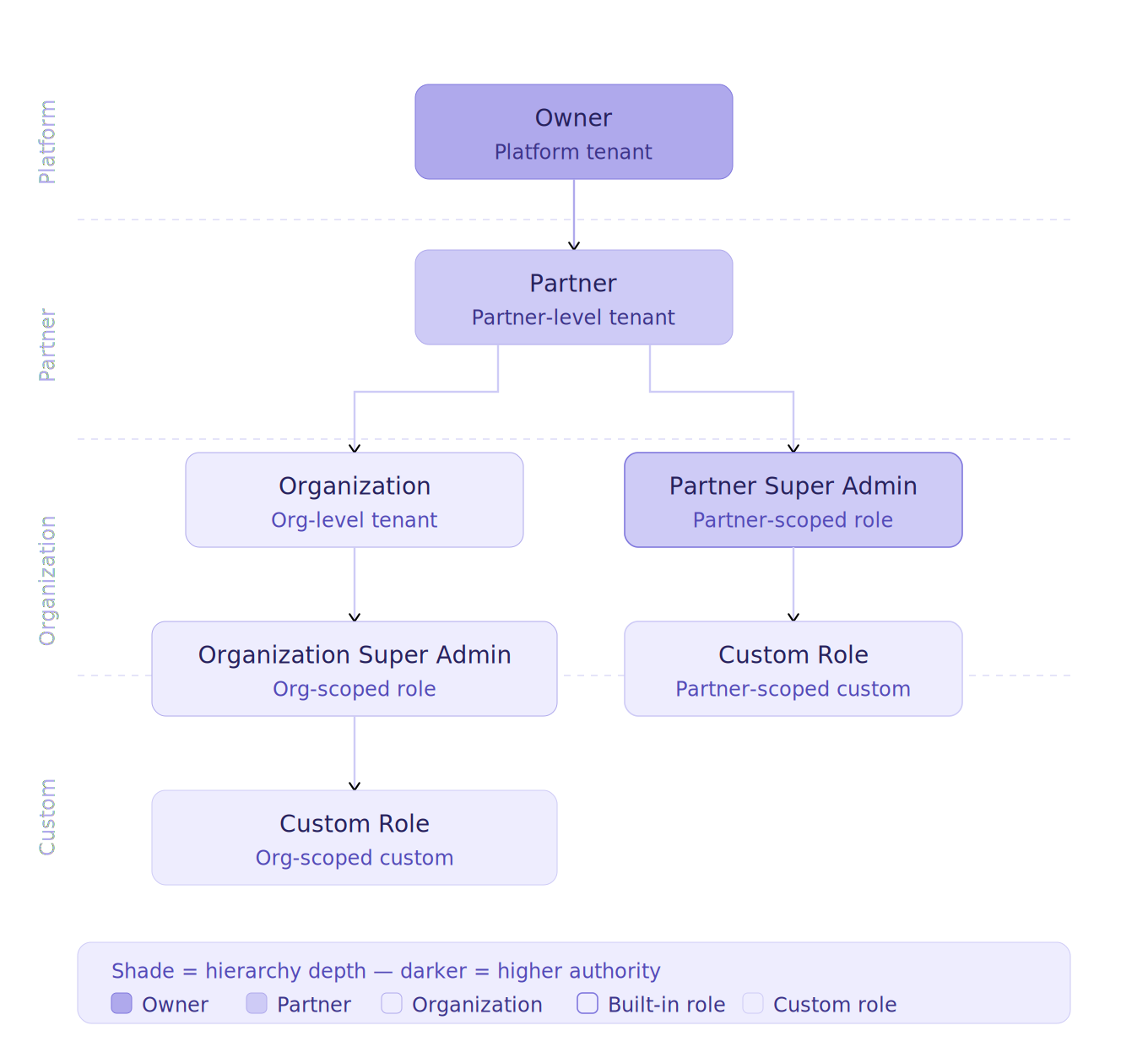
Add a New User
Users can be added directly to a Partner or to an Organization inside a Partner. The number of steps depends on your account level. Partner accounts use a 3-step process, while Organization accounts use a 2-step process.
Add a New Partner User
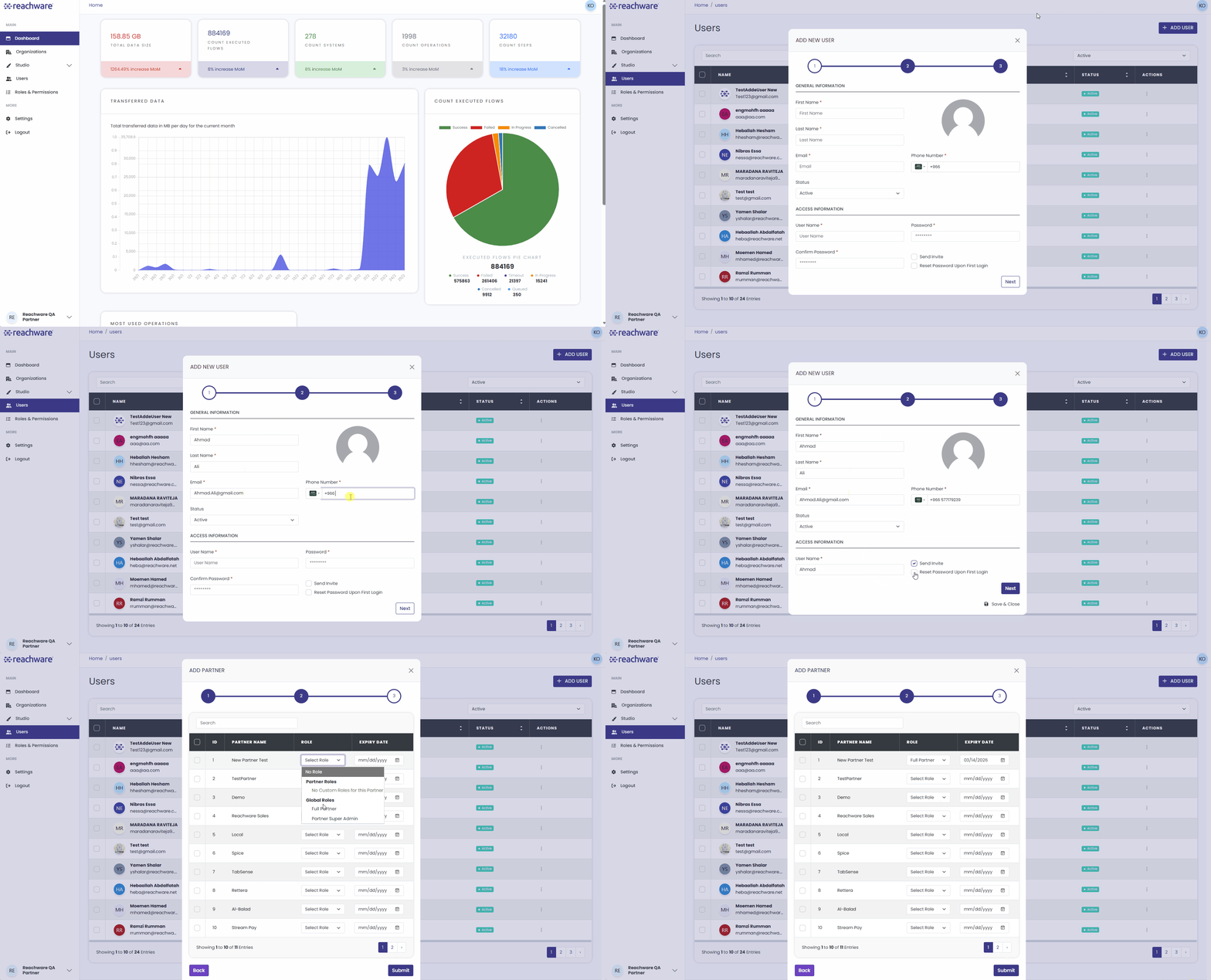
When adding a user under a Partner, you need to complete three steps. This allows you to assign the user to specific Partners and Organizations.
Click Add User from the left sidebar.
Required fields: First Name, Last Name, Email, Phone Number (select country code from dropdown), Username.
Additional options:
- Send Invite:
- If checked: The user receives a verification email with a link that expires in 24 hours. After clicking the link, they will see "Your account has been verified!" and can log in with their credentials.
- If not checked: The account is created immediately with the password you set. No email is sent. Share the login credentials (Username and Password) with the user manually.
- Reset Password Upon First Login: Check this to require the user to create a new password on their first login.
Assign the user to specific Organizations that the Partner manages and give them Organization-level permissions.
- Check the box next to each Organization you want to grant access to
- Assign the role
- Click Next
Assign Partner-level permissions to the user.
- Check the box next to each Partner you want to grant access to
- Assign the role
- Click Submit to complete the user creation
Add a New Organization User
To add a user under an Organization account:
Click Add User
Enter the user details
Assign the appropriate role
Click Save
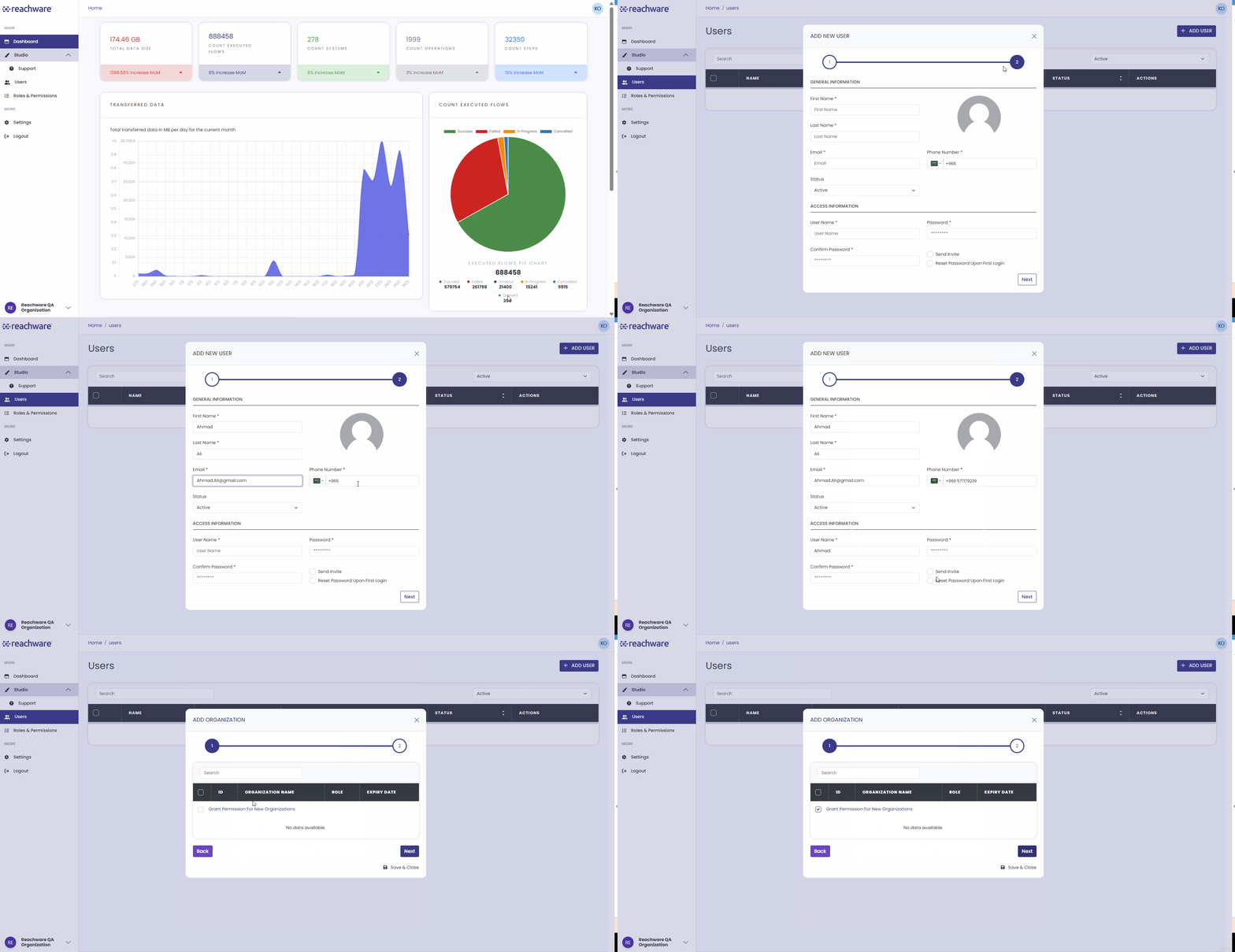
When you create a user from inside an Organization, the user is automatically linked to that Organization under a specific Partner.
Send Invitation Rules
| Rule | Detail |
|---|---|
| Link expiry | 24 hours |
| Duplicate email | Error if email is already registered in the same account |
| Role ceiling | You cannot assign a role with more access than your own |
Manage and View Users
Users List
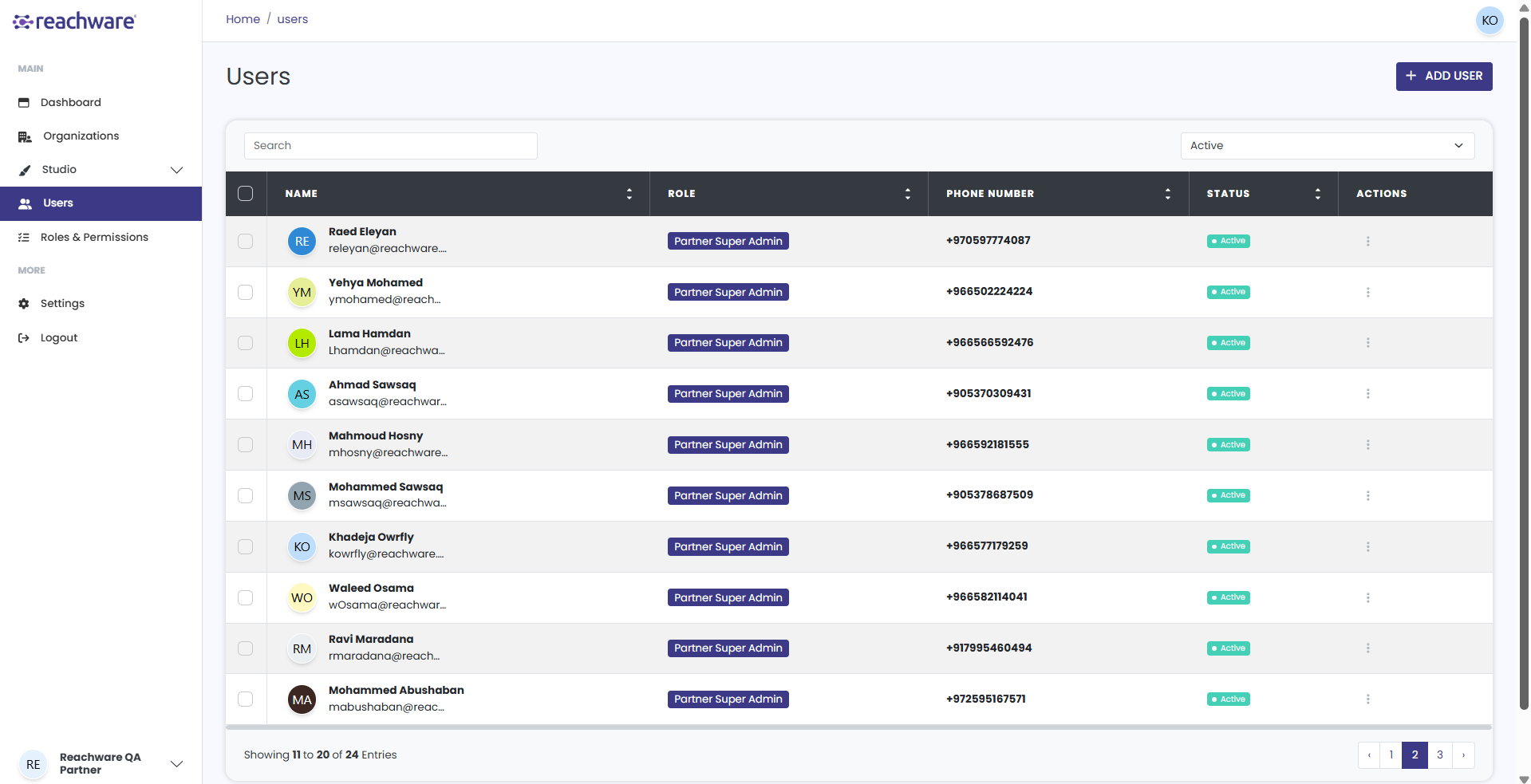
The Users list displays: Name, Role, Phone Number, and Status.
User Profile Information
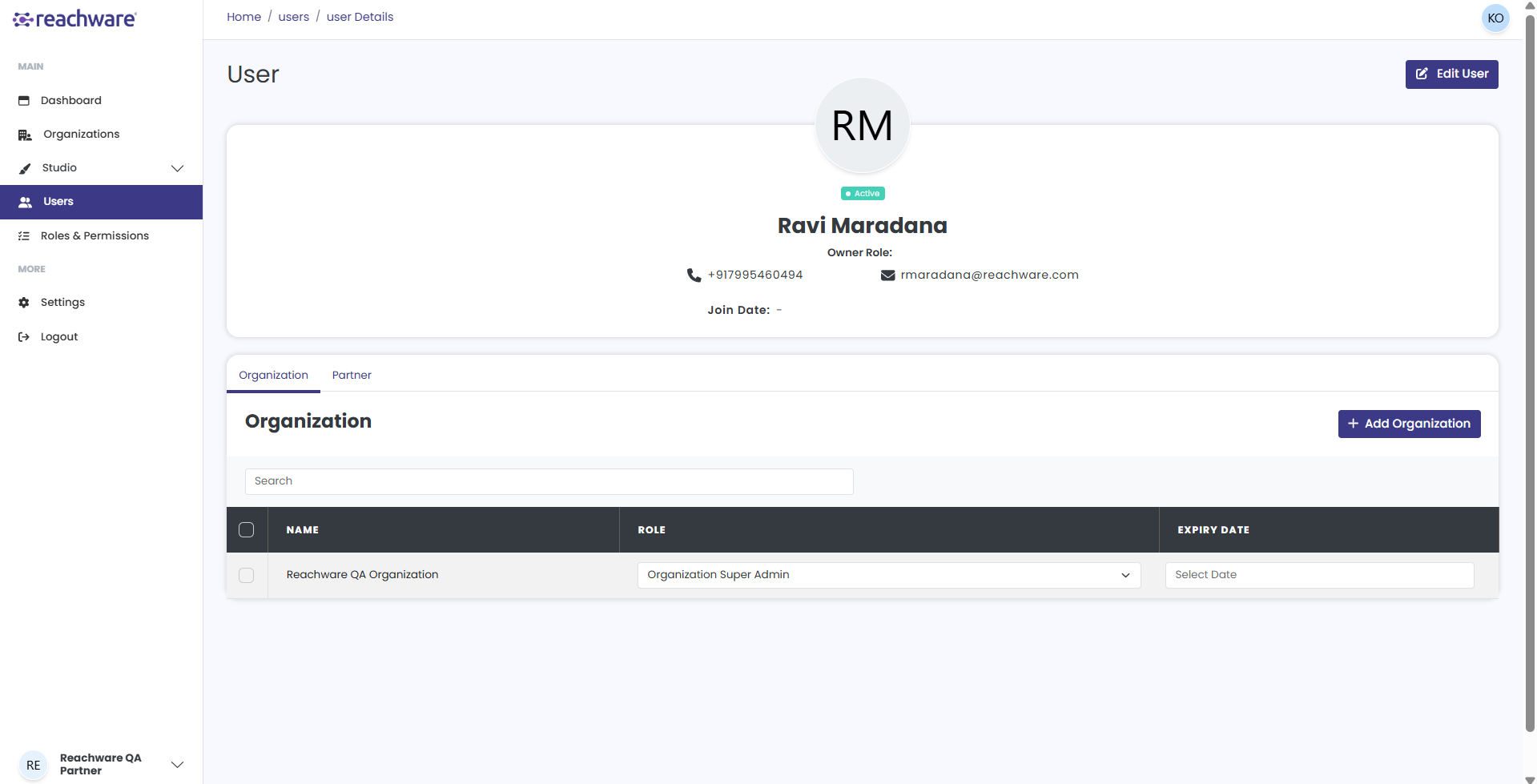
Edit a User's Role
Open the Users list
Find the user by using the search bar or filter for faster access
Open their profile
Select the new role
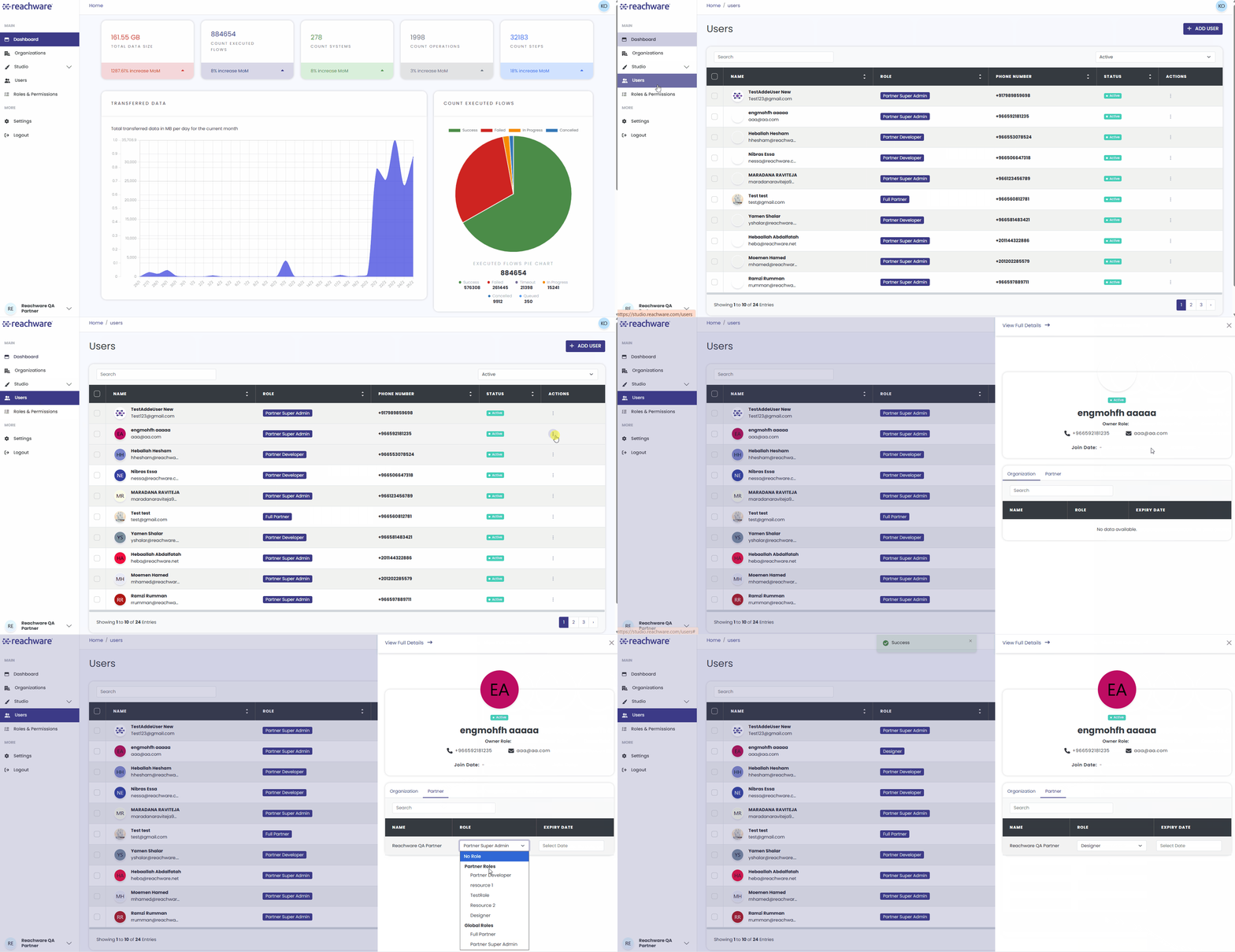
Rules for Changing Roles
| Rule | Detail |
|---|---|
| Permission level | You cannot assign more access than you have |
| Predefined roles | Always available |
| Custom roles | Must be Active to appear |
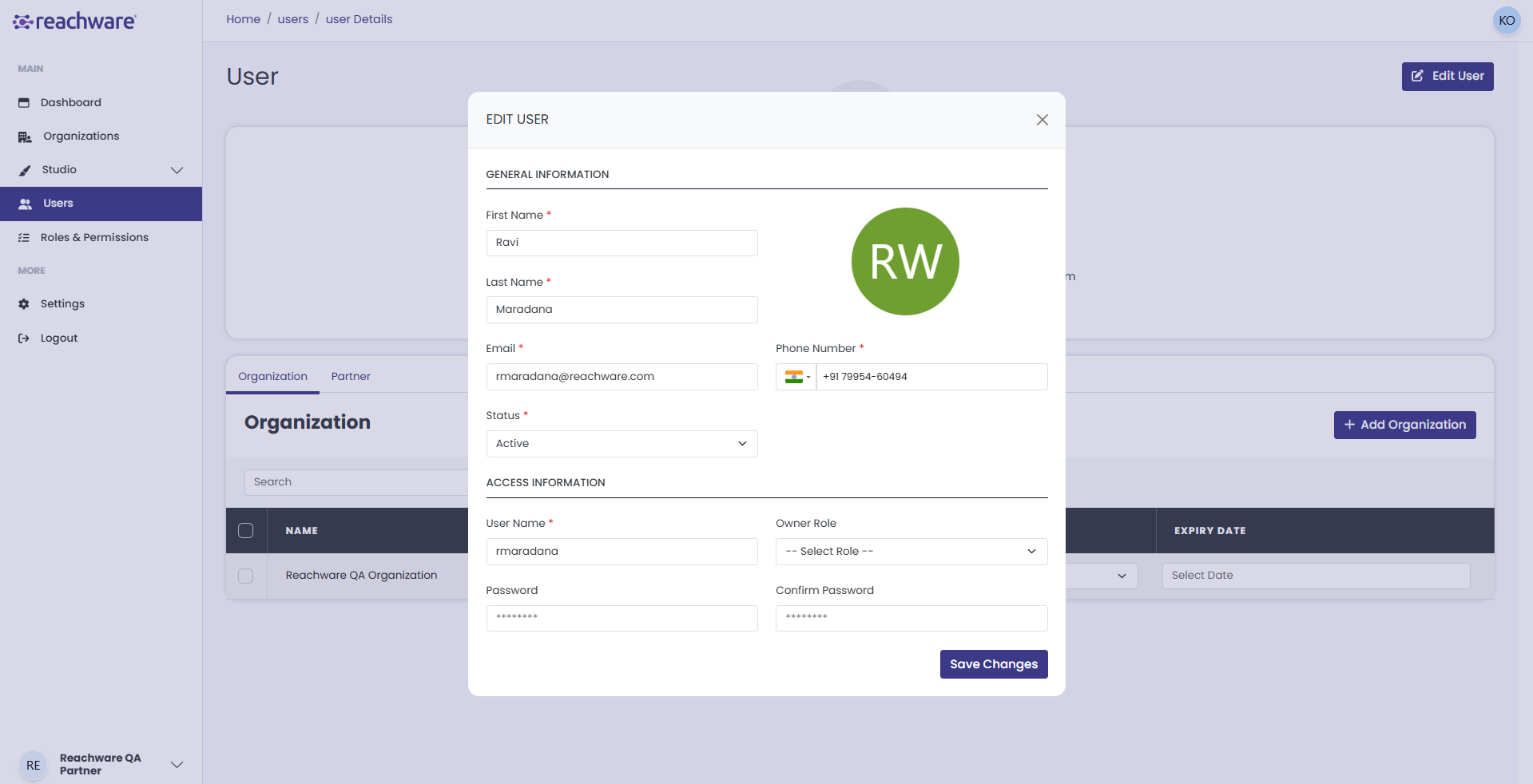
Edit User Details
Open the Users list
Open their profile
Select Edit User from the top-right
Edit the required details
Click Save
Deactivate a User
You can set a user's status to Inactive to suspend access without deleting the account.
| Action | What It Does | Can It Be Undone? |
|---|---|---|
| Deactivate | Suspends access; data remains | Yes |
| Remove | Permanently deletes the user | No |
Studio uses Deactivate instead of Delete. This allows you to reactivate a user again whenever needed in just one step.
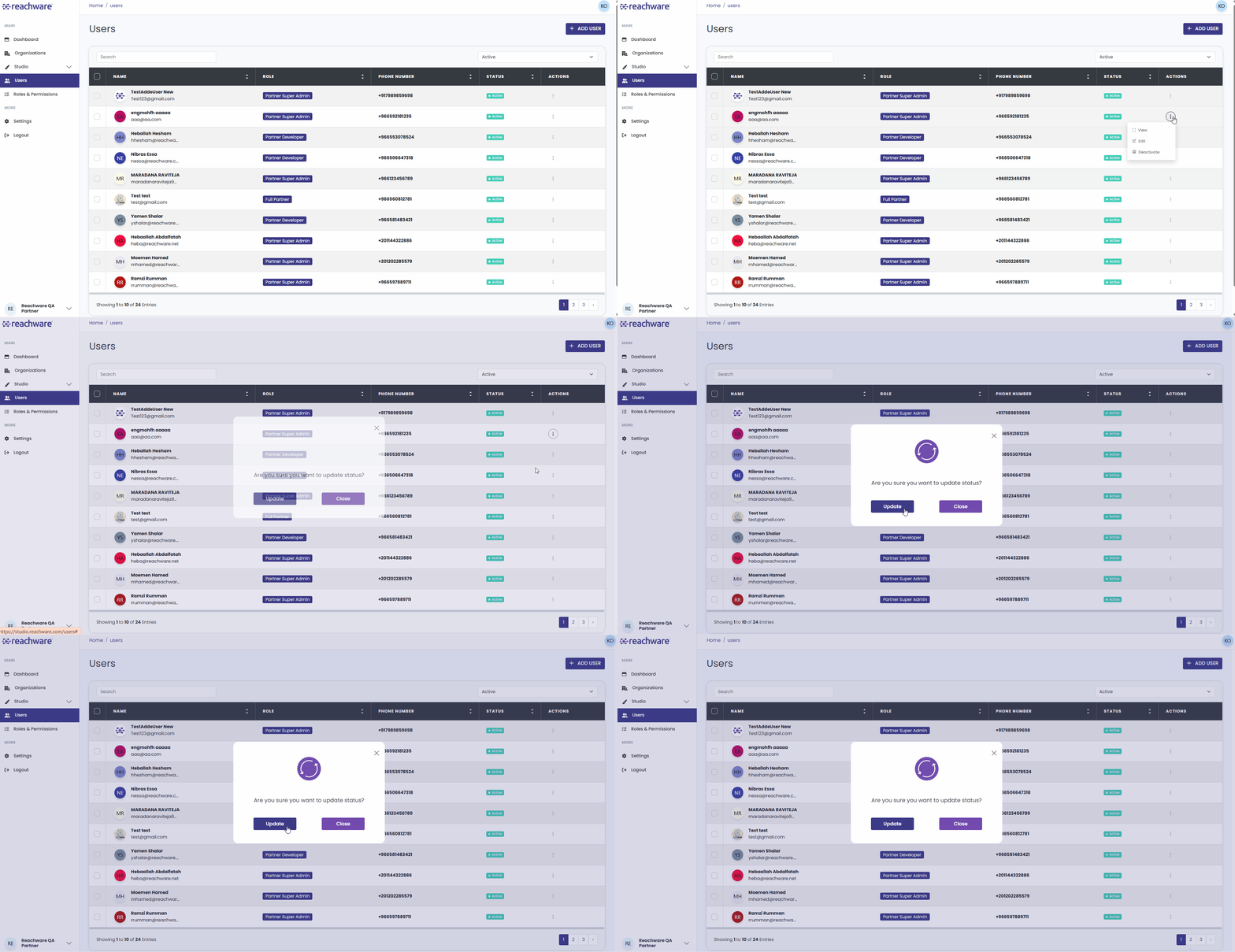
Deactivate Steps:
Open the Users list
Find the user
From the Actions column, click the three dots (...) then select Deactivate
A confirmation pop-up will appear. Click Update to confirm
Related Topics