
Create a System
The System is the main key component for any integration. This guide walks you through onboarding systems or platforms within Studio.
Understanding a System
A System in Studio represents an external application or platform that you want to integrate with (such as QuickBooks, Salesforce, or NetSuite).
System Configuration Includes:
- General Information — Identity and configuration
- Base URL — Main address for all API requests
- Authentication — Security protocols
- Headers and Variables — Default settings and placeholders
How to Add a System
From the Studio section, select the Systems tab, then click Add New System in the top-right corner.
This step captures the basic configuration of your system.
| Field | Requirement | Description |
|---|---|---|
| System Logo | Optional | Upload JPG or PNG. Square image with transparent background preferred. Visually identifies the system in lists. |
| System Name | Required | Must exactly match the official name. Use Title Case (e.g., "QuickBooks Online", "Booxi Booking"). |
| Description | Optional | Brief overview of the system's function. Example: "Cloud-based accounting software". |
| Website | Optional | Official URL of the platform (e.g., https://quickbooks.intuit.com). |
| Category | Required | Select from dropdown: ERP, POS, CRM, HR, Accounting, E-commerce, AI, etc. |
| Status | Required | Active (available for use) or Inactive (hidden). |
| Publish | Optional | Toggle switch to publish the system to the marketplace for other Studio partners to use. |
The Base URL is the main address for all API requests. It serves as the starting point for all endpoints added to it.
Static Base URL
Used when the URL is identical for all clients:
Dynamic Base URL
Used when the API domain varies per client or tenant. A variable placeholder (e.g., {{domain}}) allows the integration to dynamically construct the correct endpoint at runtime.
Example resolved URL: https://reachware.revelup.com
| Do https://quickbooks.api.intuit.com | Do Not Include Client-specific paths (e.g., /Client_domain) Version (e.g., /v3) Resource paths (e.g., /customers) |
Configure how your system authenticates API requests. This defines the security protocol.
- From the dropdown list, select the Authentication type
- Conditional fields will appear depending on the Authentication type selected
- Fill in all required fields
- For systems requiring client certificates, expand the SSL/TLS Advanced Section and select the Certificate Type from the dropdown
For detailed information on each authentication type, visit: Authentication Types →
Define system headers and dynamic variables that will be used across all connections and endpoints.
System Headers
Add HTTP headers that apply to every operation in this system.
| Add | Do Not Add |
|---|---|
| Headers required for all endpoints | Content-Type header (handled automatically) Accept header (handled automatically) Operation-specific headers |
System Variables
Define placeholders that will be filled when creating Connections.
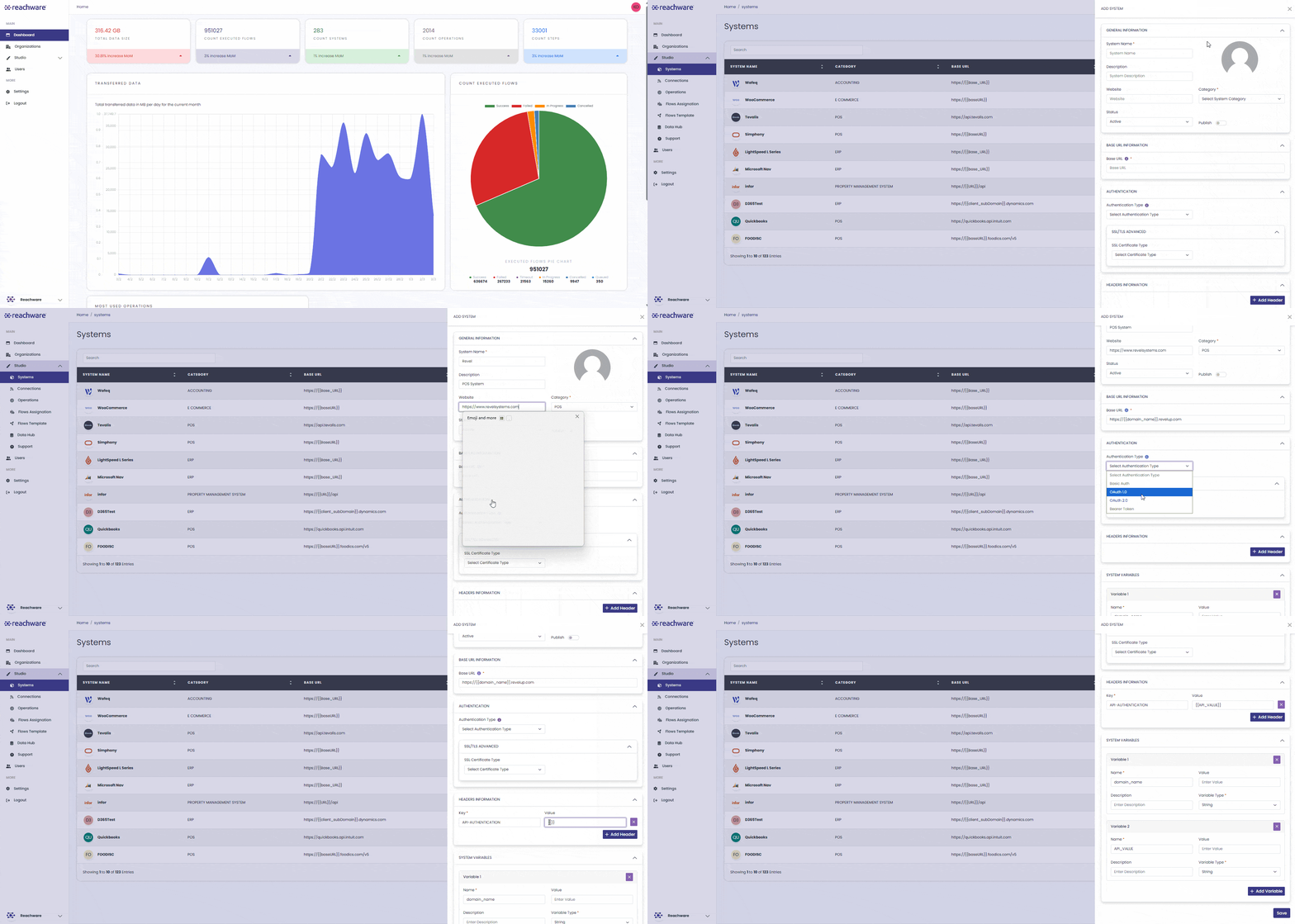
Variable values must be empty at the System level. You are only defining the keys and types here. The actual values will be filled in when creating the Connections.
Related Topics