
Organizations
An Organization in Studio is a dedicated tenant for managing everything related to a specific customer or company in one place. It contains everything that belongs to that customer, users, connections, integrations, flows, settings, and execution logs, and it is isolated from other organizations.
What Is an Organization Used For?
- Represent a client company
- Separate integration environments
- Isolate data between customers
- Manage access control at the client level
Create an Organization
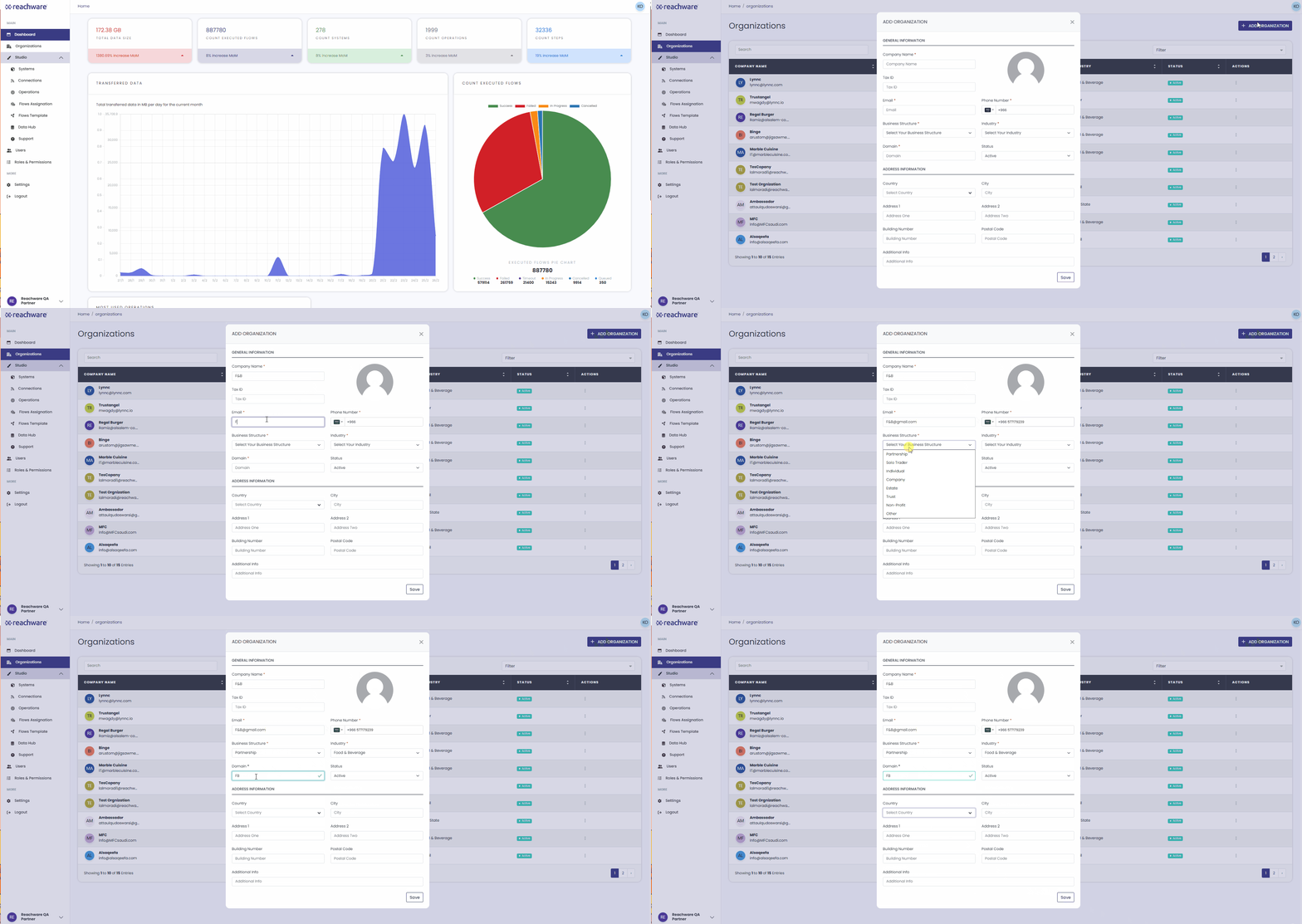
Click + Add Organization to start the creation
Fill in the organization's general information
Fill in the organization's address information
Click Save
Who Can Create an Organization?
- Platform Owner
- Partner (under their account)
Edit an Organization
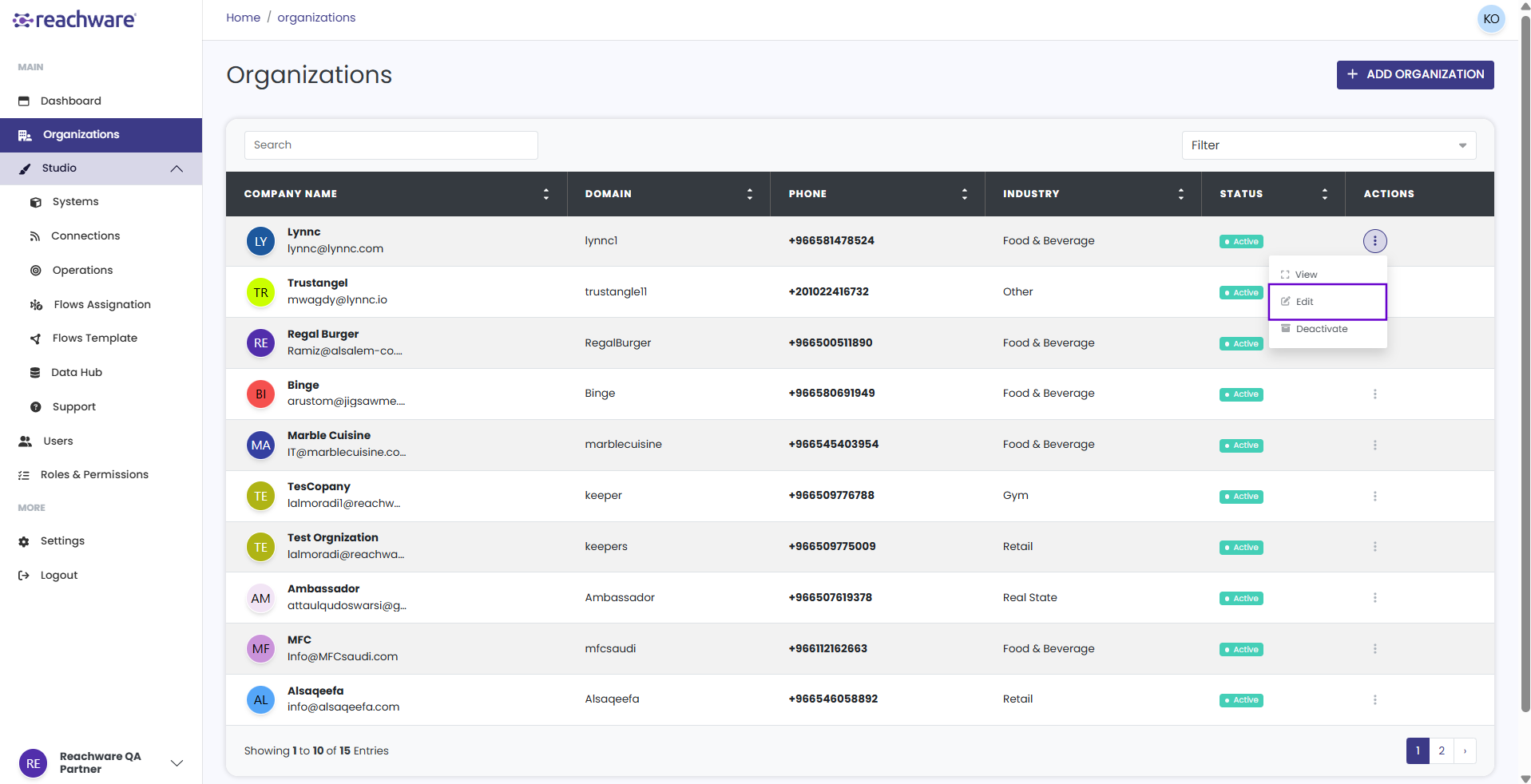
You can edit an organization by clicking Edit from the three-dot actions menu, or by clicking Edit Organization on the organization detail page. Make your changes and click Save.
Managing Organization User
Add Organization user
To add a user to an organization, you must be the owner or a Partner with sufficient permissions. For more details about roles, go to Roles and Permissions.
For detailed steps on adding a user, go to User Management→
Deactivate Organization user
To deactivate a user in an organization, you must be the owner or a Partner with sufficient permissions. For more details about roles, go to Roles and Permissions.
For detailed steps on deactivating a user, go to User Management→
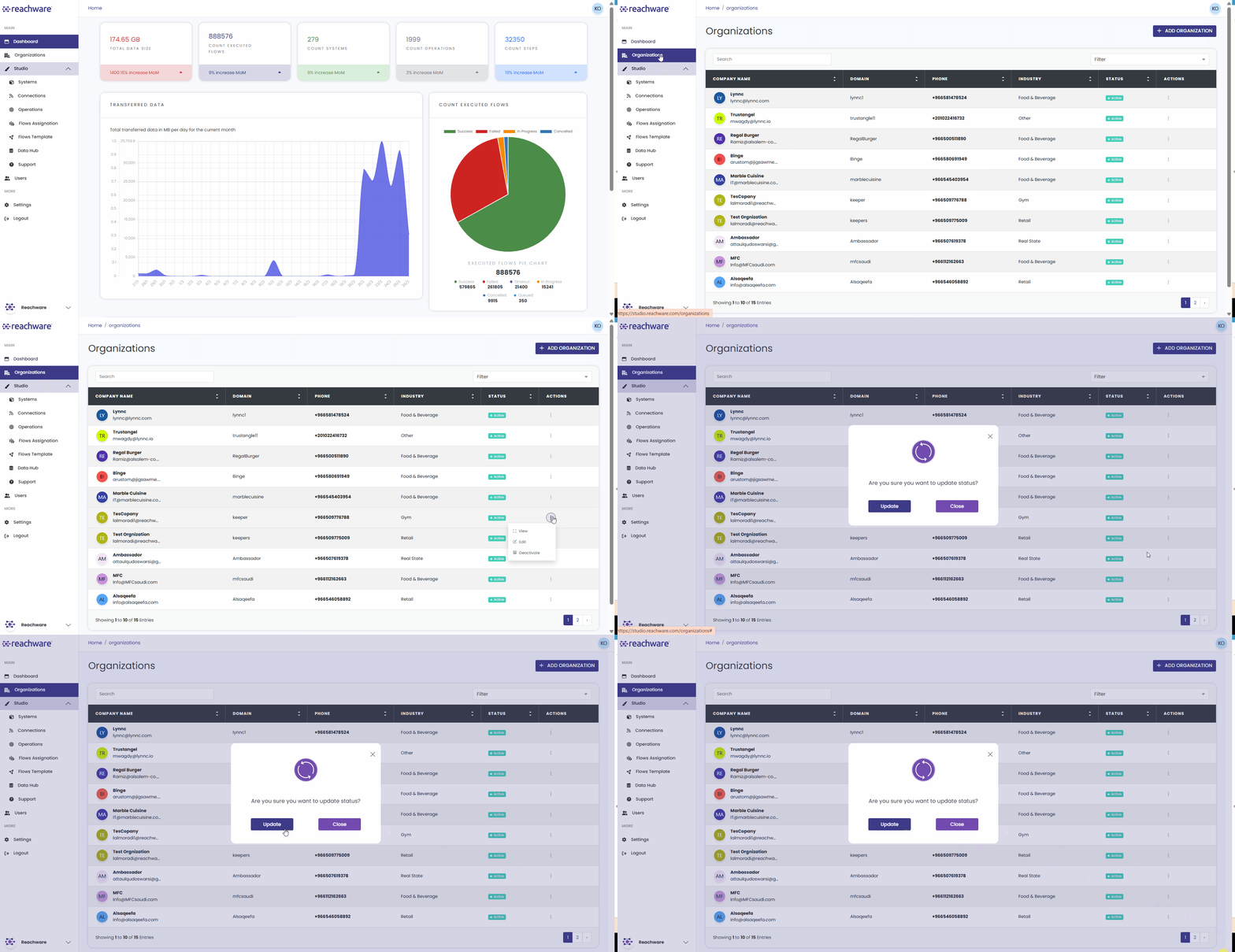
For Deactivate:
Find the organization in the organization list
Click the three-dot menu from the Actions column
Select Deactivate
Confirm in the pop-up that appears
For Activate:
Find the inactive organization, use filters if needed
Click the three-dot menu
Select Activate
Confirm in the pop-up, then the organization status will change to Active
Switch Organizations
You can work with different organizations by clicking on the organization name in the bottom-left sidebar. A dropdown appears showing all your organizations, select the one you want to switch to.
When you switch, the interface updates to show that organization's specific users, workflows, settings, and data. Each organization maintains separate resources, so switching ensures you're working in the correct context.
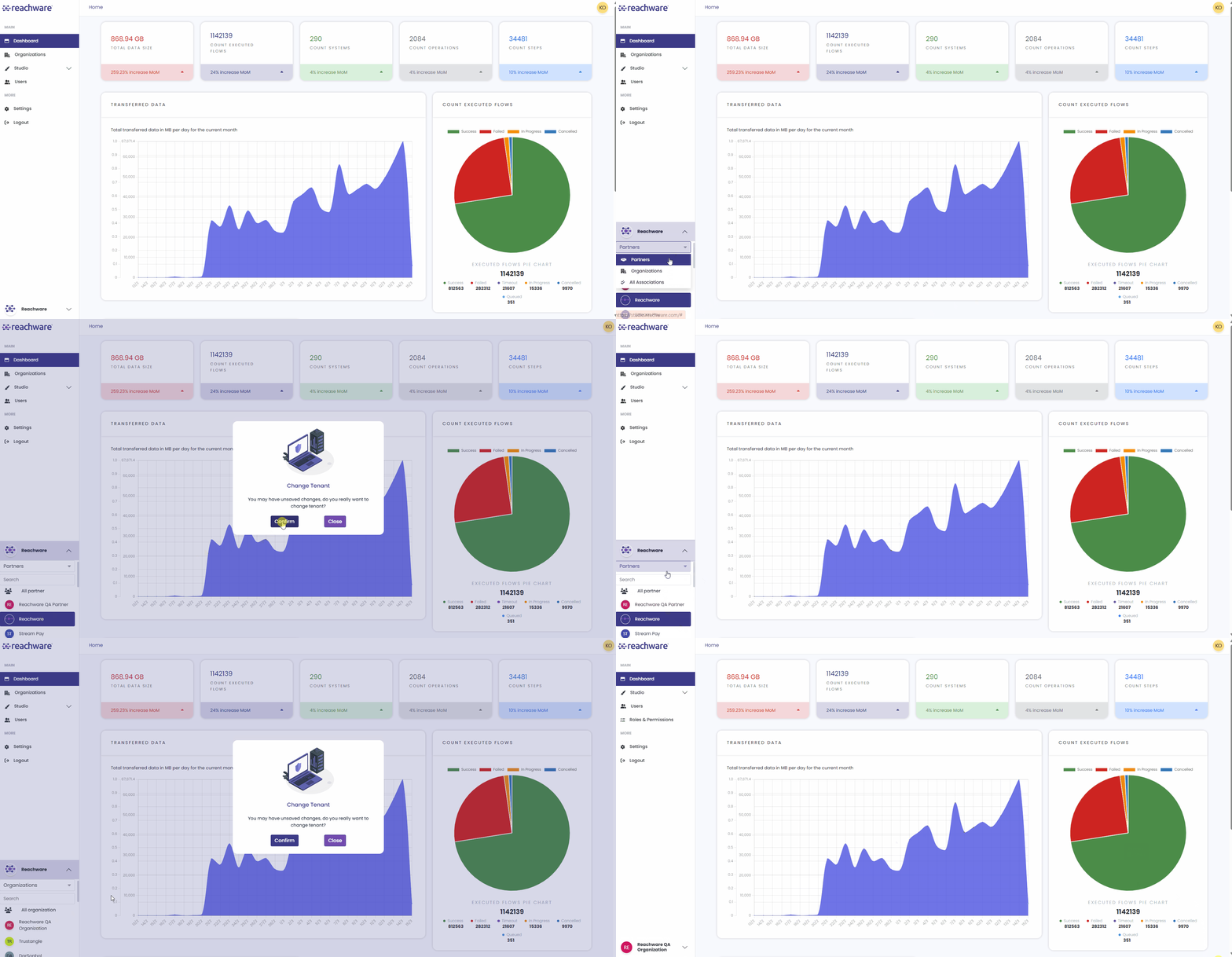
Always verify the organization name in the sidebar before making changes to avoid affecting the wrong organization.
Related Topics