
Data Hub Storage
In the context of flow automation, the Data Hub acts as your built-in data management center. It allows you to store and route data directly inside your flows without needing to set up an external database.
It typically operates through two main tools:
Data Hub Storage
An in-flow, operational database used to temporarily hold, update, and manage records while your automated flow runs.
Data Hub Mapper
A transformation tool used for lookup mapping, retrieve, format, and map data from your connected external systems.
Data Hub Storage
Data Hub Storage allows you to store, retrieve, and manage data within your flow. Use it as a temporary database to store records during flow execution.
What is Data Hub Storage?
Data Hub Storage acts as an in-flow database where you can:
- Store records temporarily during flow execution
- Check if records exist before creating them
- Update or delete specific records
- Share data between different parts of your flow
Create Data Hub Storage
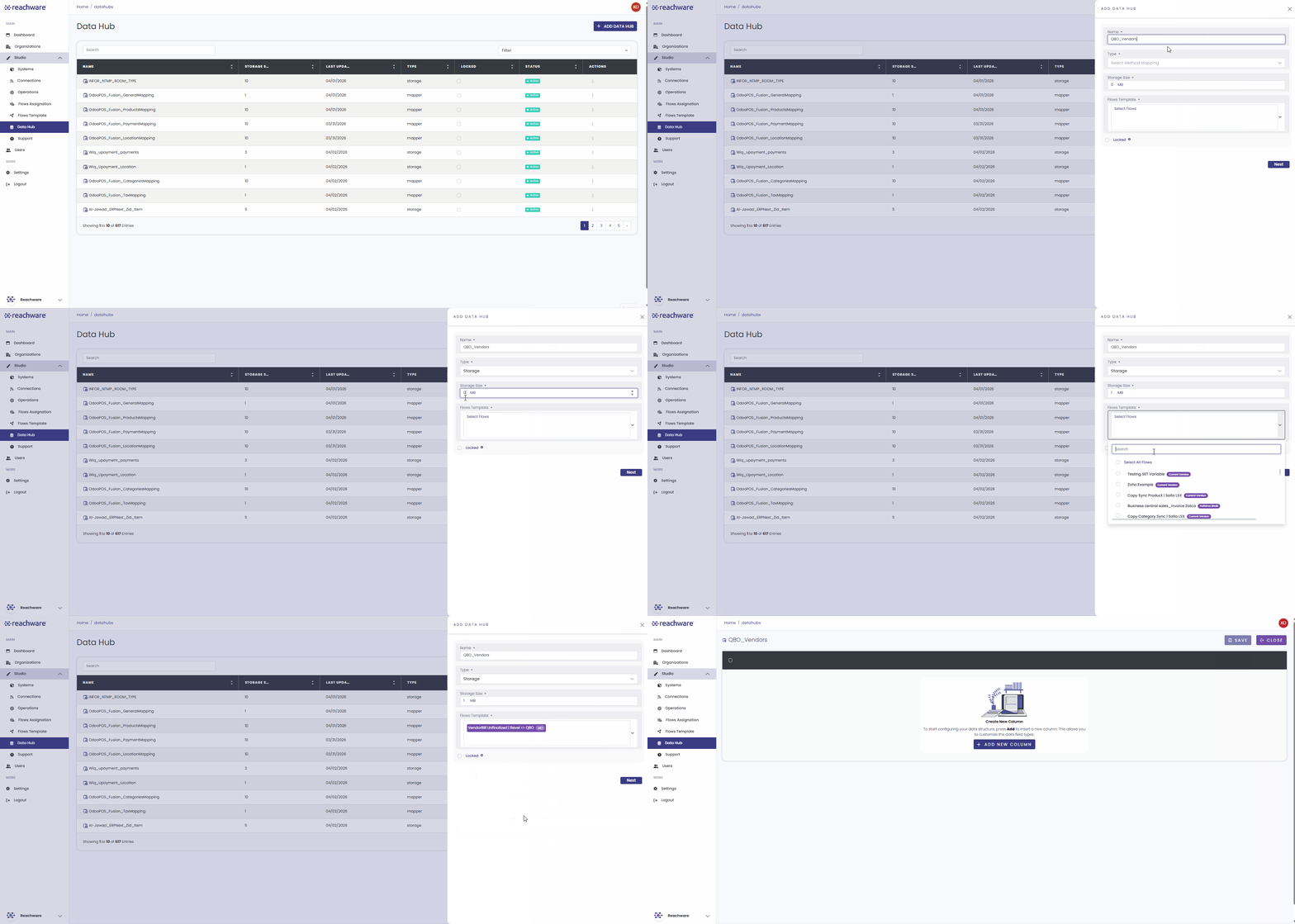
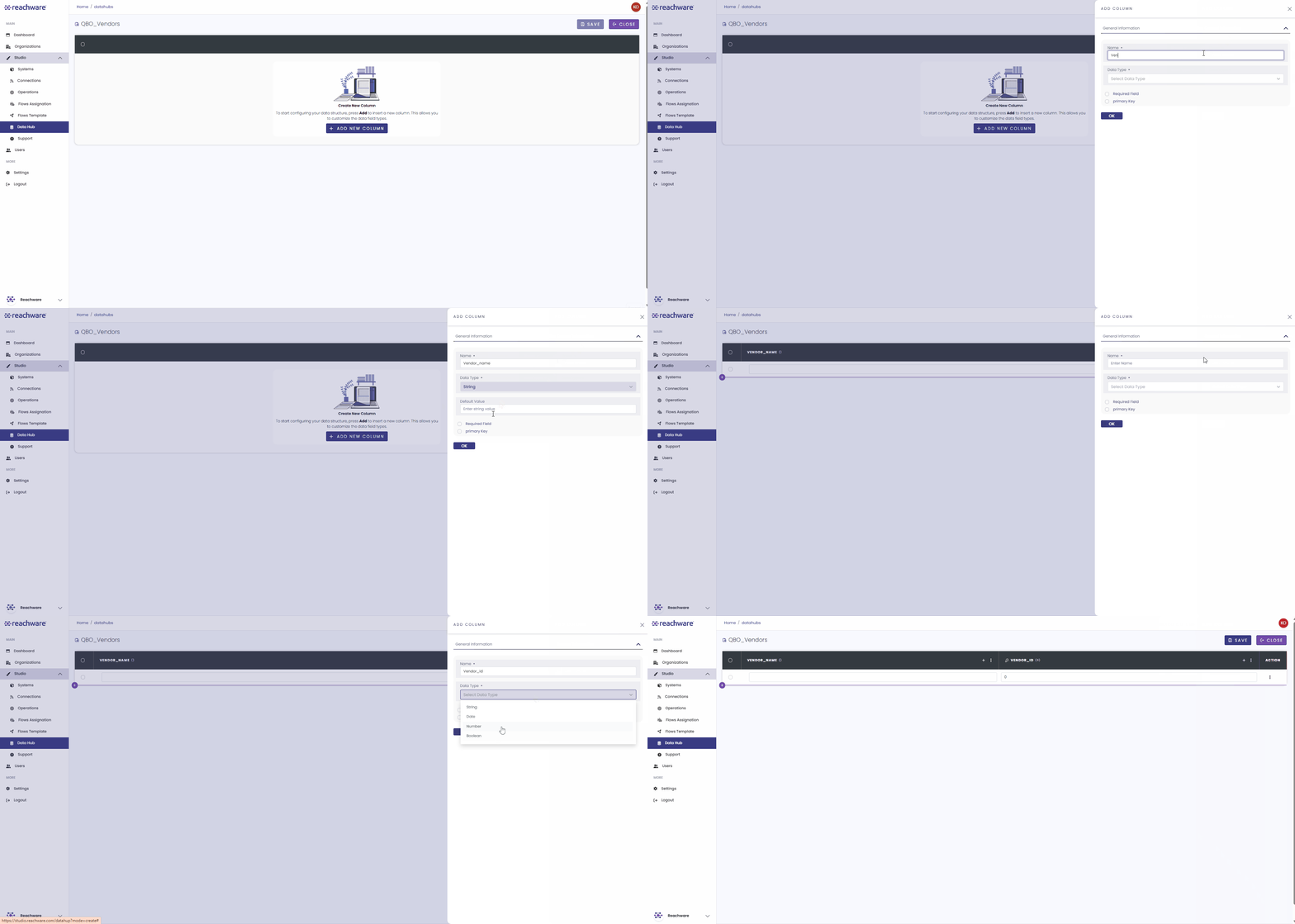
Add Data Hub Storage In Flow
Click the + icon in your flow.
Select Data Hub from the Build In Function section.
Choose the Data Hub Storage that you created before from the dropdown.
Select an action to perform.
Configure settings and Save.
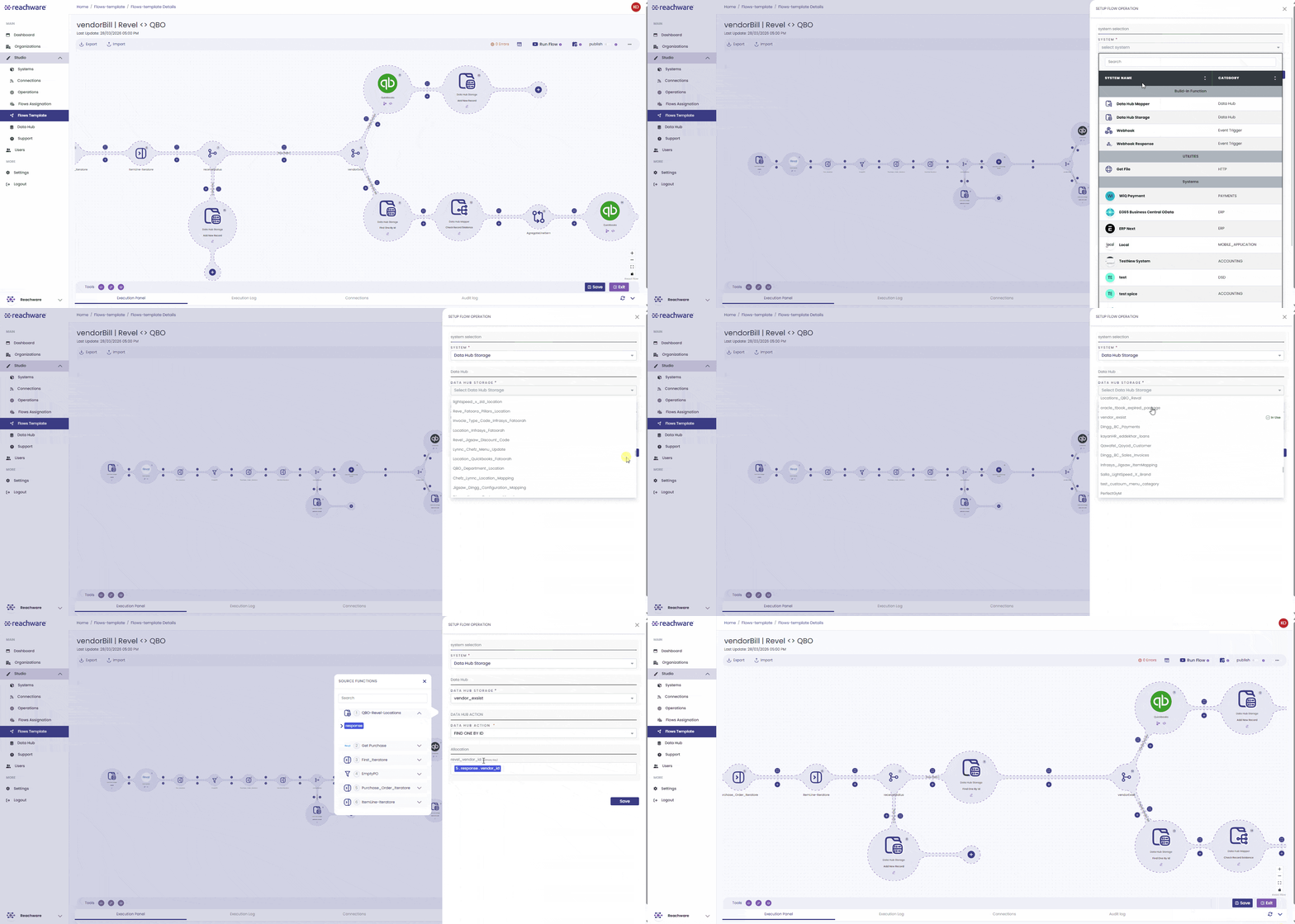
Configuration
| Field | Description |
|---|---|
| Data Hub Storage | Select assigned storage (required) |
| Data Hub Action | Choose action to perform (required) |
Available Flow Actions
When you add the storage to your flow, you can command it to do one of the following:
Pushes new data into the storage. You can check "Overwrite Existing" to update the record if it is already there.
Searches for a record using its Primary Key and returns the data if it exists.
Modifies a record that is already in the storage.
Removes a specific record based on its Primary Key.
Search for a record using any field.
Search for a record using its Primary Key.
Related Articles