
Mapping
Data Mapping is the process of defining how information moves between systems in an integration flow.
Understanding Data Mapping
In Studio, mapping determines:
- Which data should be extracted from a source system
- How that data should be transformed if needed
- Where the data should be placed in the destination system
You can think of mapping as the data navigation logic inside an integration flow. It guides each piece of information from its origin to the correct destination field.
Different platforms represent similar information in different structures. For example:
| Source System | Destination System |
|---|---|
| CustomerName | customer_name |
| OrderDate | created_at |
| Items[] | order_lines[] |
| TotalAmount | order_total |
Mapping ensures that each field from the source system is correctly matched to the corresponding field expected by the destination system.
Start Mapping
From the Flow Template, click the Mapping icon on the destination operation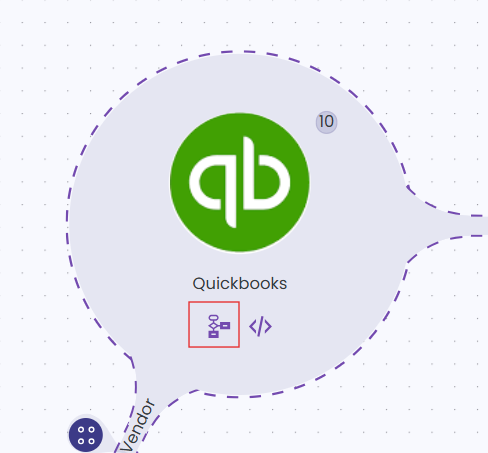
The mapping popup appears with:
- Source Data — Data from the first operation
- Destination Data — Fields expected by the second operation
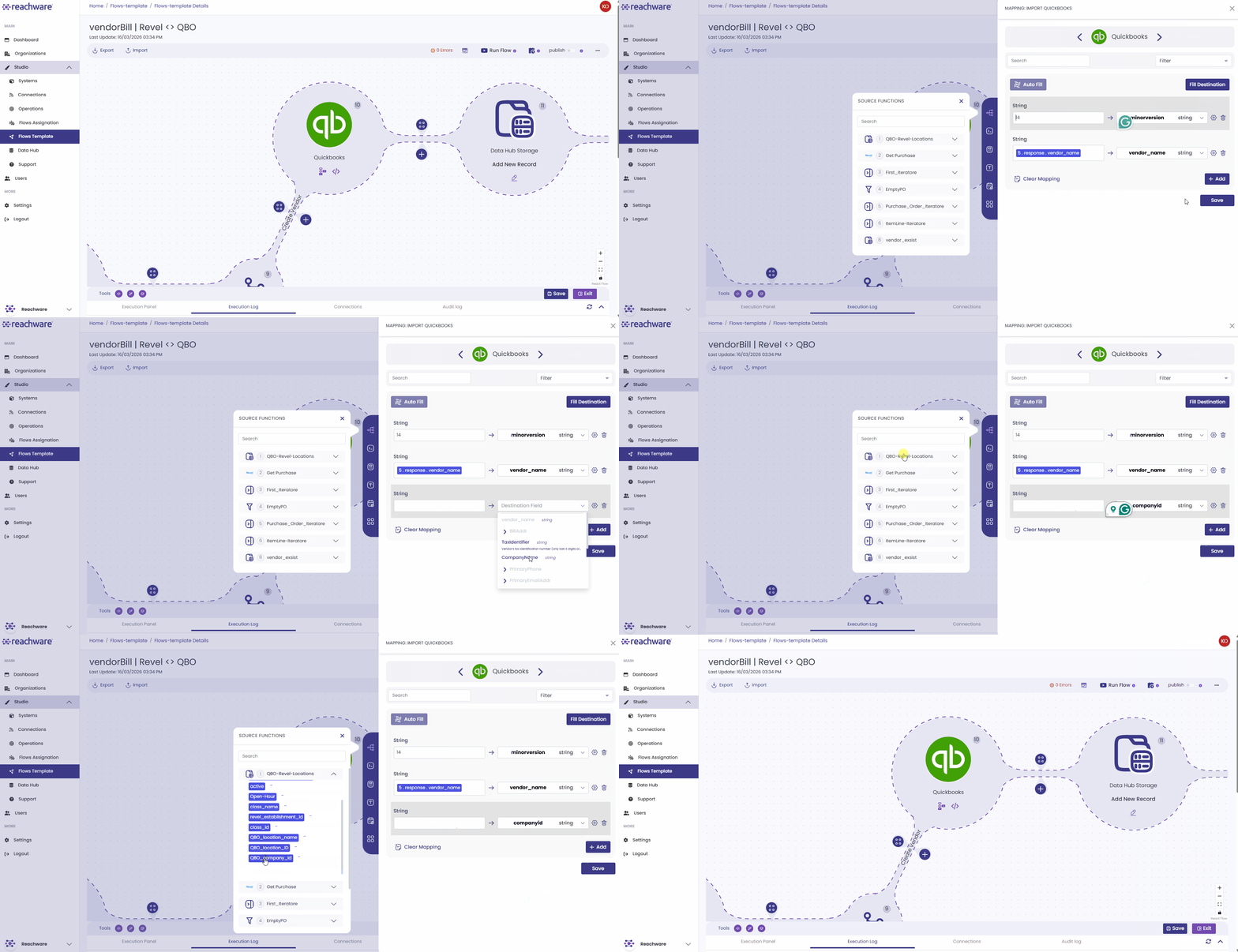
Reachware gives you a quick way to start mapping your fields. You can click the Fill Destination button, which auto-populates all available destination fields based on the receiving system's expected payload format.
Data Types
Select the correct data type for each destination field:
| Type | Description |
|---|---|
| String | Text |
| Integer | Whole numbers |
| Float / Double | Decimal numbers |
| Boolean | True / False |
| Date / Time | Timestamps |
| Array | Lists |
| Object | Nested structures |
Mapping Types
One-to-One Mapping
Takes the exact value from the source and sends it to the destination with no transformation.
Destination: name = "Ali"
Use when: Direct data transfer without changes.
Hard-Coded
Ignores source data and sends a fixed value to the destination for every record.
Every record gets: status = "active"
Use when: Setting default values or constant fields.
Handlers Expression
Build custom logic to transform data using expressions or the Advanced Field Editor.
Use when: Combining fields, calculations, or conditional logic.
Array Mapping
Used when the source data contains a list of objects and you need to map each item individually to the destination array field.
For more details, go to Array Mapping →
Field Settings
Click the Settings (⚙) icon on any mapped field to configure how empty values are handled.
Define Custom Empty Value
Check "Define Custom Empty Value" to specify a value that should be treated as empty.
Default empty values: "", null, [], {}
Action if Field is Empty
| Action | Description |
|---|---|
| Skip field entirely | Field is not sent to the destination |
| Do nothing | Keep the value as-is |
| Use custom default value | Enter a replacement value (a required input field appears) |
| Use empty string | Replace with "" |
| Use null | Replace with null |
By default, empty pagination keys are skipped so your requests stay clean. If a specific API needs a key present even when it's empty, for example, requiring cursor="" on the first page to indicate "start from the beginning", open Field Settings on that pagination key (from operation mapping fields in the flow template) and choose Use empty string or Use custom default value. Your choice here wins over the default skip behavior.
Save and Exit
- Click Save to apply your mappings
- Click Exit to close the mapping window
Important: Unmapped required fields will cause errors during flow execution.
Related Topics