
Create a Connection
A Connection in Studio is a configured System instance that contains client-specific credentials and settings. While a System is a template, a Connection is the actual working link to a specific client's account, including the authorization for each user. Connections allow you to:
- Reuse the same System template for multiple clients
- Keep credentials secure and organized
- Separate production and testing environments
Add a Connection
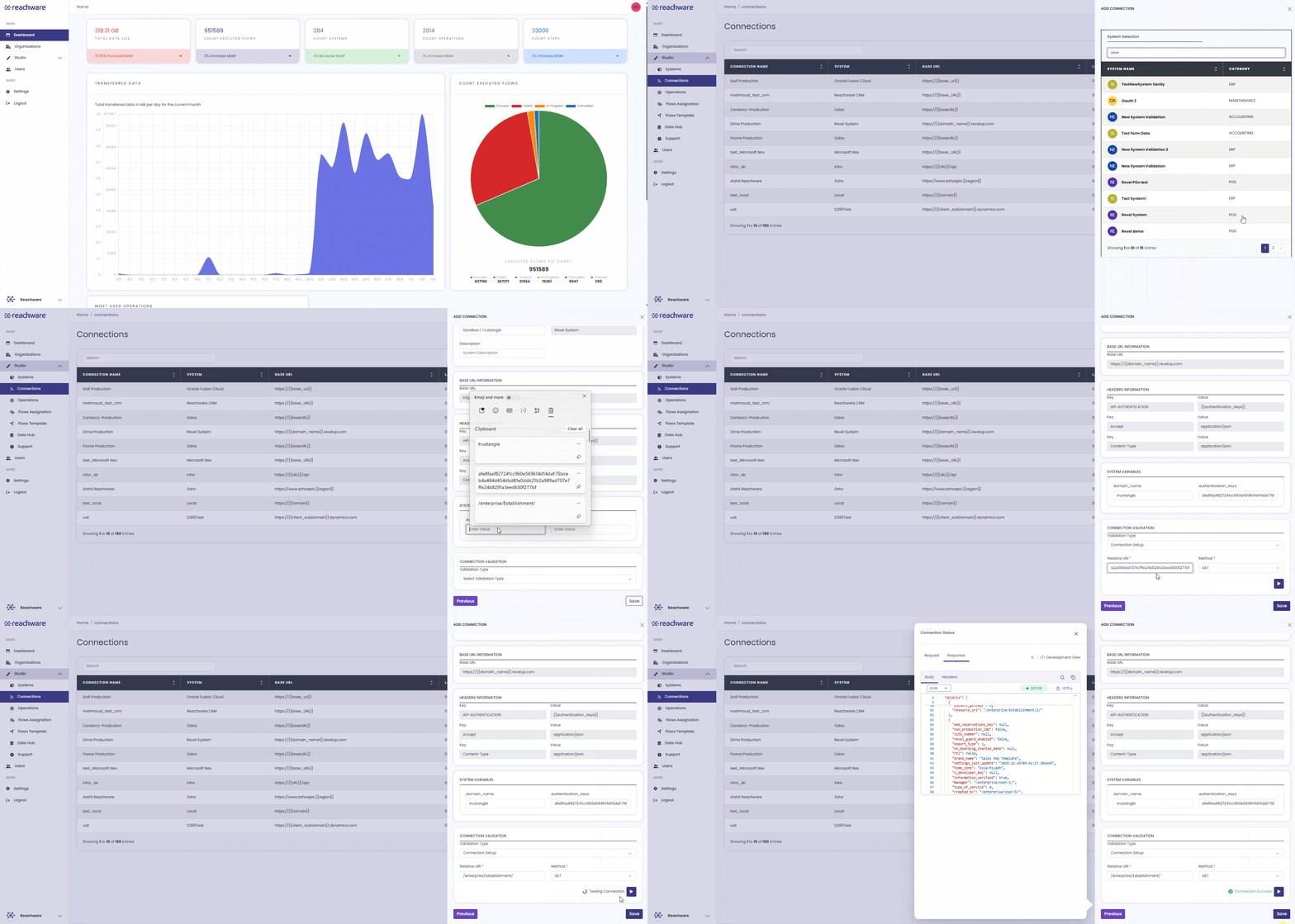
From the Studio section, select the Connections tab, then click Add New Connection in the top-right corner.
A list of available Systems will appear. Select the one you need to use.
Fill in the basic details for this connection.
| Field | Requirement | Description |
|---|---|---|
| Connection Name | Required | Unique identifier for this connection. See naming format below. |
| System Name | Auto-filled | Populated automatically based on the selected System. |
| Description | Optional | Brief details about this specific connection. |
Use the format: Environment | Client Name
- Production | Reef
- Sandbox | Demo Client
This helps easily identify the environment and client, keeps connections organized, and prevents confusion between test and production.
System Variables are required values defined by the System that must be provided for the integration to work. They typically include configuration details such as the domain or authentication credentials, and their values are specific to each client while being stored securely by the platform.
This step only appears if the System you selected enforces an SSL certificate type. The fields shown depend on the format chosen at the System level.
If the System Uses PEM
| Field | Requirement | Description |
|---|---|---|
| Client Certificate (PEM) | Required | The certificate file that identifies your client to the remote API. |
| Private Key (PEM) | Required | The matching private key file. |
| Passphrase | Optional | Only required if your private key is encrypted. If you're unsure, try saving without it first Studio will prompt you if it's needed. |
If the System Uses PFX
| Field | Requirement | Description |
|---|---|---|
| PFX File | Required | The bundled certificate file (.pfx or .p12). |
| PFX Password | Required | The password that protects the PFX file. |
Once saved, certificate files and passwords are encrypted and never shown again in plain text, you'll only see masked values (••••). You can re-upload or replace them anytime; if you don't change anything, the existing values stay active.
Before saving, test that your connection works. There are two validation options:
Option 1: Connection Setup
Tests an endpoint without needing a predefined operation.
- Relative URI: The endpoint path (e.g.,
/api/customers) - Method: GET, POST, PUT, DELETE
- Operation Inputs: Any required parameters
Use when: Testing a basic endpoint to verify connectivity.
Option 2: Operation Testing
Uses a predefined operation from the System.
- Select an existing operation
- Fill in the required operation inputs
Use when: You have operations already configured.
For easier validation, use simple GET operations.
After running the validation, review the request and response data to verify that the integration is working correctly.
Review all information, then click Save. The Connection is now ready to use in integration Flows.
Managing Connections
Edit a Connection
- Go to the Connections tab
- Find your connection and click Edit
- Modify the required values (System selection cannot be changed)
- Re-validate if credentials have changed
- Click Save
Deactivate a Connection
- Edit the connection
- Change Status to Inactive
- Click Save
Inactive connections cannot be used in Flows but are preserved for future use.
Related Topics