Aggregator combines multiple items from an Iterator into a single structured output.
What is Aggregator?
The Aggregator collects data and combines it:
- Receives multiple items from Iterator
- Combines them into one
- Outputs as array
[Item 1, Item 2] →Process Items
→Aggregator
→ [Combined Array] How to Add an Aggregator?
1
Click the Logic Processor icon after your Iterator steps.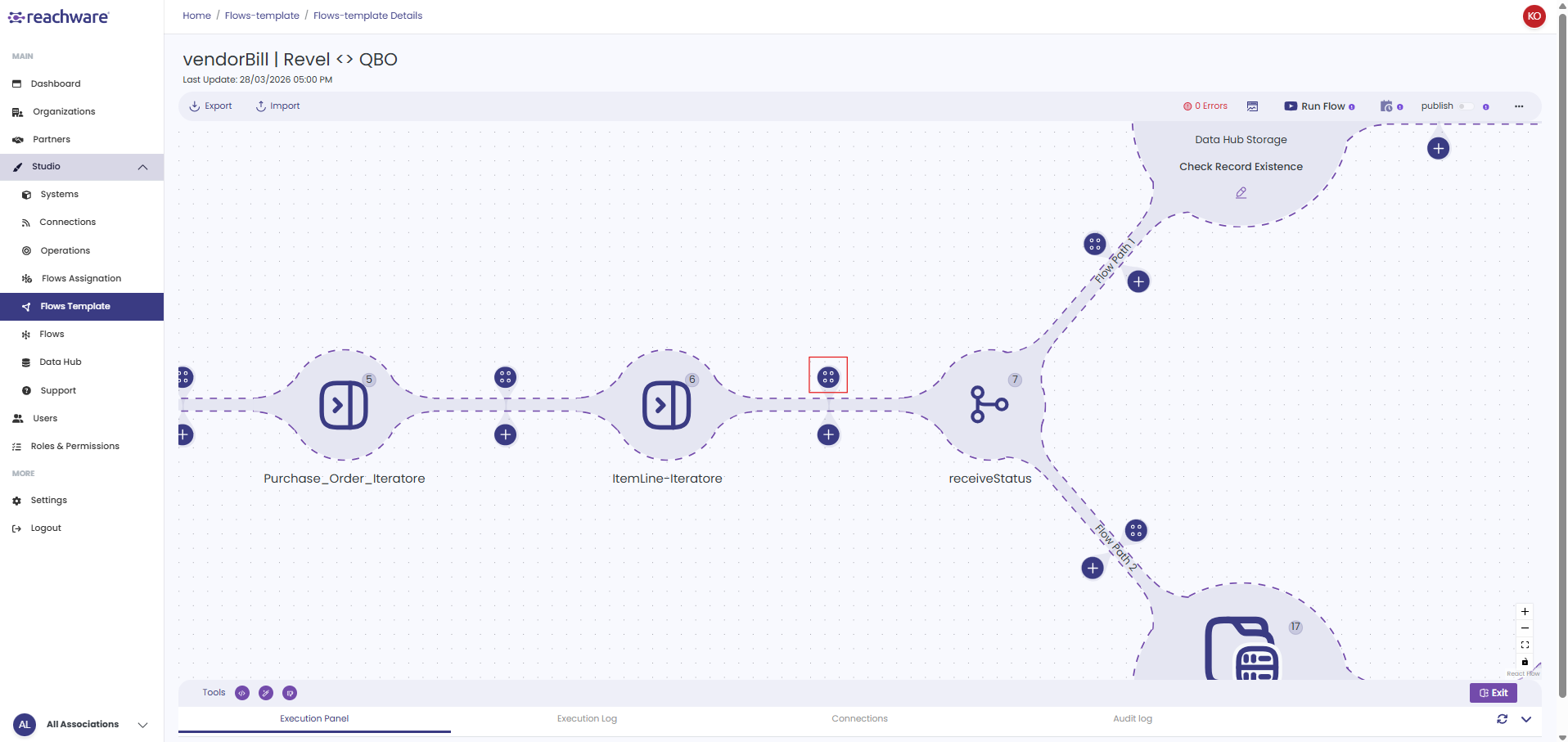
2
Select Aggregator from the list.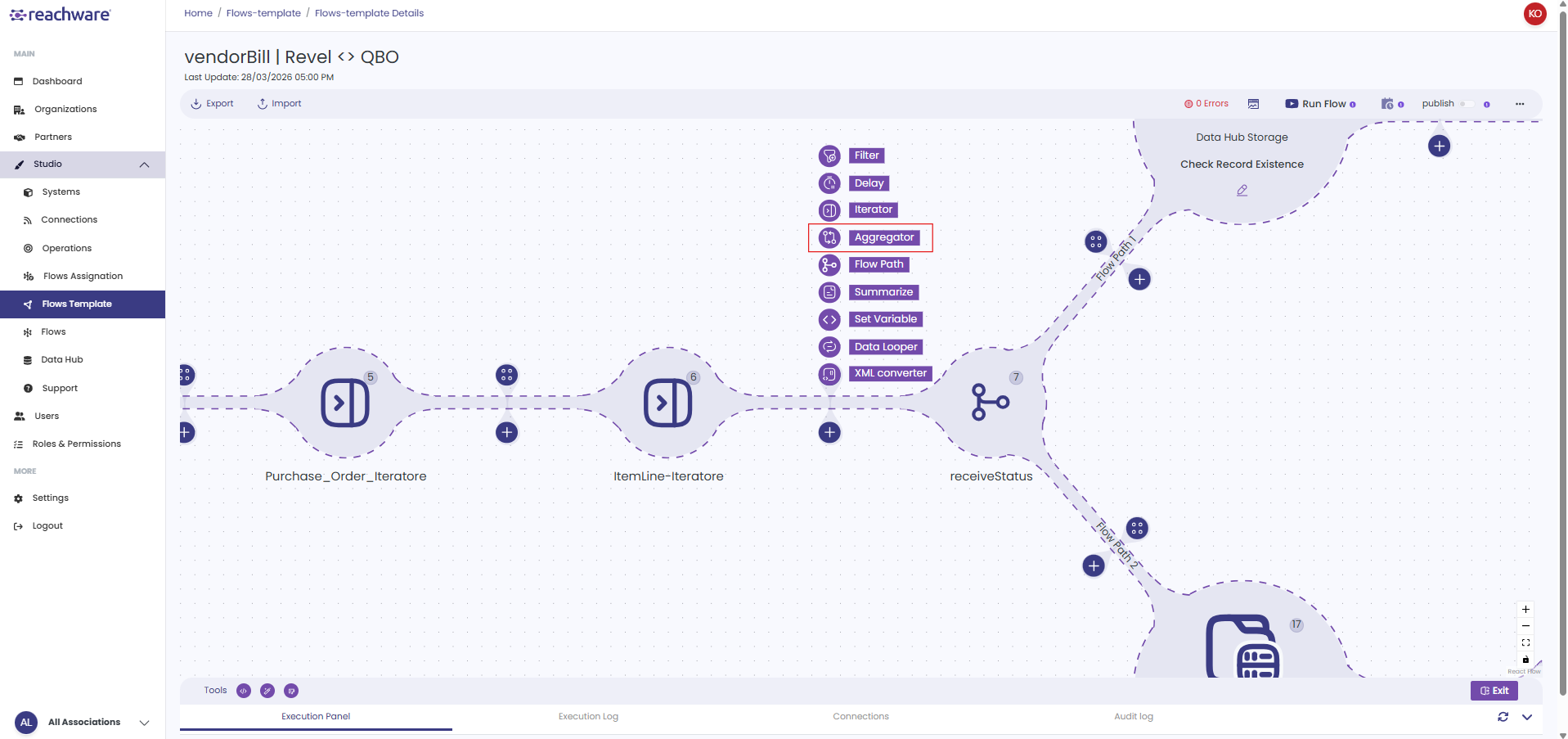
3
Configure settings.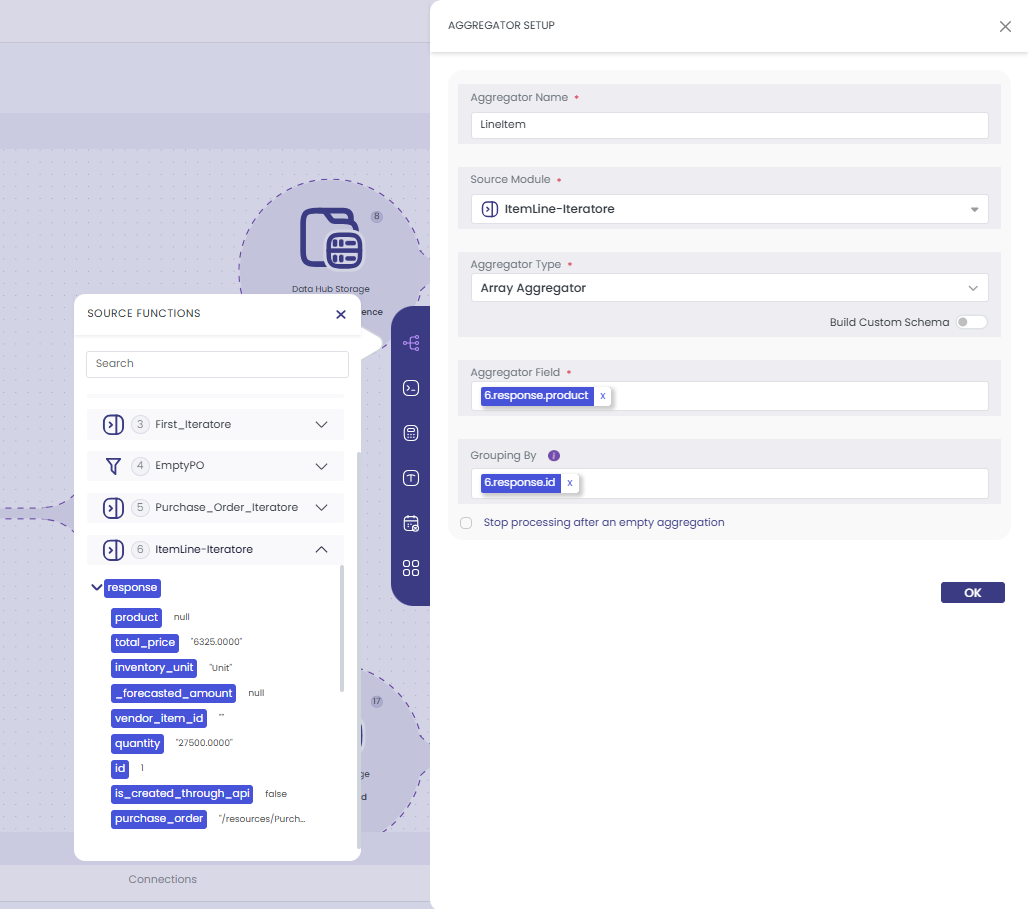
4
Click Save.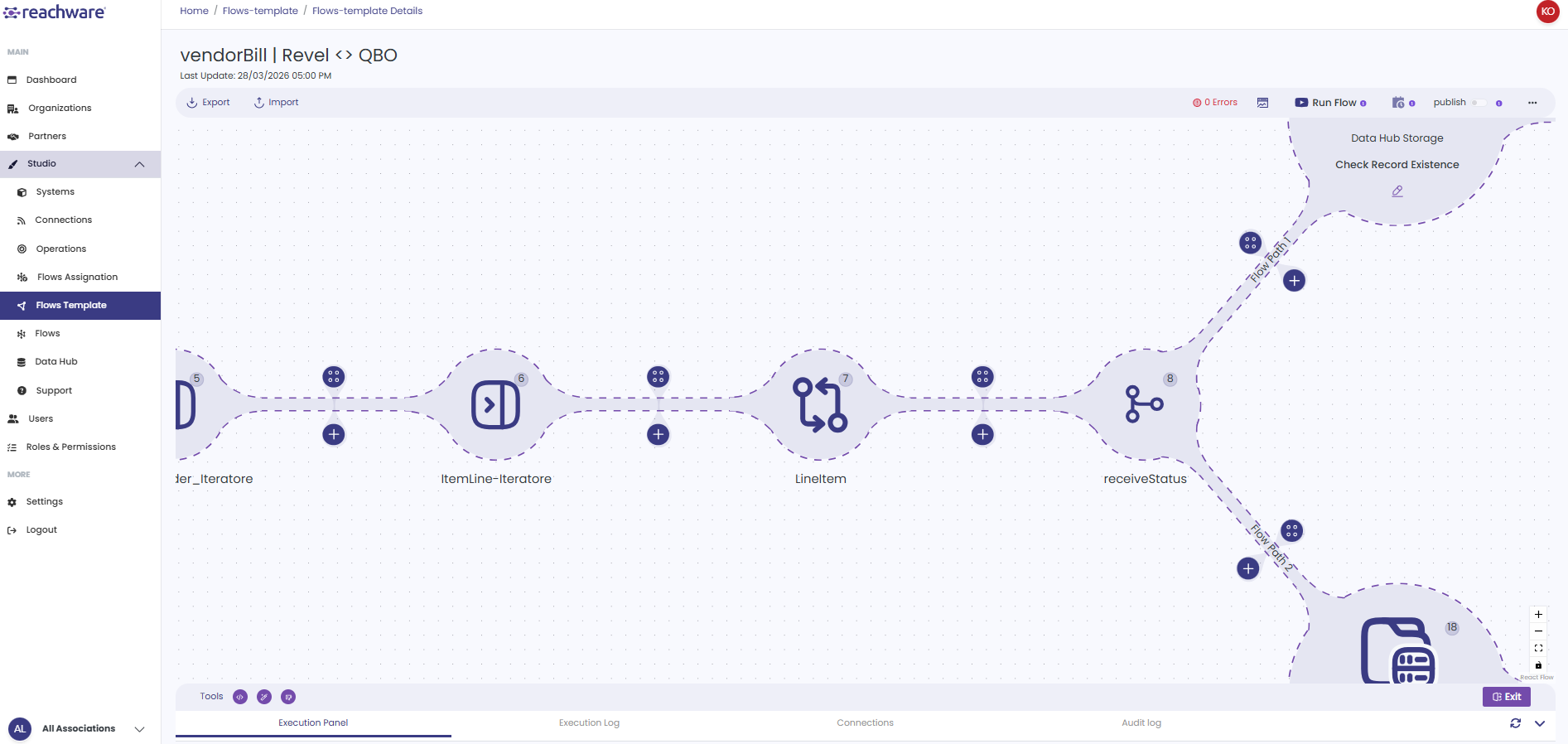
Configuration
Basic Settings
| Field | Description |
|---|
| Aggregator Name | Name for this aggregator |
| Source Module | Where data comes from (usually Iterator) |
| Aggregator Type | Array or JSON |
Aggregator Types
| Type | Output |
|---|
| Array Aggregator | Outputs standard array format: [...] |
| JSON Aggregator | Outputs JSON string |
Array Aggregator: Two Modes
Simple Mode
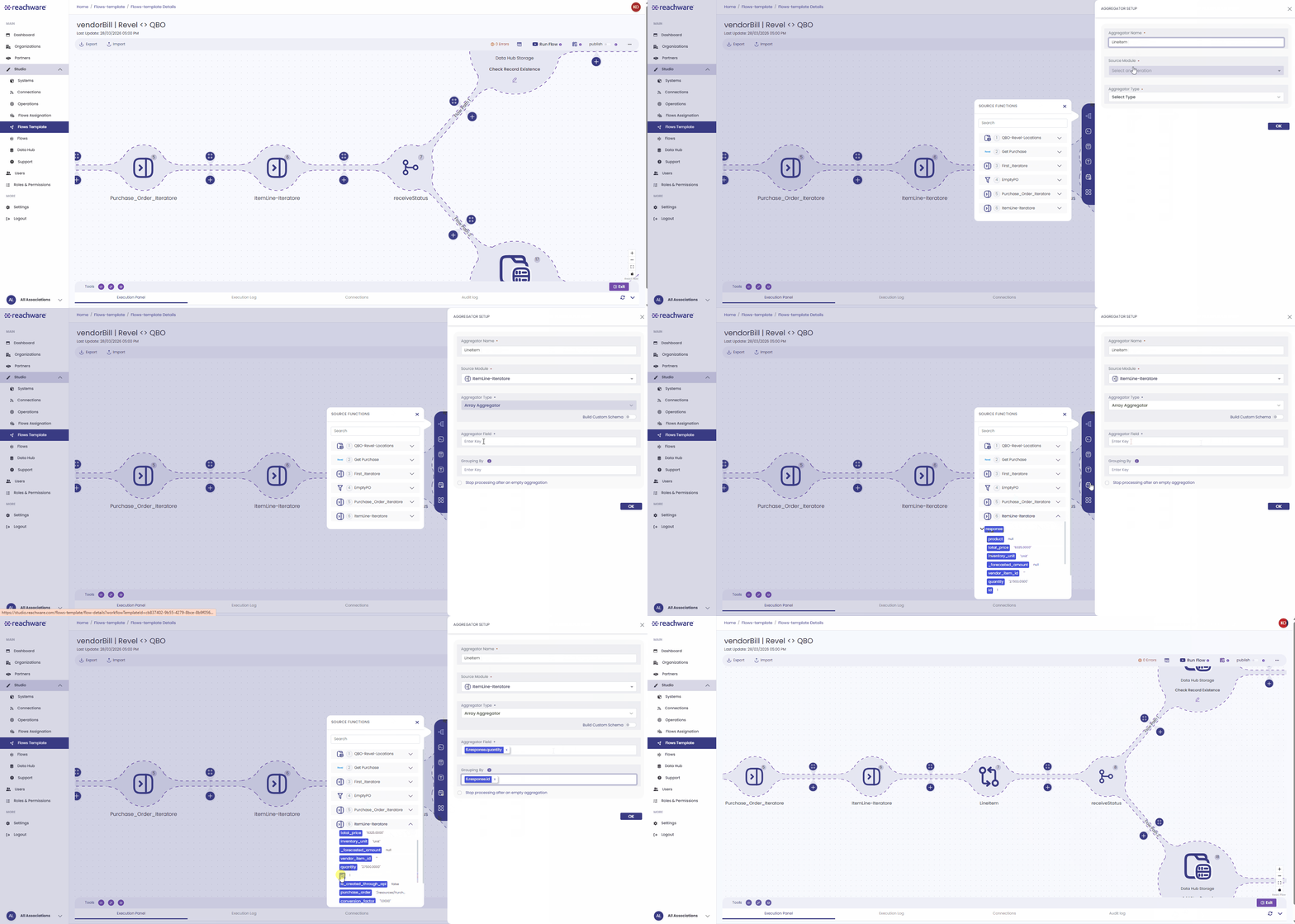
Quick setup for basic arrays. (Build Custom Schema: OFF)
- Array Type: Select type (String, Integer, Object, etc.).
- Value: Enter key from the prev steps to aggregate (e.g., {{quantity}}).
Optional Features:
GroupingGrouping By field organizes data into groups.
- Leave empty: All items in one array
- Enter key: Group by that field (e.g., {{branch}})
Example: Grouping By: {{branch}}
Output:
{
"Riyadh": [items from Riyadh],
"Jeddah": [items from Jeddah]
}
Stop on EmptyCheckbox: Stop processing after an empty aggregation.
Enable to stop flow if no data is aggregated
Advanced Mode (Schema Builder)
For complex objects with multiple fields. (Build Custom Schema: ON)
Toggle Build Custom Schema ON to open Schema Builder and build a custom structured schema.
Step 3
Select Type (String, Integer, Object)
Mapping Data
Mapping Data means assigning values to destination fields either dynamically (from source data) or statically (manual input). While creating or building a custom schema, the user can define the settings of each key field, including how it handles values such as empty or missing data.
For more details, go to Mapping →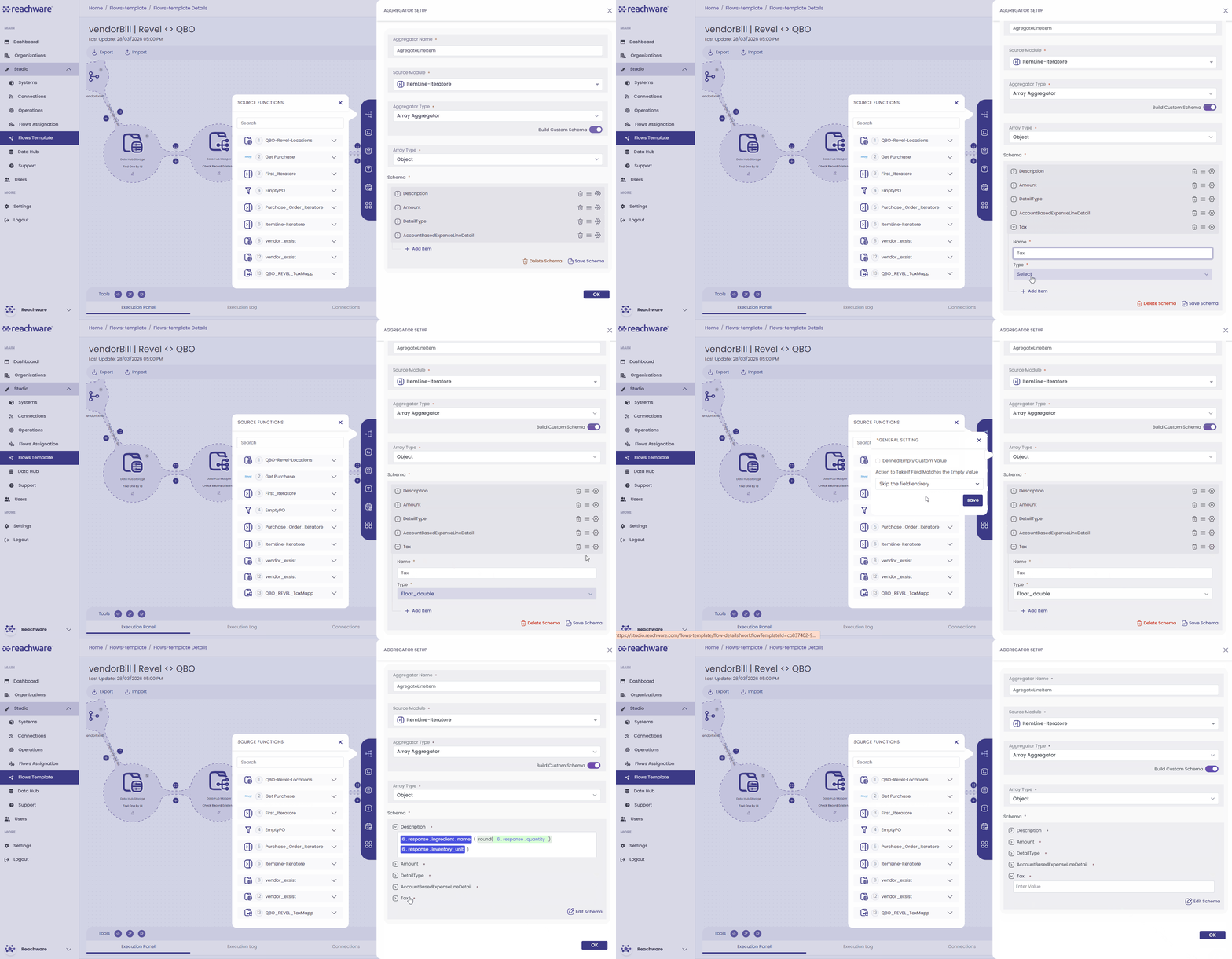
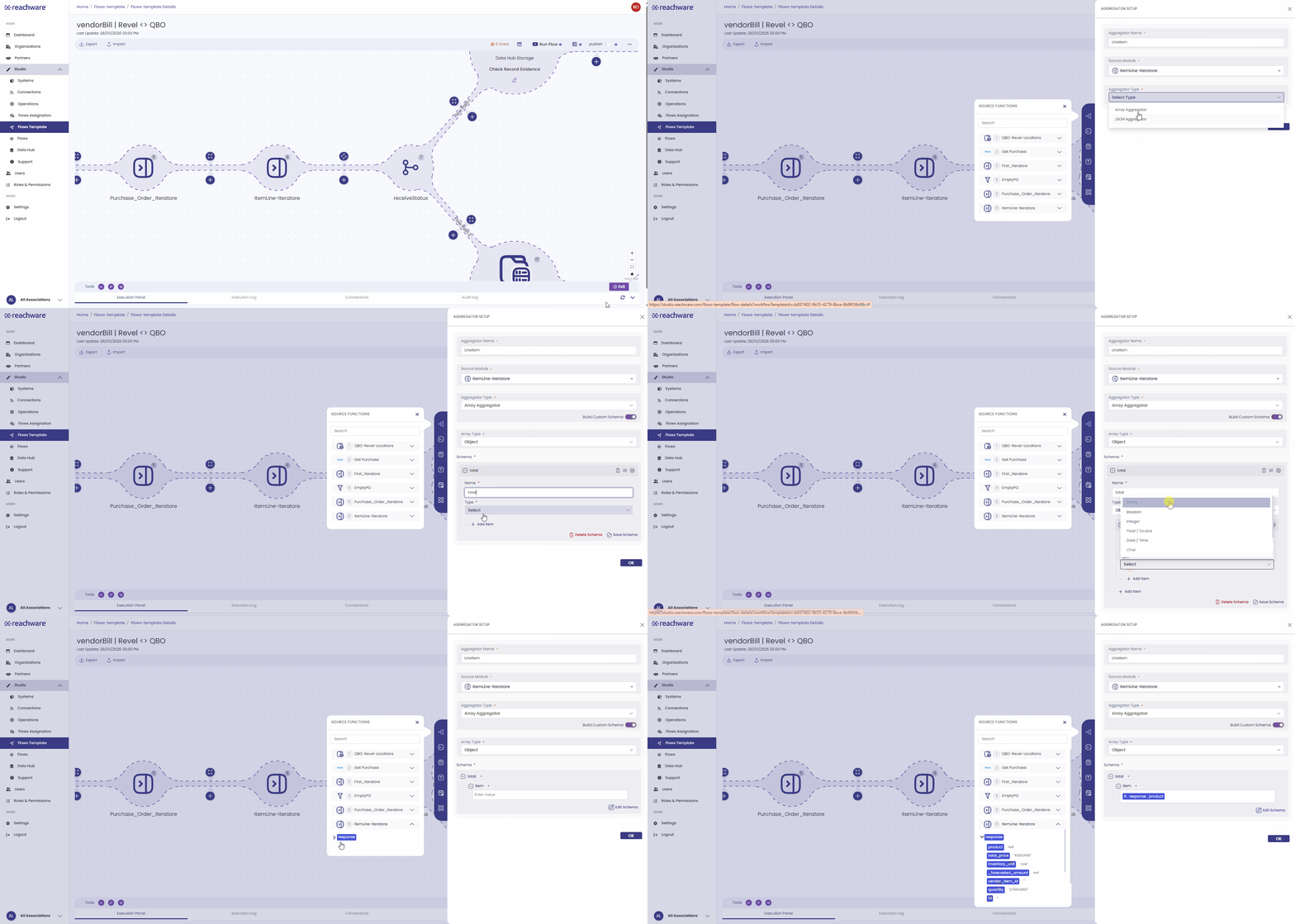
Nested Objects
For nested structures:
- Add item and set Type to Object
- Click to expand
- Add sub-items inside
Related Articles
