
Scheduling Integrations
The Flow Timetable allows you to control when a Flow executes. Instead of relying on real-time triggers, you can schedule a flow to run automatically at defined intervals.
When to Use a Timetable?
Use a scheduled trigger when:
- Data needs to be synchronized periodically
- You are processing large datasets in batches
- You require predictable execution timing
For event-based integrations, use a Webhook trigger instead. Learn more →
Scheduling Options
| Option | Description |
|---|---|
| Once | Run a single time at a specific date and time |
| Daily | Execute every day at a selected time. You can select specific days of the week (once a day) |
| Weekly | Run on a specific day of the week (once a week) |
| Monthly | Execute on a specific day of each month (once a month) |
| Custom | Define advanced scheduling rules using custom expressions |
Configure the Timetable
Go to Flow Templates, select your flow, then click View Flow.
Click the Calendar icon inside the flow. A settings window will appear where you can select your scheduling option: Daily, Weekly, Monthly, etc.
Select the correct Time Zone from the dropdown at the top. All Start and End times in the schedule will follow the selected time zone.
Define when the schedule becomes active and when it should stop. The Start Date determines the first execution, while the End Date sets when the flow will stop running automatically.
| Field | Description | Required |
|---|---|---|
| Start Date | Date when the flow begins executing (mm/dd/yyyy) | Yes |
| Start Time | Time when the flow starts (e.g., 9:00 AM) | Yes |
| End Date | Date when the flow stops executing (mm/dd/yyyy) | Yes |
| End Time | Time when the flow stops | Yes |
When the end date is reached, the flow stops executing automatically. It remains in the Studio, The execution logs are preserved for a specific period before being deleted.
You can reset all timetable settings by clicking the Reset Data button, located next to the Save button.
Make sure to click Save to apply your timetable configuration.
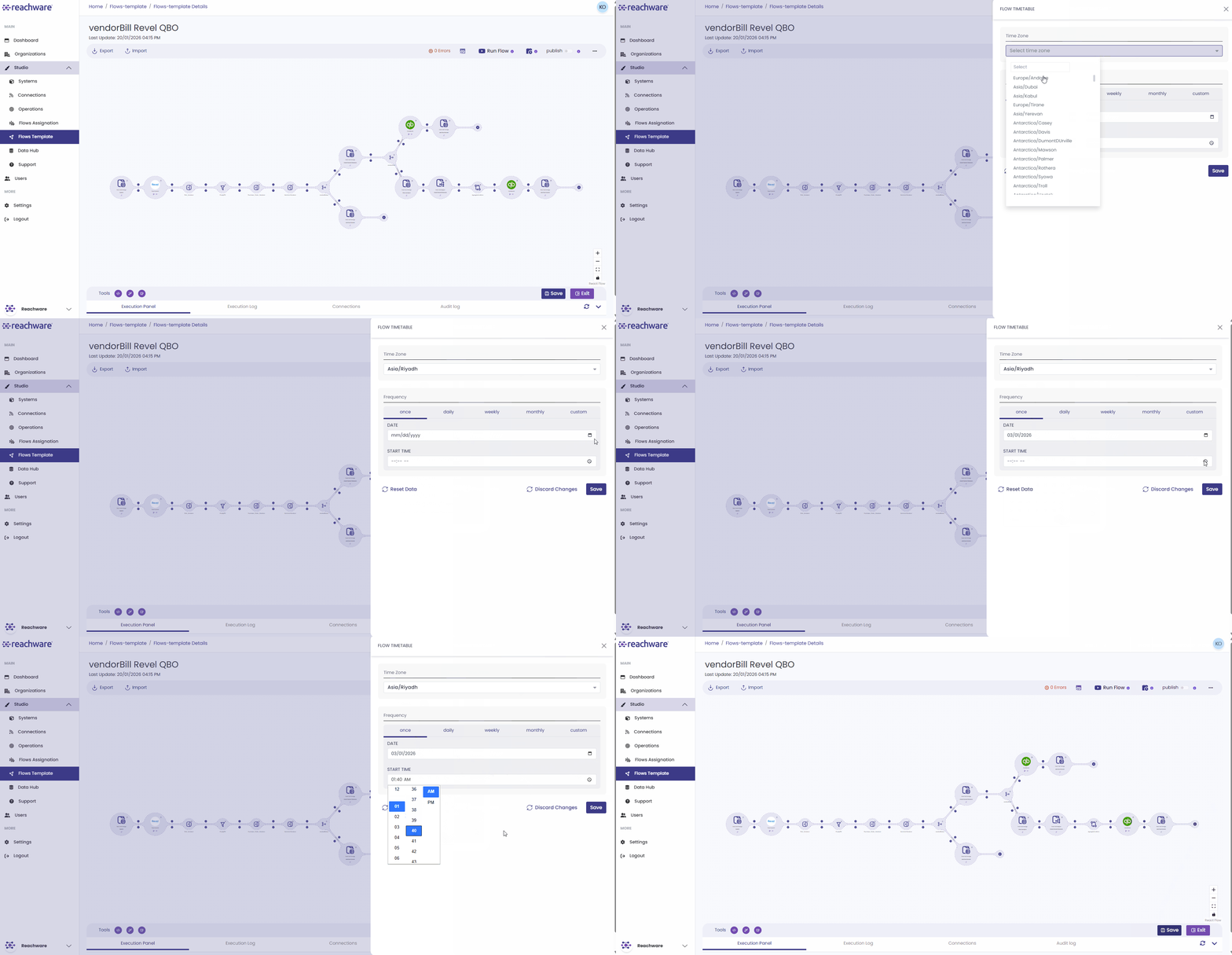
The flow will now execute automatically based on the defined timetable.
Related Topics