
Roles & Permissions
Keeping your data secure while your team works is a top priority. Studio uses Role-Based Access Control (RBAC) to help you manage who can see and do what in your account. Think of it as giving each team member the right set of keys for their specific job, no more, no less.
What is Role-Based Access Control (RBAC)?
RBAC is a security approach where permissions are assigned to roles, and users are assigned to roles. Instead of managing permissions for each individual user, you assign users to predefined or custom roles that come with a set of permissions.
Why Roles Matter?
Instead of setting permissions for every individual user, you simply assign them a role. Each role comes with a predefined set of permissions based on job responsibilities. This approach:
- Reduces complexity
- Ensures consistent access control
- Protects sensitive settings such as billing and subscriptions
How Roles Work in Studio?
- Define Roles: Use predefined roles or create custom roles
- Assign Permissions to Roles: Each role has specific permissions (e.g., view flows, create users)
- Assign Users to Roles: Add team members and assign them appropriate roles
- Automatic Inheritance: Users automatically inherit all permissions from their assigned role
Studio Role Hierarchy
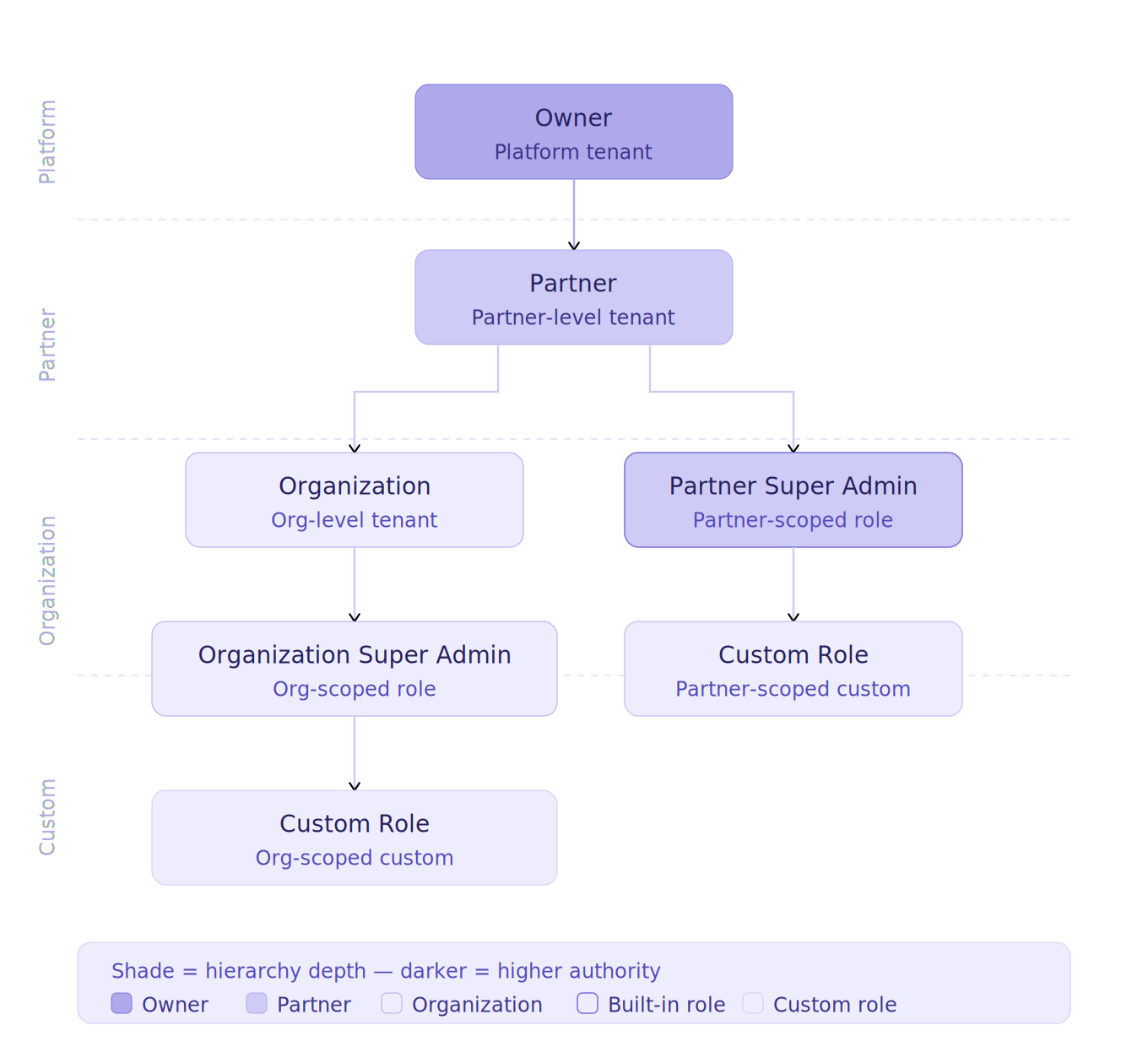
Studio follows a multi-level structure designed to support integration partners serving multiple client organizations:
- Platform Level: Studio (Platform Owner)
- Partner Level: Partners manage multiple client organizations
- Organization Level: Organizations contain users and integrations
Each level has its own roles and permissions.
Role Types
Every role in Studio has a Role Type that defines where it applies.
Partner Role
Applies at the Partner user level. Used by integration partners managing multiple organizations.
- Partner Super Admin (Highest)
- Custom Partner Roles
Organization Role
Applies at the Organization user level. Used inside a specific organization. Permissions are limited to that organization only.
- Organization Super Admin (Highest)
- Custom Organization Roles
A role cannot belong to both types (Partner/Organization). When creating a custom role, you must choose the appropriate role type.
Predefined Roles
Studio provides predefined roles that cannot be modified or deleted.
| Role | Type | Description |
|---|---|---|
| Partner Super Admin | Partner | Full partner-level control |
| Organization Super Admin | Organization | Full organization-level control |
Permissions Matrix
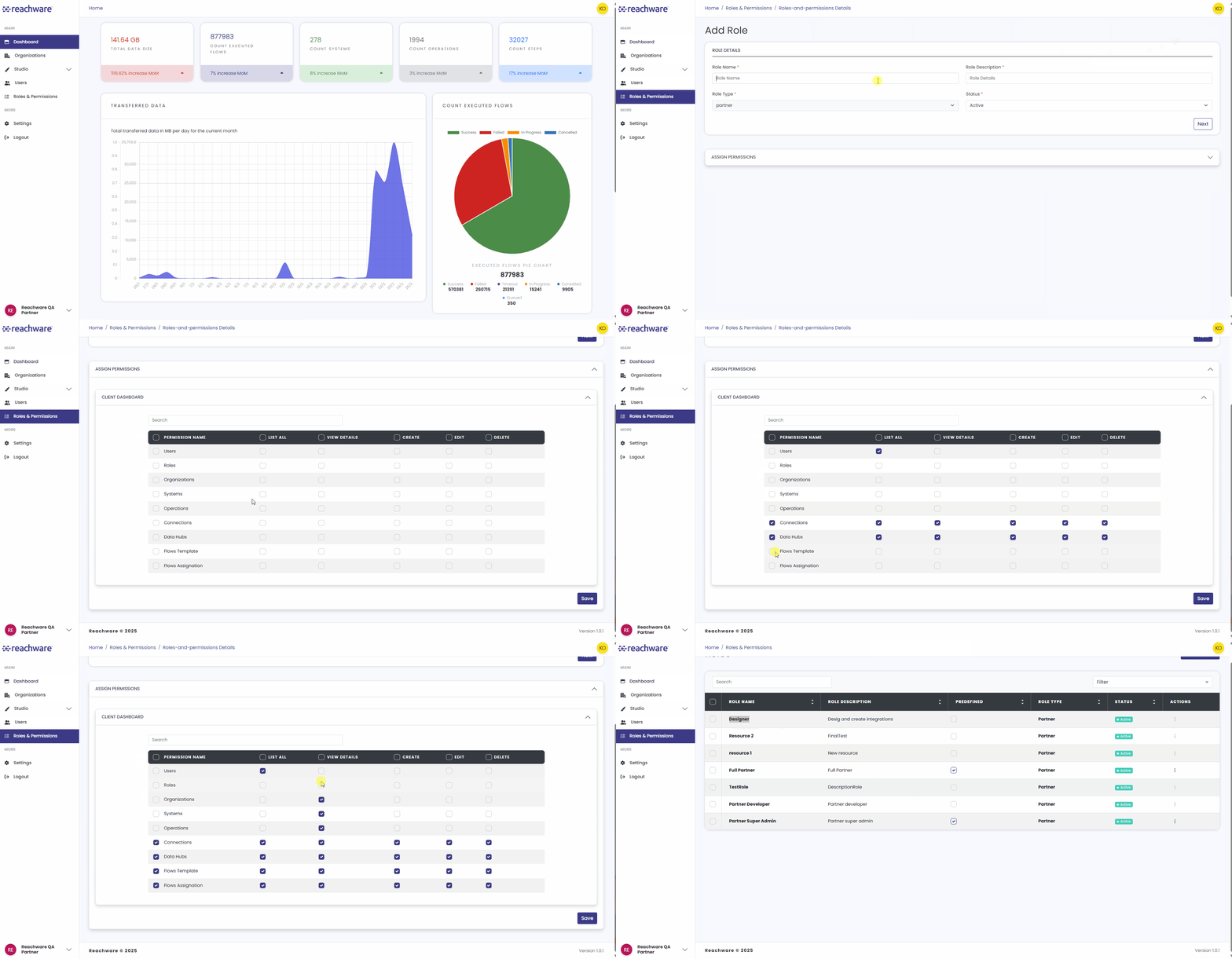
When creating or editing a role, permissions are assigned using the permissions matrix to define specific actions for each module.
| Permission Module | Scope |
|---|---|
| Users | Both |
| Roles | Both |
| Organizations | Partner Only |
| Systems | Partner Only |
| Operations | Partner Only |
| Connections | Both |
| Data Hubs | Both |
| Flows Template | Partner Only |
| Flows Assignment | Partner Only |
| Flows | Organization Only |
Available permissions for any module: List All, View Details, Create, Edit, Deactivate.
How to Create a Custom Role?
To manage roles and permissions in a more flexible way, Studio allows partners and organizations to create custom roles.
Go to Partner / Organization → Roles and Permissions.
- Role Name: Must be unique
- Role Description: Briefly describe the role's purpose
- Status: Select Active or Inactive
Select the required permissions from the Permissions Matrix.
Click Save to create the role.
Who Can Manage Whom
Partner Super Admin
| Can Manage | Invite | Edit | Deactivate |
|---|---|---|---|
| Partner Super Admin | ✓ | ✓ | ✓ |
| Organization Super Admin | ✓ | ✓ | ✓ |
| Custom Partner Roles | ✓ | ✓ | ✓ |
Organization Super Admin
| Can Manage | Invite | Edit | Deactivate |
|---|---|---|---|
| Organization Super Admin | ✓ | ✓ | ✓ |
| Custom Organization Roles | ✓ | ✓ | ✓ |
Related Topics