Data Hub Mapper

Created by Reachware Support, Modified on Thu, 2 Apr at 3:01 PM by Reachware Support

Data Hub Mapper retrieves and maps data from automated system connections. Use it to fetch reference data from external systems and enrich your flows.

What is Data Hub Mapper?

Fetch data automatically from connected systems, like:

  • Look up customer data from CRM to ERP
  • Mapping product details between ERP and E-Commerce platforms

Create Data Hub Mapper
Step 1: Create Mapper

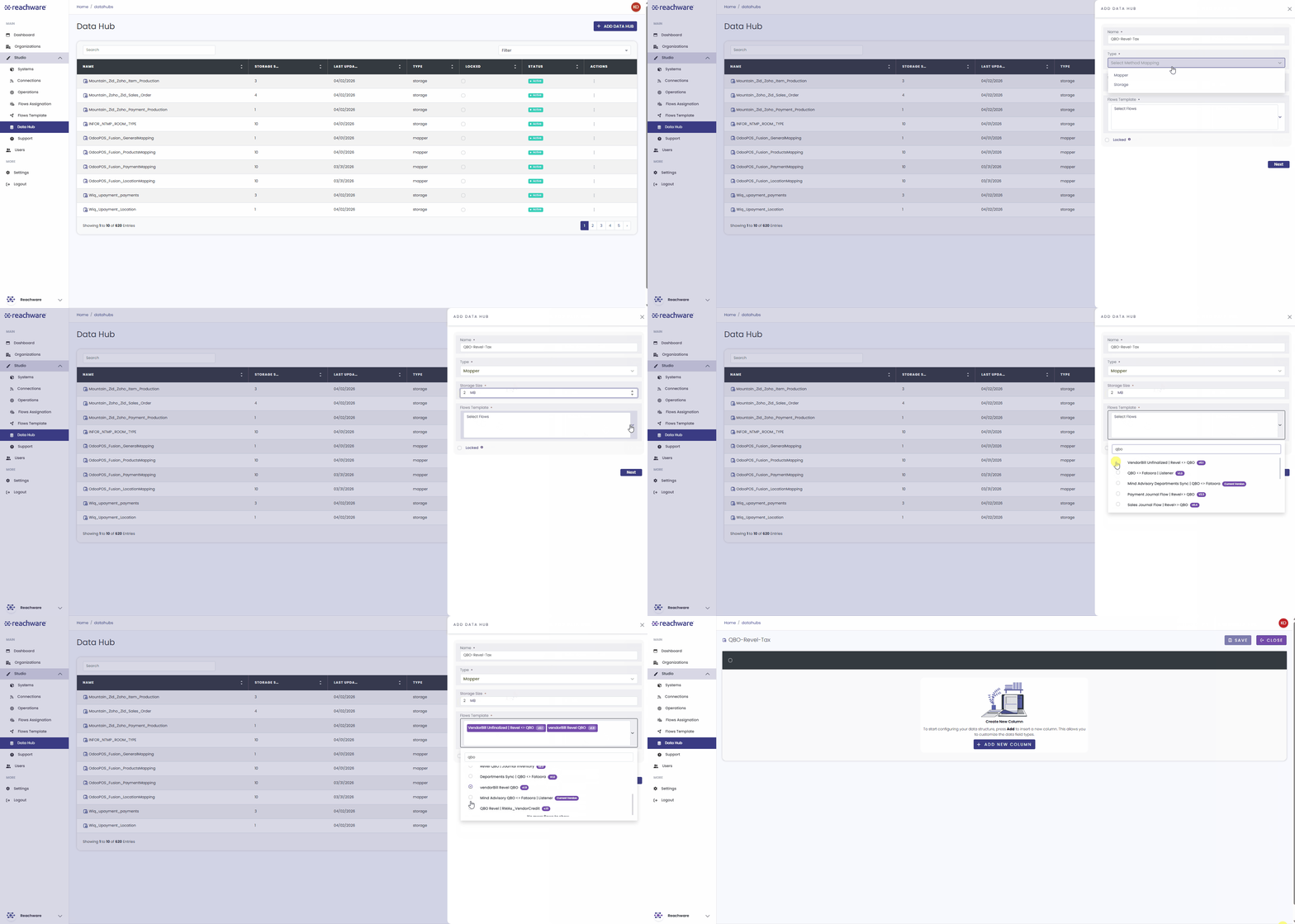
  • Go to the Data Hub tab.
  • Click Add Data Hub.
  • Configure the basics:
    • Name: Give your mapper a descriptive name
    • Type: Select Mapper
    • Storage Size: Define the capacity limit
    • Flow: Assign to the relevant flow
  • Click Next.


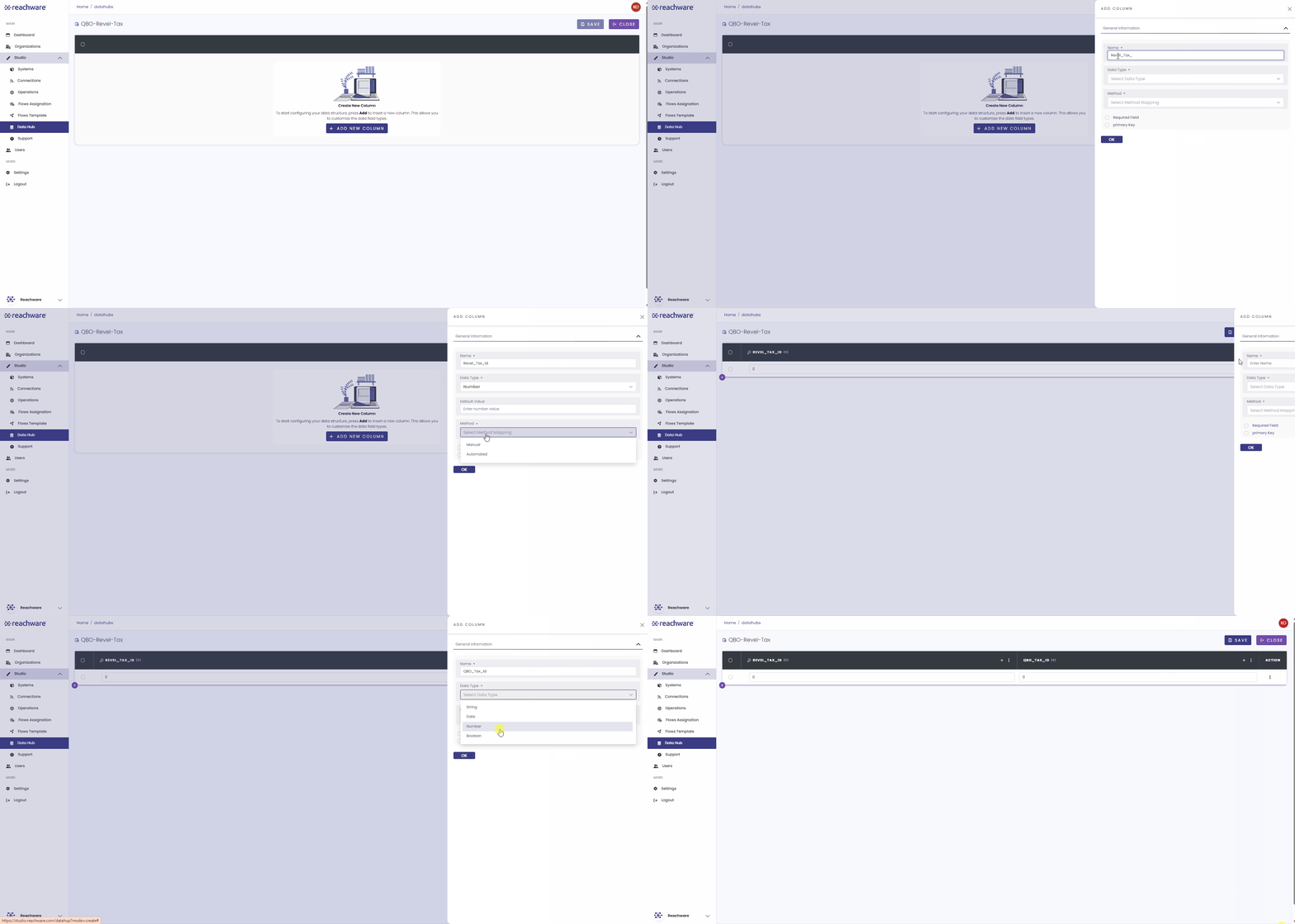
Step 2: Define Columns

  • Click Add Column.
  • Set the Name and Data Type.
  • Choose the Mapping Method based on the table below:
TypeDescription
AutomatedFetches data automatically from a connected system (requires an active connection).
ManualAllows you to enter data directly or map it dynamically from the flow.

For Automated Columns (Primary Key): Ensure you select the System & Operation, then click Test connection to verify.

  • Finally, click Save.

Add Data Hub Mapper In Flow

1

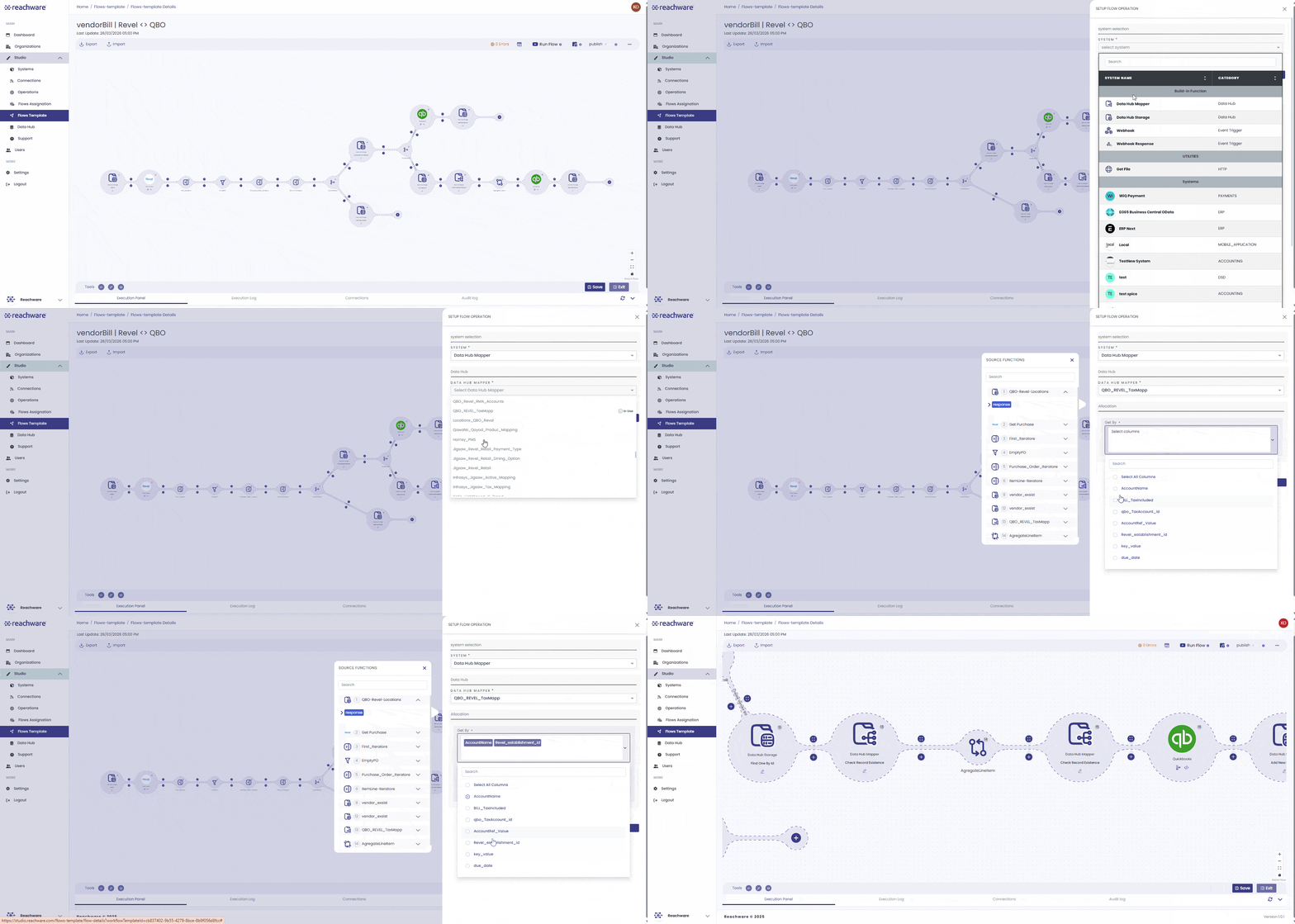
Click the + icon in your flow.

2

Select Data Hub from the Build In Function section.

3

Select Data Hub Mapper.

4

Choose the Data Hub Mapper you just created.

5

Get By: Choose the columns for lookup.

6

Map a value from previous steps for the selected column.

7

Click Save.

Related Articles

Was this article helpful?

That’s Great!

Thank you for your feedback

Sorry! We couldn't be helpful

Thank you for your feedback

Let us know how can we improve this article!

Select at least one of the reasons
CAPTCHA verification is required.

Feedback sent

We appreciate your effort and will try to fix the article