
Execution Controls
Execution Controls allow you to configure how your flow behaves during and after execution including error handling, flow chaining, and version management.
Access to Execution Controls
Open your Flow Template
Navigate to your flow inside Studio
Click the three-dot menu
Located in the top-right corner of the screen
Select Execution Controls
Opens the configuration side panel on the right
Configuration Settings
Send Email Error Notifications
Receive automatic email alerts whenever your flow encounters an issue during execution. Recommended to keep on for all live flows.
Each alert email includes two JSON attachments so you can investigate the failure without opening Studio:
Input Bundle
The exact payload sent to the failed step
Output Bundle
What the step returned (usually the error response)
Files are named FlowName_TransactionDate_Input_Bundle.json so you can track which run they belong to.
Size limit: 5 MB per file, 10 MB total per email. If a payload exceeds the limit, the email is sent without attachments inspect the run directly in the Execution Log.
Next Integration Flow
Chain another active flow to run automatically once this one completes successfully. Use this to build multi-step automation pipelines.
Choose Delay Between Flows
Set a waiting period (in minutes) before the next flow triggers. Default is 0 — the next flow starts immediately after the current one finishes.
Error Configuration
If a record fails during the execution:
○ Skip the failed record and continue to the next loop.
● Pause the process here until the issue is resolved.
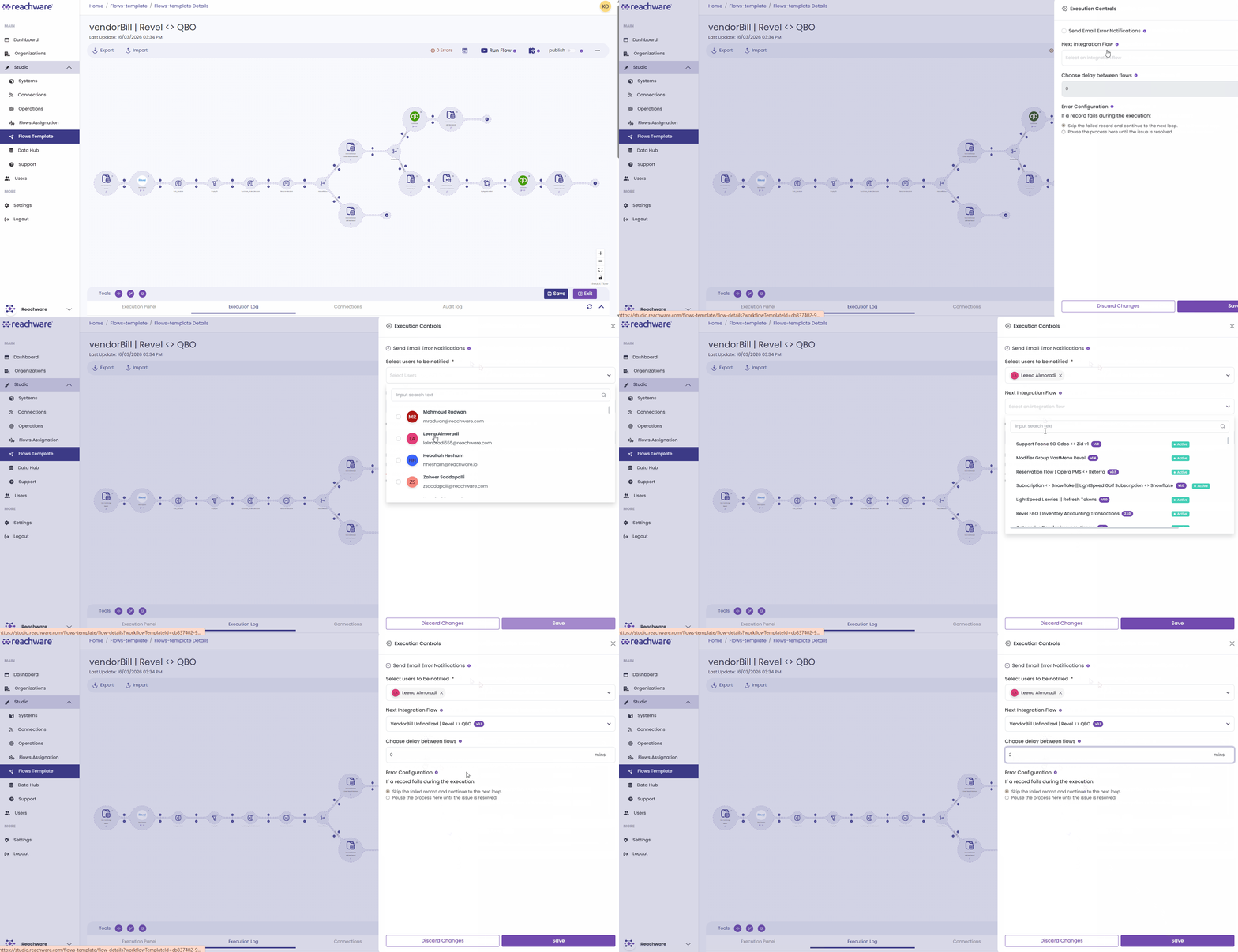
After configuring all settings, click Save at the bottom of the panel to apply your changes.
Version History
Found in the same three-dot menu, just above Execution Controls. Lets you save, track, and restore previous versions of your flow over time.
For more details, go to Version History →
Related Topics