
Filter
Filter controls which data can progress through your flow based on conditions you define. Only records that match your criteria will proceed to the next step, all others are stopped at this point.
How to Add a Filter?
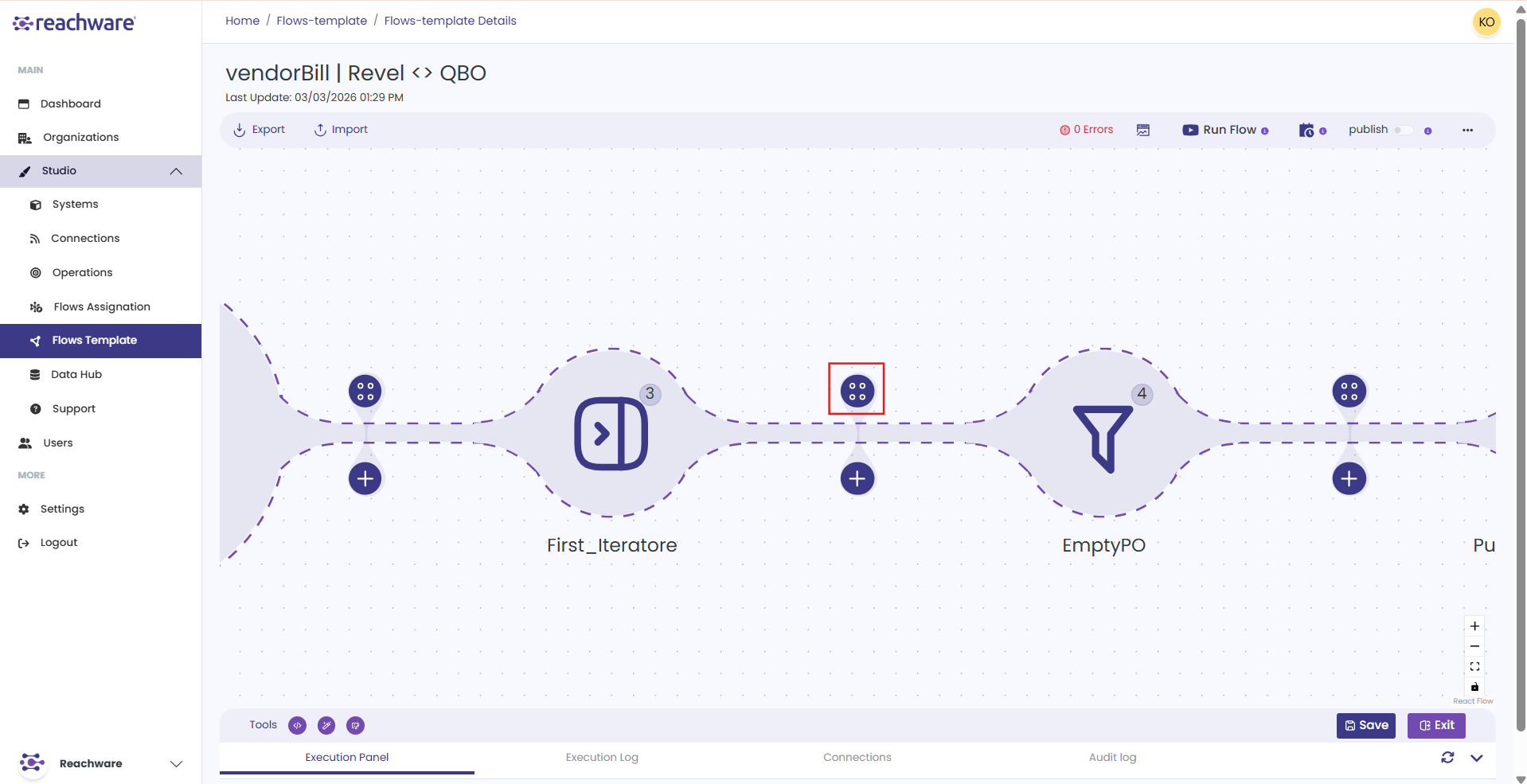
Click the Logic Processor icon in your flow
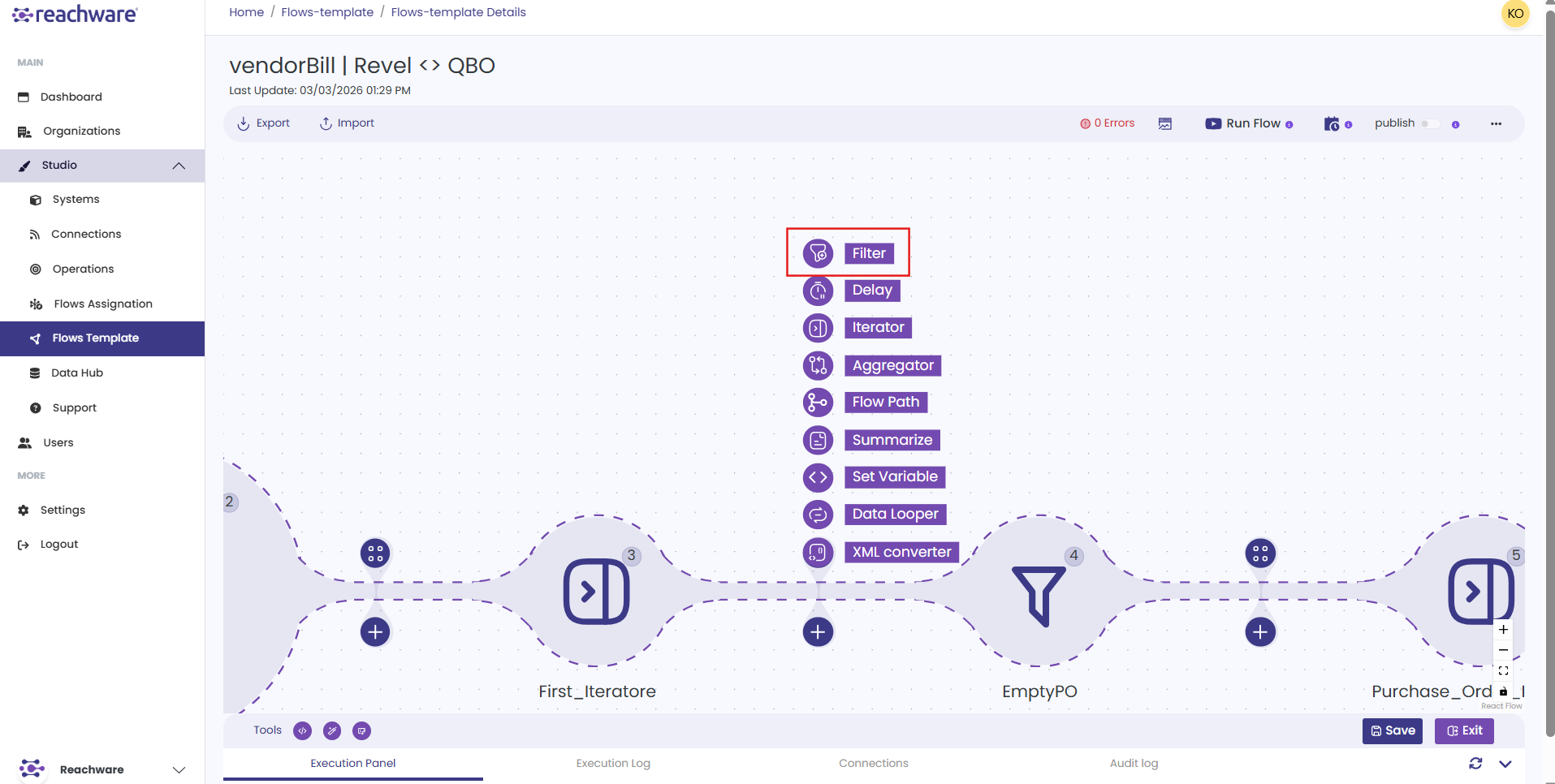
Select Filter from the list
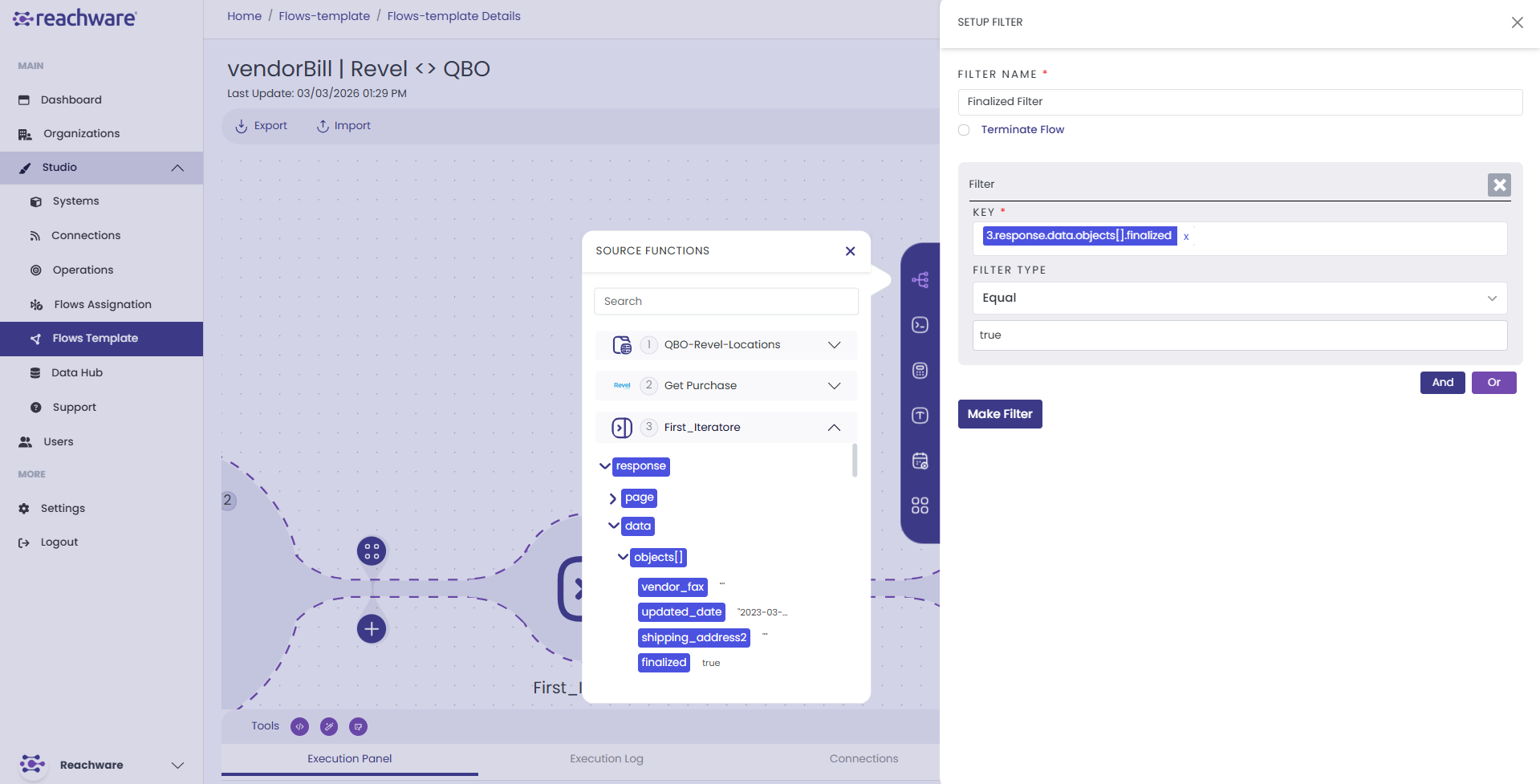
Enter a Filter Name, then define your conditions
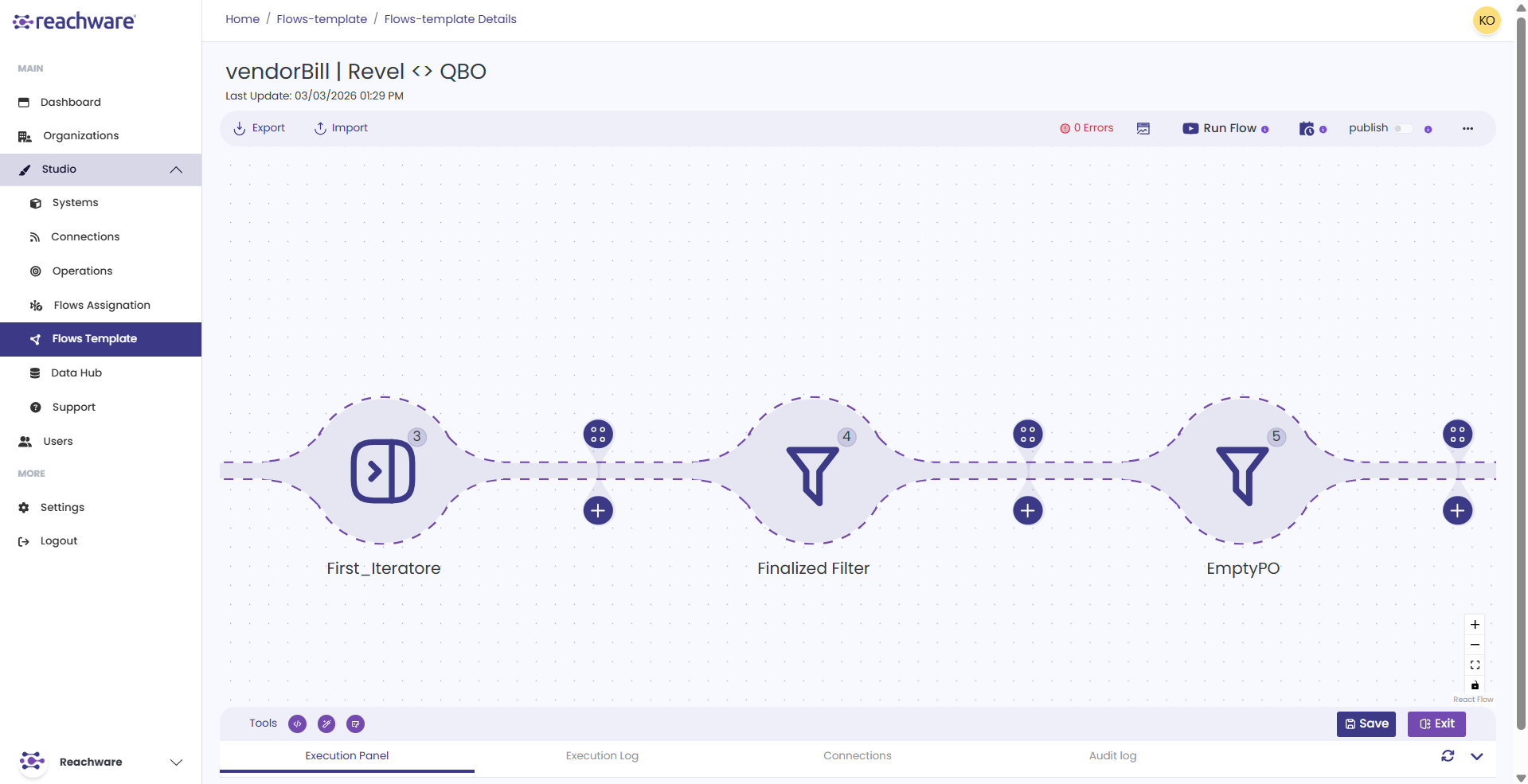
Click Make Filter to save
Configuration
| Field | Description | Required |
|---|---|---|
| Filter Name | Name to identify this filter in the flow | Yes |
| Terminate Flow | A checkbox, when enabled, the entire flow stops if no records pass or match the filter. Useful to prevent empty data from reaching the next step. | No |
| Key | The field from a previous step that you want to evaluate | Yes |
| Condition | The type of comparison to apply (e.g. Equal, Contains, Greater than) | Yes |
| Value | The value to compare the field against. Not needed for conditions like Is Empty or Is Null. | Depends |
Logical Operators
When you add multiple conditions, you need to define how they relate to each other using a logical operator:
AND - All conditions must be true
Use AND when you want to apply strict filtering. A record only passes if every condition is satisfied (true).
Only active customers with orders above 1000 will pass.
OR - At least one condition must be true
Use OR when records can qualify through different paths. A record passes if any one condition matches.
Records that are either urgent or emergency will pass.
Conditions
Text Operators
Use these when comparing text or string fields:
| Condition | Value Required | Example |
|---|---|---|
| Is Empty | No | Check if field is blank |
| Is Not Empty | No | Check if field has content |
| Equal | Yes | Status = "active" |
| Not Equal to | Yes | Status ≠ "cancelled" |
| Contain | Yes | Email contains "@gmail.com" |
| Does Not Contain | Yes | Email does not contain "@test.com" |
| Start With | Yes | Phone starts with "+966" |
| Does Not Start With | Yes | Phone does not start with "+1" |
| End With | Yes | Email ends with ".com" |
| Does Not End With | Yes | Email does not end with ".net" |
Numeric Operators
Use these when comparing number fields like quantities, prices, or totals:
| Condition | Value Required | Example |
|---|---|---|
| Equal | Yes | Quantity = 10 |
| Not Equal to | Yes | Quantity ≠ 0 |
| Greater than | Yes | Total > 1000 |
| Less than | Yes | Price < 500 |
| Greater than or equal to | Yes | Stock ≥ 100 |
| Less than or equal to | Yes | Discount ≤ 50 |
| Between | Yes | Price between 100 and 500 |
Additional Operators
General-purpose operators that work across different field types:
| Condition | Value Required | Description |
|---|---|---|
| Is Null | No | Field has no value at all (different from empty) |
| Is Not Null | No | Field has any value, even if it's zero or empty string |
| Matches | Yes | Field matches a specific pattern. |
Field Types
When defining the value side of a condition, choose the appropriate type:
| Type | Description | Example |
|---|---|---|
| Field | Compare one field against another field from the same record | {{quantity}} > {{min_stock}} |
| Value | Compare a field against a fixed, manually entered value | Status = "active" |
Make sure the data type of your field matches what you are comparing it to: String for text, Number for numeric values, Date/Time for dates, and Boolean for true/false fields.
Multiple Conditions
Click on And/Or to add more filter rules.
Example:
AND
Total > 1000
OR
Total < 50
Records where the Status is "active" and the Total value meets one of the following conditions: either greater than 1000 or less than 50 will pass.
Terminate Flow
When enabled, the entire flow stops if no records pass the filter conditions instead of continuing with empty data to the next step.
- Flow stops if all records are filtered out
- Prevents subsequent steps from executing with no data
Example: If no active customers are found after filtering, stop the flow entirely instead of sending an empty list to the next system.
Related Articles